

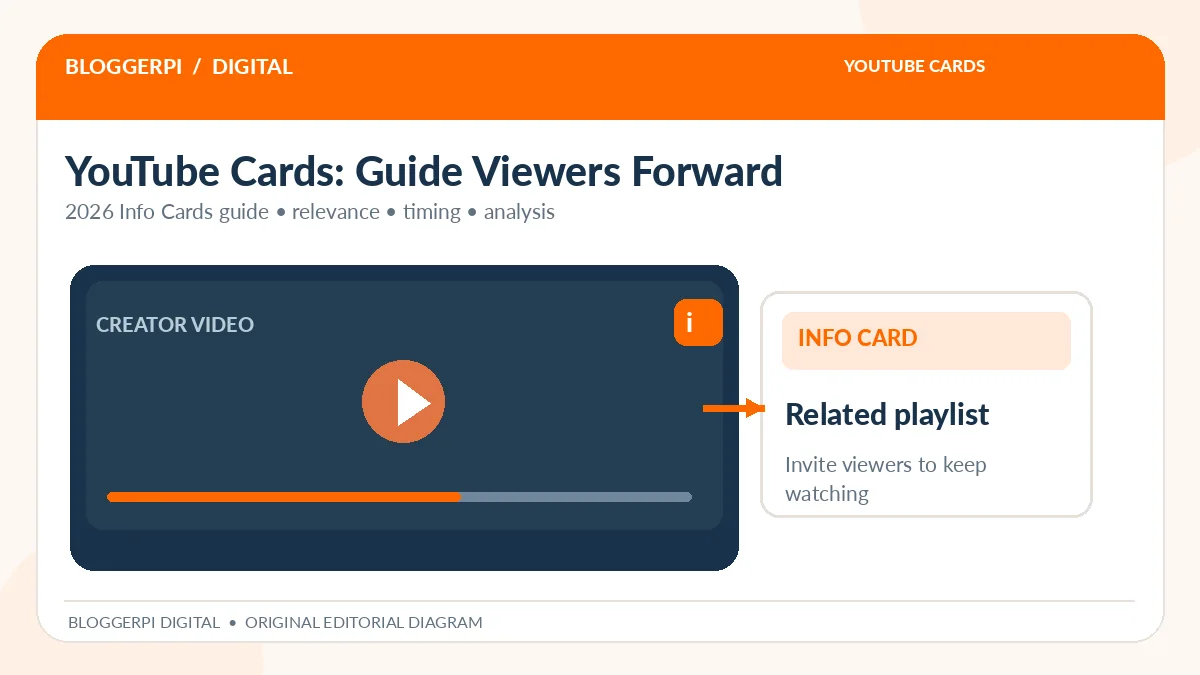
YouTube Cards, also called Info Cards, let creators guide viewers toward a relevant video, playlist, channel, or eligible external website while a video is playing. They can be especially useful in educational content when a viewer has just learned one concept and wants to explore a related tutorial. However, adding as many cards as possible does not guarantee more views or watch time. An early or irrelevant teaser can interrupt the lesson. This guide explains the current card types, the YouTube Studio workflow, where to place cards, how to apply them to small-business videos, and how to evaluate results without inventing engagement improvements.
What are YouTube Info Cards and how do viewers interact with them?
An Info Card is an interactive element associated with a particular moment in a YouTube video. Viewers may see a teaser and can open the card to explore the linked material. Its presentation may differ by device and viewer behavior. YouTube also evolves how relevant teasers are selected and shown. Creators determine which content the card promotes and the starting point in the video editor, but they should not assume every viewer sees an identical interface at exactly the same time.
Imagine a tutorial on setting up a YouTube channel. When the host introduces playlists, a card leading to a complete playlist tutorial becomes useful. Viewers who already know that material can keep watching; those who need extra steps can follow the reference. This is better than displaying an unrelated viral video simply because it performs well. For context, read what YouTube SEO means and our practical YouTube optimization guide.
Cards must supplement the main lesson, not excuse missing explanations. If your title promises a complete tutorial, the video should still fulfill that promise. Viewers with older devices or limited connectivity may not interact with every on-screen feature, so avoid making crucial steps available only through a card. A clear narration and a sensible video description are still valuable.

The four YouTube Info Card types
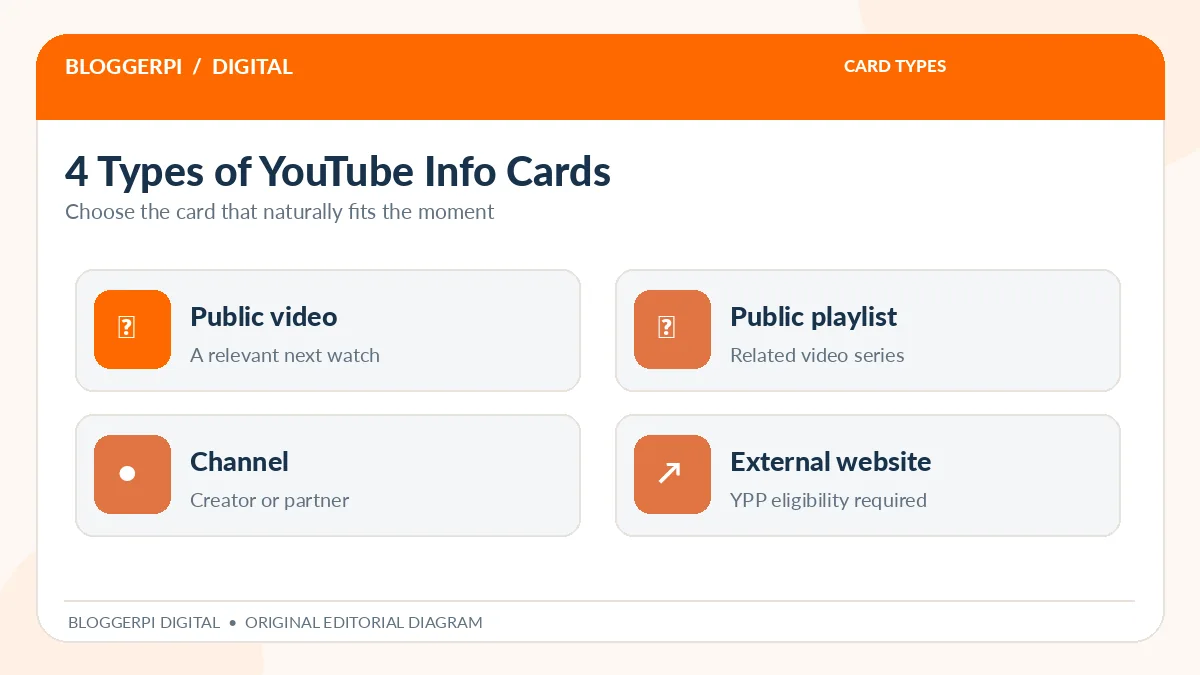
1. Video Cards: link to a relevant public video
A Video Card can recommend a public YouTube video that directly expands on the current discussion. For a lesson about creating a publishing strategy, a card leading to YouTube keyword research is more useful than an unrelated personal vlog. Confirm that the linked video remains public, accurate, and understandable for the audience. This is especially important with software tutorials whose interface may change. The best next video is the one that solves the viewer’s follow-up question.
2. Playlist Cards: organize a learning sequence
A Playlist Card can invite viewers to a public playlist around a topic. A small-business channel might have a series covering channel setup, content planning, production, and analytics. Give the playlist a descriptive title, place videos in a meaningful order, and remove outdated resources. Do not send someone who needs a specific two-minute explanation into a sprawling collection of unrelated videos. Our YouTube Studio beginner guide can help organize videos and channel resources.
3. Channel Cards: recommend a collaborator
Use a Channel Card to introduce a creator, interview guest, subject-matter expert, or collaboration partner whose other videos genuinely help the viewer. YouTube requires message and teaser text for channel cards, so explain the connection in ordinary language. A note such as “Watch the guest’s complete demonstration” offers context; “Visit this channel” does not. Avoid treating Channel Cards purely as cross-promotion obligations when the recommended channel has little relation to the topic.
4. Link Cards: check YouTube Partner Program eligibility
External website links through Info Cards are not automatically available to every channel. YouTube’s official documentation identifies the YouTube Partner Program as a requirement for this card type, and linked websites must comply with its rules. Do not build a conversion campaign around an external Link Card before confirming the channel is eligible. If that option is unavailable, use relevant video or playlist cards and another permitted way to provide information. Misleading external destinations can expose a channel to policy enforcement.
Cards versus End Screens: why the difference matters
Info Cards are designed to complement a section of a video. End Screens appear near the closing portion and offer next steps after the main material. They have their own duration and element rules. YouTube notes that certain interactive elements, including cards, can be hidden while an End Screen is displayed. Plan these features together rather than overlapping them without considering what viewers actually see.
A straightforward educational journey might use one Card at the point where a complex concept is mentioned, then an End Screen offering the next lesson after the main explanation concludes. Both should feel like helpful navigation, not competing advertisements. Read our guide to YouTube End Screens for the related outro workflow. On tutorial channels, carefully chosen references often serve viewers better than excessive clickable elements.
How to add YouTube Cards in YouTube Studio
The current desktop help workflow is to sign in to YouTube Studio, choose Content, open the intended video, select Editor, choose Info cards, then select the card type. Set the destination and the starting time, provide optional or required message and teaser text as appropriate, and click Save. YouTube documents a maximum of five Info Cards per video. The limit is not a recommendation that every upload should contain five cards; the number should follow the actual content.
If Info Cards are missing from your editor, confirm that you selected the correct video, that your channel and content are eligible, and whether restrictions such as Made for Kids affect the feature. The layout may differ from older tutorials about Creator Studio Classic. Do not click through unfamiliar menus simply because a decade-old screenshot says a button should be there. Start with our YouTube channel setup checklist if the publishing interface is still unfamiliar.
To add one Video Card, choose a published video that expands on the current topic. Locate the moment where the presenter refers to that subject, set the card’s time, and write a short teaser that honestly describes the linked content. Save the changes and inspect the published video from a viewer perspective. Where possible, test both desktop and mobile, remembering that the exact teaser appearance may vary. Verify that the destination has not been made private or deleted.
When should a YouTube Card appear?
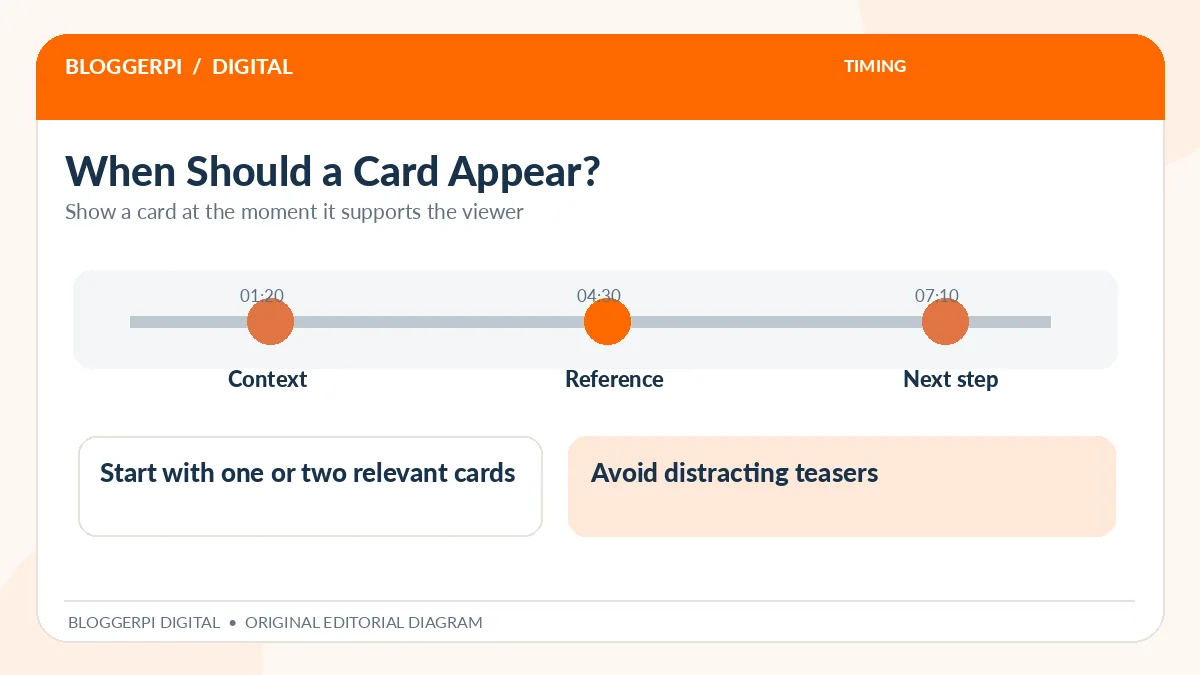
There is no universal best minute for card placement. In an eight-minute software demonstration, a link to an advanced settings guide might be appropriate when those settings are first introduced. A series playlist may be more helpful when a module finishes. Pushing every link into the first minute can distract people before they have received the value promised in the title. Use the lesson structure and the moment of viewer need to guide placement.
Add a simple reference column to your script or editing plan: section title, possible follow-up question, destination, and ideal point of introduction. If the presenter says, “I cover the full workflow in a separate video,” put the card near that sentence. Do not ask viewers to click something every few seconds. The main lesson should still be coherent without the supplementary material. Production teams can integrate these notes into their social media publishing calendar.
Starting with one or two highly relevant cards is often a manageable way to learn from results. A longer educational video with several distinct chapters might justify additional links, but more cards can increase distraction. Treat the maximum of five as a technical boundary, not a growth target. Test according to viewer intent and audience feedback rather than copying a number from a generic optimization checklist.
Examples for businesses, creators, and educational channels
Product demonstrations and follow-up tutorials
A kitchen equipment brand publishes a video introducing an espresso machine. When the presenter discusses filter cleaning, a Video Card can point to a detailed maintenance demonstration. The viewer receives an answer at the right moment while remaining free to continue the introduction. At the end, an End Screen can offer a complete product-care playlist. The business should evaluate whether the video sequence reduces confusion and improves user confidence, not just whether one card received clicks.
Educational webinars and playlist pathways
A digital marketing agency delivers a webinar on SEO basics and creates shorter chapters about research, writing, and reporting. A Playlist Card can connect the research chapter to the wider series. If the webinar was recorded live, production quality and chapter structure matter before cards are added. Our OBS Studio livestream tutorial describes an approach to capturing screen-based instruction clearly. Cards become more useful when each follow-up video has a distinct, predictable purpose.
Creator partnerships and audience trust
A business commissions a creator to review a product. The video may include a Channel Card to the collaborator when the creator contributes unique expertise or a related demonstration. Explain the relevance and disclose commercial relationships where applicable. This should support a thoughtful YouTube marketing strategy and the business’s lead-generation goals, not appear as an unexplained promotion unrelated to the review.
Writing useful messages and teaser text
Teasers should be short, clear, and aligned with the destination. Examples include “See the full demo,” “Continue to part two,” or “Explore the related playlist.” Avoid claims that cannot be supported, such as guaranteed rankings, immediate earnings, or a promised viral result. The viewer should understand the next step before clicking. For Channel Cards, ensure any required message and teaser fields are completed and that they describe why the recommended source is relevant.
Choose a card destination based on the question the viewer has at that moment. When discussing research techniques, a follow-up video about YouTube keyword research or TubeBuddy’s free research tools might make sense. A video only loosely connected by a common keyword may not. The best internal YouTube path is a purposeful continuation, not an arbitrary attempt to send traffic elsewhere.
How to measure Info Card results in Analytics
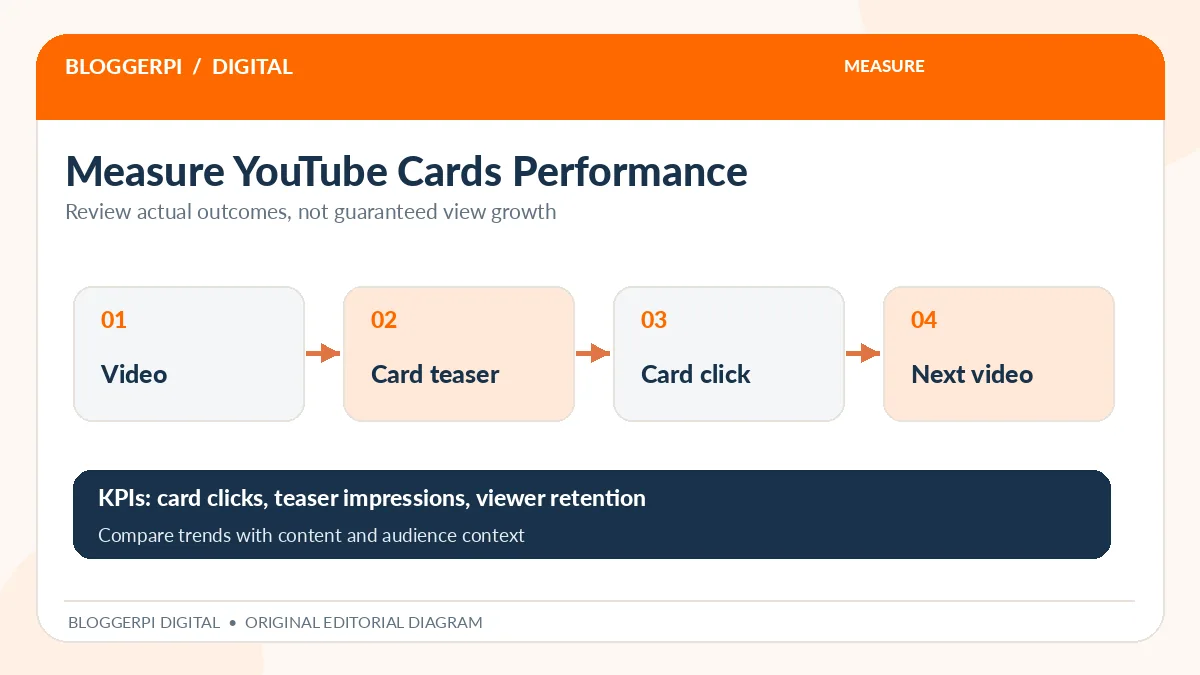
Look for card interaction reports in YouTube Analytics when your account exposes them. Names and availability of metrics can change across interfaces and reporting periods. You might be able to assess teaser impressions, clicks, or click-through rates, but never invent those numbers because a dashboard does not display them. Compare meaningful time windows and consider traffic sources, video age, seasonal interest, audience composition, and other changes such as new thumbnails or edits.
A high card click count does not automatically mean the original video’s retention improved. In some cases, viewers leave the current lesson early after finding the better next resource. That may be a useful educational outcome or an undesirable interruption, depending on the video goal. A structured series might value successful progression, while a self-contained tutorial might prioritize finishing the current video. Your content planner should define which outcome matters before evaluating the numbers.
Maintain a basic tracking sheet containing the source video URL, card type, destination, timing, installation date, and whatever interaction metrics YouTube actually provides. Write “not available” when reporting is missing rather than assuming zero performance. Evaluate trends over a reasonable period with sufficient activity, and record each change so future comparisons are interpretable. A measured experiment is more useful than a claim that one placement increased all future watch time.
Common YouTube Card mistakes to avoid
Frequent problems include adding five cards because the interface permits it, linking a popular but unrelated video, showing teasers during a difficult step, and assuming external Link Cards are accessible to all channels. Others include placing a card over an End Screen, forgetting that the destination video is now private, or copying outdated instructions for a retired interface. Many of these issues can be caught by testing one representative video carefully before applying the approach across an archive.
Do not market Cards as a guaranteed algorithm hack. A relevant, accurate and pleasant video experience is still more important. Review the capabilities and limits of YouTube SEO tools when expanding your workflow, but avoid adding tools simply to increase the number of settings you can tweak. An excellent video with one useful card may outperform a confusing video loaded with irrelevant prompts.
A practical Info Card QA checklist
- The main video solves the problem promised in its title.
- Every destination is relevant to the segment where the card appears.
- Video and playlist targets are public and playable.
- Channel cards have the required descriptive messages and teasers.
- External website cards meet applicable YPP and policy requirements.
- Card count stays within the official limit and is not excessive.
- Placement does not compete unnecessarily with End Screen elements.
- The public viewing experience has been checked on multiple devices when practical.
- Any available card interactions are recorded for later review.
Frequently asked questions
How many Info Cards can a video contain?
YouTube currently documents a maximum of five Info Cards per video. A creator can use fewer, and the ideal number depends on the specific lesson.
Can every channel link to an external website?
No. YouTube documents eligibility restrictions for external Link Cards, including YouTube Partner Program membership and compliance with platform policies.
Are Cards the same as End Screens?
No. Cards complement a video while it plays, while End Screens appear during the closing portion and follow different rules. Some elements may be hidden when an End Screen is visible.
Do Cards guarantee more views or watch time?
No. Outcomes depend on relevance, user behavior, destination quality, and the video itself. Use real Analytics data to assess the effect.
Why is the Info Cards editor missing?
Check your video, account eligibility, content restrictions, and the current YouTube Studio interface. Use official Help Center instructions when older tutorials no longer match your screen.
Official references
- YouTube Help — Add info cards to videos
- YouTube Help — Add end screens to videos
- YouTube Help — Edit video settings
- YouTube Help — Get started with YouTube Analytics
- YouTube Help — Manage advanced feature eligibility
In summary: use Info Cards as a viewer-navigation tool, not a shortcut to growth. Add them when a relevant resource would help, make the teaser honest, verify that the destination is available, and review outcomes with accessible evidence. A clear and useful educational journey matters more than filling every card slot.
