

Changing a WordPress theme safely involves considerably more than clicking Activate. A theme controls much of a website’s presentation and may influence templates, navigation, widgets, typography, page-builder layouts, and the appearance of article content. While ordinary post and page content is generally retained in the database, many design-related elements can behave differently after you switch.
This guide is for website owners, marketers, publishers, and developers planning a redesign without unnecessarily disrupting visitors or search visibility. It explains what can change, how to back up and test a new theme, how block themes differ from classic themes, what to inspect after activation, and how to recover when something goes wrong. If you are new to the platform, our 17-step WordPress learning roadmap provides the wider context first.
What actually happens when you change a WordPress theme?
A theme is a collection of templates, design rules, and other components that determine how a site appears. Switching themes generally does not delete the underlying posts, pages, users, or media stored in WordPress. But their presentation can change: headings can look different, menus may need new assignments, widget areas may disappear, and custom templates may no longer exist in the new theme.
It is particularly important to distinguish classic themes from block themes. Classic themes may rely on the Customizer, PHP templates, traditional menus, and widget areas. Block themes use the Site Editor for many template parts and global styles. The exact menu labels available to you depend on your theme and your account permissions, so older tutorials may not match your dashboard precisely.
| Component | What could change? | Verification |
|---|---|---|
| Posts and pages | Content usually remains, but formatting can change | Headings, tables, images, blocks |
| Navigation and header | Menu locations and header layout may differ | Desktop/mobile menus and links |
| Widgets and sidebars | The previous widget areas may be unavailable | Sidebars, footer, forms, promotions |
| Templates and builders | Custom layouts can break or need rebuilding | Homepage, services, archives |
| Search appearance | Markup, schema, breadcrumbs, and scripts may differ | Canonical, metadata, indexability |
| Performance | Styles, scripts, fonts, and images change | Mobile usability and Core Web Vitals |
Before you switch: inventory, backups, and a test environment
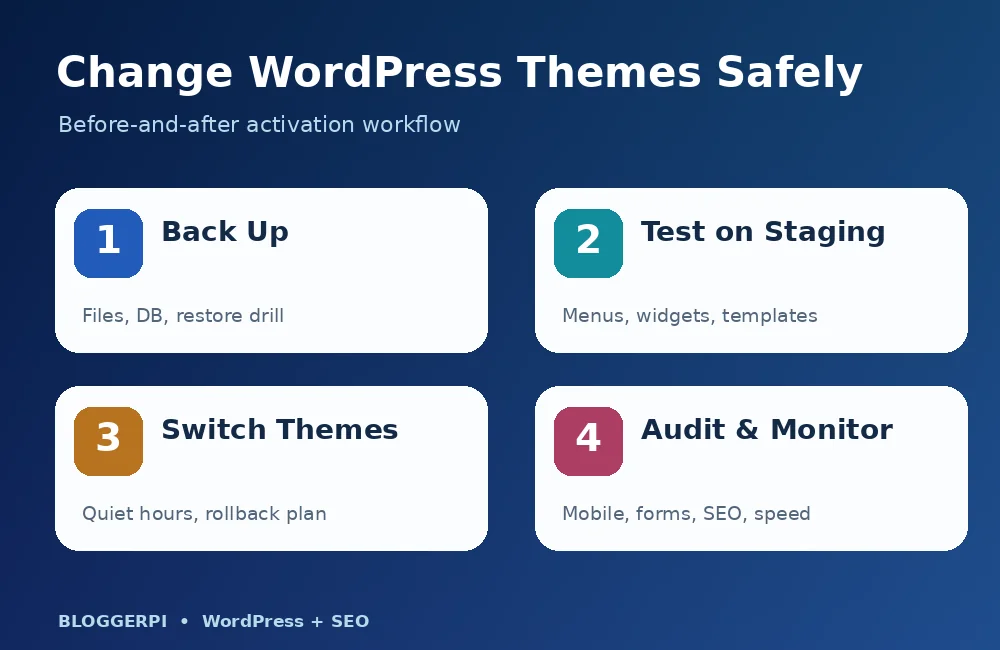
1. Audit your current theme and its dependencies
Record the active theme name and version, whether a child theme is in use, relevant builder plugins, SEO tools, cache layers, custom CSS, shortcodes, and theme-specific widgets. Capture screenshots of the homepage, header, footer, high-value service pages, and a few representative articles. If a business depends on contact forms, chat buttons, checkout flows, appointment booking, or a multilingual menu, include those in the inventory.
Not every component belongs to the active theme. Some features come from a plugin, some from a site-building system, and some from WordPress core. Understanding plugin responsibilities and selection criteria helps preserve the right dependencies. Understanding WordPress pages and posts helps you identify which content must remain accessible after the transition.
2. Create a full, restorable backup
A recoverable WordPress backup must include the relevant database, uploaded media, themes, plugins, and configuration files. Keep a copy outside the production server, and test the restore procedure on an isolated environment. A scheduled backup indicator is not evidence that the file can be restored under pressure.
For an active business, define a recovery point objective and the practical impact of reverting a database. If new leads, comments, orders, or account changes are made after the backup, replacing the live database with an old copy may lose those records. Plan how you would reconcile new data before restoring anything.
3. Test on staging instead of the live site
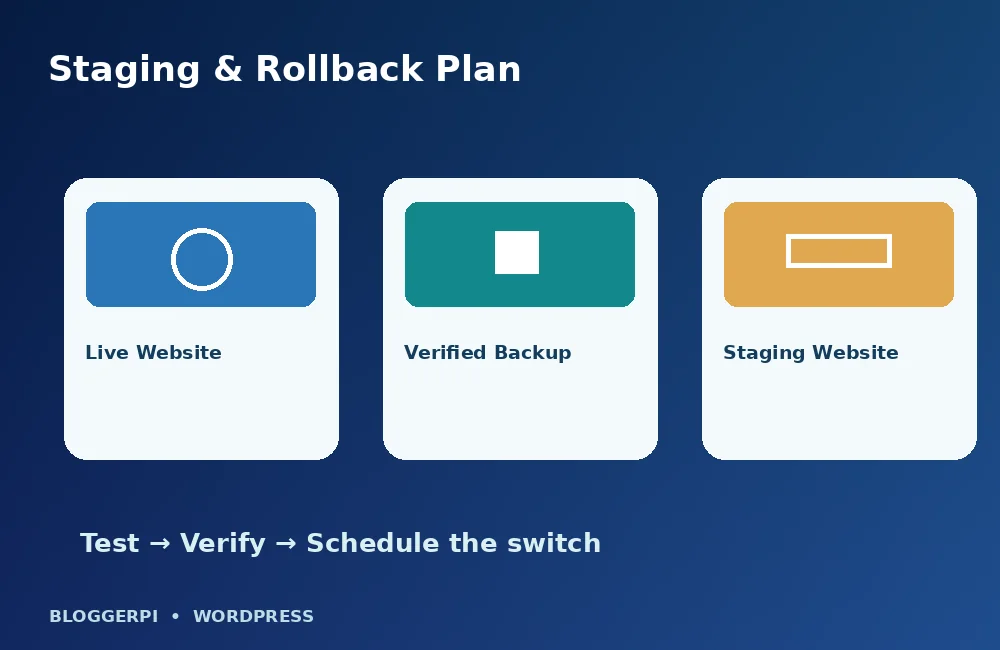
A staging site is a private copy used to test software and design changes safely. Keep it close enough to production that plugin versions, PHP compatibility, and page templates are representative. Protect it from unauthorized access and accidental search indexing. Avoid letting a staging copy send real customer emails, process payments, or write to live integrations during tests.
If staging is not offered by your host, a developer can create an isolated installation. A migration workflow shares some of the same challenges; see how to move WordPress hosting without changing the domain for relevant server and data considerations.
4. Choose a maintainable theme, not just an impressive demo
Assess theme updates, WordPress and PHP compatibility, accessibility, responsive behavior, support documentation, and the developer’s maintenance record. Consider how the theme handles navigation, reusable blocks, global styles, and templates. A premium license should have clear renewal and support terms, and you should understand which features stop working if the license expires.
Test the theme against real content: a long article with tables, a service page with calls to action, a form-heavy contact page, and a mobile menu with nested links. A beautiful demo can hide limitations that become obvious with real data.
How to install and activate a new WordPress theme
5. Open Appearance → Themes
Sign in with an account permitted to manage themes. Open Appearance → Themes in the WordPress dashboard. You may select Add New Theme to browse the official directory, or Upload Theme when you have a trusted ZIP package from a theme vendor. Do not install an unlicensed or modified premium theme from an unknown download site.
If you cannot see the Appearance options, check your role, hosting restrictions, or whether a network administrator manages themes for the installation. Not every WordPress user is authorized to switch a live site’s theme.
6. Install and preview before activation
Install the candidate theme on staging first. A preview can help you spot obvious design issues but is not a substitute for a full test. The website may use plugins that add custom fields, post types, builder templates, or complex forms that need specific checks. Preview at narrow and wide screen sizes and verify at least one representative page from each template type.
If you have modified theme files directly, inspect whether those changes need to become a maintained child theme or a plugin. Changes made to parent-theme source files can disappear with an update. The official WordPress child themes documentation explains this architecture.
7. Activate the new theme on staging and configure the layout
Once you have a backup and an agreed test plan, click Activate in staging. Reconfigure header, footer, logo, colors, typography, content width, navigation, and relevant templates. Do not blindly copy every setting from the previous theme: different architectures may require a different layout strategy.
For a block theme, use Appearance → Editor to inspect templates and Styles. A classic theme may expose settings through the Customizer or its own configuration panel. When a page builder is also installed, check whether it and the theme both generate a header or footer; duplicate layouts can be confusing and difficult to maintain.
8. Verify menus, widgets, archive pages, and custom templates
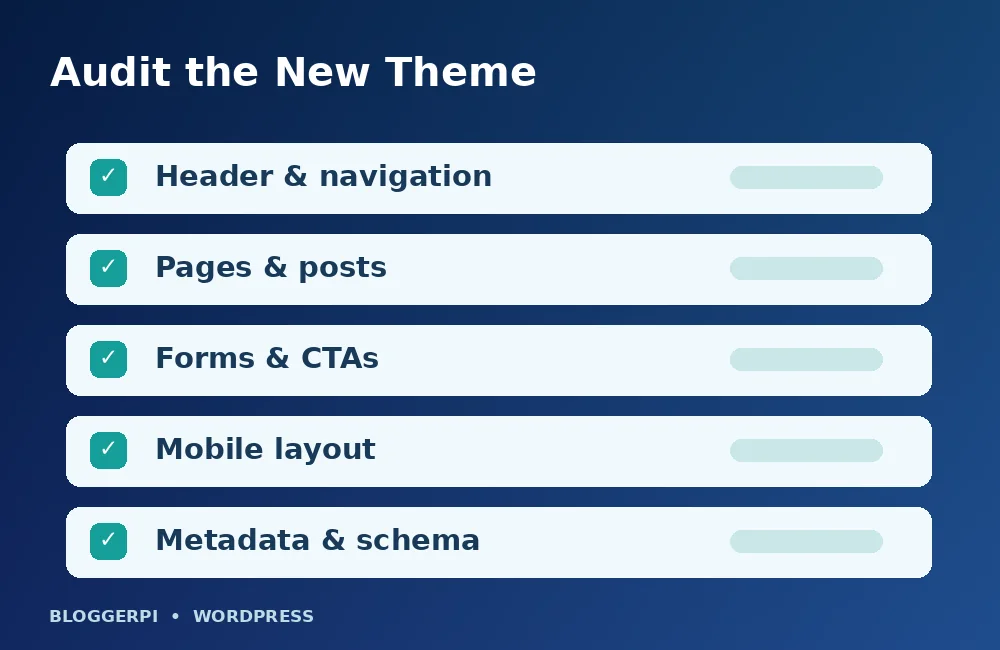
Check all navigation destinations, including dropdowns and mobile overlays. Reassign menus when the new theme uses different locations. Inspect former sidebar and footer widget areas, search forms, comment sections, archive layouts, breadcrumbs, and promotional components. For multilingual sites, test navigation separately in every supported language and confirm translation links go to the correct page.
The Settings → Reading choice for a static homepage may still be set, but the new theme can render it differently. Our website breadcrumb guide and hyperlink reference can help when reviewing site navigation. Do not assume a successful homepage preview proves the whole content structure works.
Run a thorough quality assurance review
9. Inspect content, mobile usability, and accessibility
Open the staging website as a visitor rather than only as a logged-in editor. Compare important pages with your baseline screenshots. Check for one clear H1 per page, readable body text, intact tables, correct image dimensions, usable buttons, sensible color contrast, keyboard navigation, and properly labeled forms.
Long-form articles and responsive tables often expose styling problems that are invisible on a short homepage. Make sure narrow screens do not require awkward horizontal scrolling, aside from deliberately scrollable data tables. If you notice layout shifts, investigate the root cause before adding arbitrary CSS overrides.
10. Confirm SEO data and indexing controls survived
Review rendered title tags, meta descriptions, canonical URLs, robots directives, heading order, structured data, breadcrumb output, and XML sitemap references. A theme may add its own markup, alter templates, or load scripts that influence the rendered page. Do not rely solely on the values displayed inside an SEO plugin panel; inspect the actual output or an appropriate site audit. Our technical SEO checklist covers additional checks that may reveal regressions.
If the permalink structure and URLs remain unchanged, changing a theme normally does not itself require URL redirects. If your redesign also reorganizes content paths, document old and new URLs separately. Our explanations of canonical tags, 301 redirects, and XML sitemaps will help clarify these decisions.
11. Compare website speed and stability fairly
Theme changes can affect layout stability, font delivery, stylesheet size, and the amount of JavaScript required to render pages. Test representative URLs under reasonably similar conditions and review metrics such as page load behavior and interaction responsiveness. Avoid treating a single perfect synthetic score as proof that the actual experience improved.
The WordPress PageSpeed Insights guide explains how to investigate common issues. Clear only the relevant page or asset caches after substantial styling changes, using your host and caching plugin’s recommended controls. If your site uses a CDN, review Cloudflare configuration for WordPress before changing cache rules. Repeated global cache purges can introduce noise without fixing the underlying problem.
12. Verify forms, ecommerce, analytics, and conversions
For service sites, submit a safe test inquiry and confirm it arrives at the intended destination. Test contact and booking links, consent banners, analytics events, and any embedded booking tool. For commerce, use a suitable sandbox or non-chargeable test process to review product display, carts, checkout, and customer notifications.
Any integration built with custom post types, templates, or page builders deserves a separate representative test. A site can look normal at first glance while a hidden form action, mobile button, or language-specific URL is broken. The completion criterion is a functioning customer journey, not merely a theme marked Active.
How to deploy a tested theme to the live website
Schedule a period of lower activity, notify team members, capture a fresh production backup, and document exactly what should change. If your staging provider offers a push-to-live feature, inspect whether it copies files, database tables, or both. Overwriting production database records with an older staging snapshot can erase new orders, comments, or leads, so a high-traffic website may require a more selective deployment method.
Make the tested changes, open the public homepage and most important conversion pages, then repeat core menu, form, and SEO checks. Keep a change log and avoid removing the old theme or backup prematurely. Note any differences between staging and production for a focused fix rather than redesigning the whole site again.
Troubleshooting after a WordPress theme switch
The menu, widgets, or layout look wrong
Review menu locations, registered widget areas, template selections, header and footer options, and cache state. Compare the live environment with staging to isolate differences. A missing menu does not necessarily mean its menu items were deleted; the new theme may simply use a different display location.
The website shows a PHP error or blank screen
If you retain dashboard access, switch back to the known working theme. Otherwise use your hosting control panel and an established recovery procedure to disable the problematic theme and inspect server logs. Restore from a verified backup if needed, taking care to preserve new business data created after the snapshot.
Page-builder content or shortcodes stop rendering
Identify whether the content depends on a plugin, the old theme, or a proprietary component. Check compatibility, template assignments, and required extensions before attempting content replacement. A bulk edit carried out without understanding the builder’s stored data can create more work than the original theme change.
Pre-launch and post-launch checklist
- Database and file backups are available outside the production server, and restoration has been tested.
- Homepage, services, contact, article templates, and archives have passed review.
- Header, footer, desktop/mobile menus, widgets, forms, and calls to action work.
- Multilingual URLs and language switchers resolve to the proper translations.
- Titles, descriptions, canonical URLs, robots directives, schema, and XML sitemaps remain correct.
- Images, tables, forms, and interactive components behave on mobile devices.
- Major performance regressions have been investigated against a comparable baseline.
- There is an owner, rollback plan, documented change log, and monitoring period.
Frequently asked questions
Will changing a WordPress theme delete my content?
Ordinary posts and pages are generally retained, but their appearance and theme-specific modules may change. Always back up the site and test a sample of representative content before a production switch.
Can switching themes damage my SEO?
It can affect search visibility indirectly if the change introduces broken navigation, slow layouts, incorrect metadata, lost schema, or accessibility problems. Preserving permalinks alone is not sufficient evidence that all SEO-related output stayed the same.
Should I install new plugins with the theme?
Only when a required function is genuinely missing and the plugin is compatible and maintainable. Avoid introducing unnecessary dependencies simply because a theme vendor suggests a large bundle.
Is it safe to switch directly on a live site?
Small, low-risk sites may recover quickly, but a production website with leads, sales, or complex integrations benefits significantly from a tested backup, private staging environment, and rollback plan.
Conclusion
A successful WordPress theme change is a controlled migration of the user experience, not a visual experiment performed on visitors. Plan the dependencies, test the design with real content, verify conversions and SEO output, and be ready to reverse the change if critical checks fail. Bloggerpi can help organizations approach theme redesign and website optimization as a measurable project rather than a cosmetic update.
Official references
- WordPress.org — Work with themes
- WordPress.org — Block themes
- WordPress.org — Site Editor
- WordPress Theme Handbook — Child Themes
- WordPress Advanced Administration — Backups
