

Learning WordPress from scratch becomes much easier when you follow a clear project roadmap instead of jumping between unrelated tutorials. This guide walks through 17 practical steps, from understanding domains and hosting to publishing useful content, configuring basic SEO, testing backups, and launching a website. It is designed for founders, marketers, bloggers, and first-time website managers who want a site they can maintain.
WordPress is an open-source content management system used for many kinds of websites. You can start with a simple business site and later add a portfolio, resource center, online store, or multilingual content. If you need the platform overview first, read our guide to what WordPress is, how it works, and its limitations. This article focuses on what to learn and in what order rather than repeating each installation or feature tutorial.
Define what a successful first website looks like
Choose a realistic practice project before touching the dashboard. A small consultancy site might need a homepage, about page, service pages, contact page, and three helpful articles. A good first result is not merely an attractive template: a visitor should immediately understand the offer, find key information, and complete an intended action without confusion.
Write down your audience, one primary conversion goal, your brand’s main message, essential pages, and who will maintain the website. Keep a simple log of major changes and issues. If you are learning on an existing business site, experiment on a staging copy rather than using the live site to try risky changes.
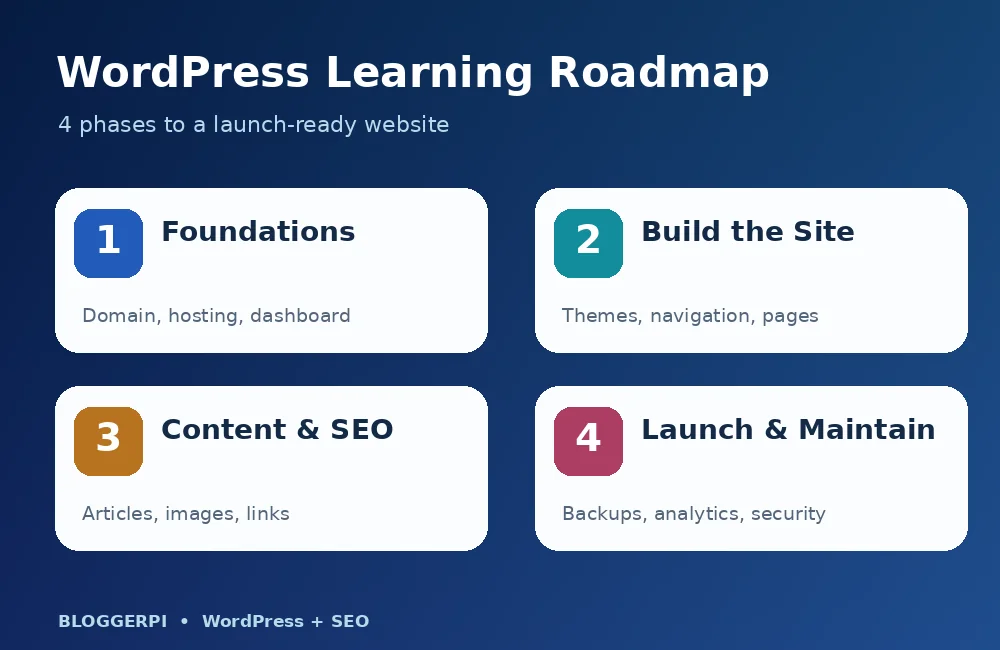
Phase 1: Understand the WordPress foundations
1. Know the difference between WordPress, a domain, and hosting
A domain is the address people type or follow to reach your site. Hosting provides the server resources for its files and database. WordPress is the software that helps you create, publish, and manage the pages visitors see. These are separate components, and a website owner should know who controls each account. Losing access to the domain or hosting can be more disruptive than forgetting where a dashboard option lives.
When evaluating a host, check support for currently maintained PHP and database versions, HTTPS, backups, practical support, and expected traffic. You can use our WordPress introduction alongside official requirements to discuss setup with a provider. Avoid paying for oversized resources before you have a credible use case.
2. Understand WordPress.org and WordPress.com
WordPress.org distributes the open-source software you can install on compatible hosting. WordPress.com is a managed hosting platform offering plans with different features and restrictions. Both may be suitable, but they differ in operational responsibility, customization, plugin availability, and pricing. Research what the chosen plan actually permits instead of assuming every WordPress installation works identically.
For business teams, clarify the desired level of control before buying hosting or a premium plan. A simple editorial website may not require server access, whereas custom integrations, advanced plugins, and specialized development can change that decision.
3. Install WordPress and secure administrative access
Installation can be performed through a hosting control panel or manually. Confirm that the domain resolves correctly, the database connection works, HTTPS is enabled, and the administrator account uses a strong unique password. Keep credentials in a password manager and avoid using one shared administrator account for a whole team.
For the technical walkthrough, see how to install WordPress on hosting or localhost. After installation, verify the public homepage, login page, and dashboard. Document the baseline software version and the plugins that were installed by default.
4. Explore the dashboard and user roles
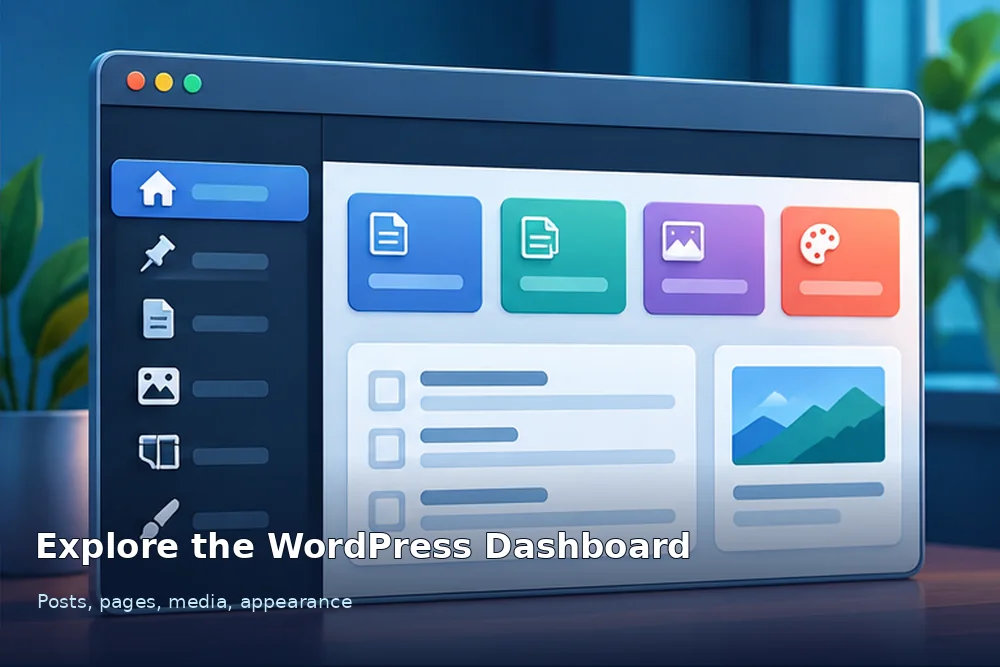
The dashboard is where day-to-day management takes place. Posts hold time-oriented articles, Pages usually hold evergreen site information, Media stores uploaded assets, Appearance controls many design options, Plugins extend features, Users manages accounts, and Settings covers important site-wide choices. The actual menu may change with the active theme, plugins, and user permissions.
Give team members only the access their work requires. An editor may need to publish content but should not automatically receive permission to install plugins. Administrator access is powerful; restrict it to trained maintainers, protect it with appropriate authentication, and review access when a contractor’s work ends.
Phase 2: Build a site visitors can actually navigate
5. Configure general settings and permalink structure
Review the site title, administrative email, language, and time zone in Settings. Decide whether the homepage should display recent posts or a static page. Then choose a readable permalink structure, often based on the post name. A clear URL helps visitors understand what they are opening and makes editorial workflows easier to maintain.
Do not casually change a long-established permalink structure on a live site. Existing links may require redirects, and you should test canonical URLs and sitemap output after any restructuring. Our URL slug guide explains naming conventions and common SEO mistakes.
6. Choose a theme that fits the job
A theme shapes how the website is presented. Block themes work with the Site Editor and can expose templates, site-wide styles, headers, and footers through blocks. Classic themes typically use a different arrangement of theme options, menus, and the Customizer. Neither category should be selected on appearance alone.
Evaluate mobile layouts, accessibility, support history, ongoing updates, and compatibility with the functionality you need. If you are changing an existing website, test a new theme on staging and back up both files and database before activation. Follow our detailed guide to changing a WordPress theme safely for the complete migration checklist. Theme-specific widget positions and design settings may need reconstruction even when post content remains stored.
7. Create the essential business pages
Build a concise homepage describing what the business does and for whom. Add useful About, Services or Products, and Contact pages, plus relevant privacy and policy information. Each page should help a specific reader complete a task: assess fit, understand an offer, contact the team, or find credible proof.
Understand the difference between WordPress pages and posts before placing every piece of information in the blog. A stable pricing or services page generally deserves a more permanent information structure than a chronological article.
8. Organize navigation, categories, and content paths
Keep top-level navigation focused and use words visitors recognize. A clear Services link is usually more useful than an obscure internal department name. Block themes may offer navigation editing through the Site Editor; traditional menu screens are more common in classic themes. Check the live menu on mobile as well as desktop.
Use categories for consistent, meaningful editorial groups rather than creating a new one for every post. Add breadcrumb navigation when it helps people understand their location in a larger site. Learn how breadcrumbs work and their SEO implications and how hyperlinks support website navigation.
9. Learn to create content with the block editor
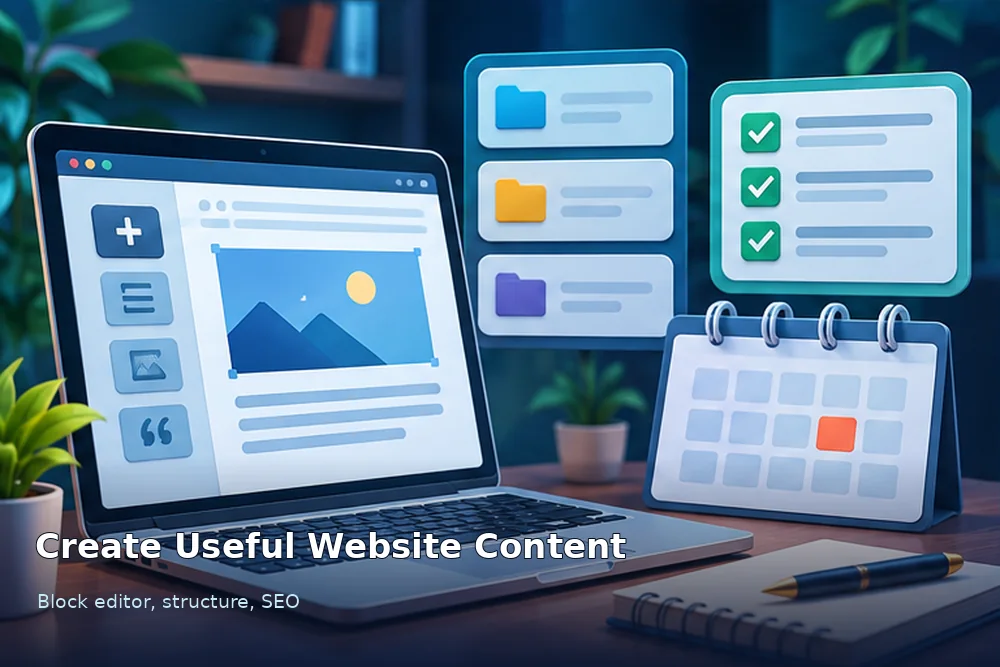
The block editor lets authors compose headings, paragraphs, lists, images, tables, quotes, and reusable elements. Use semantic headings to structure ideas, not simply to change font size. Preview the article before publishing to catch cramped mobile tables, distorted images, missing captions, and poor heading hierarchy.
Writing for the web is not about filling a word quota. Start with the reader’s problem, provide an answer, support it with practical steps, and include limitations where relevant. A short accurate answer may serve a narrow query better than a long generic article.
Phase 3: Content, SEO, plugins, and useful measurements
10. Map content to real audience questions
List what people ask before they choose your business: what problem a service solves, who it suits, what it costs, how long it takes, and what alternatives exist. Group those questions into themes and assign a clear purpose to each page. Service pages describe an offer; informational articles help readers make sense of the topic and possible solutions.
For editorial planning, compare tutorials, explanations, reviews, comparisons, case studies, and FAQs. Avoid republishing the same search intent under slightly different titles. The aim is an information architecture where every page contributes something distinct and helpful.
11. Apply basic on-page SEO and internal linking
Choose one primary search intent per article, write a precise visible heading, and create a useful title and description for search results. Add internal links when they genuinely help readers move to a related explanation. Use descriptive anchor text rather than repeating the exact keyword mechanically across every section.
Our on-page SEO guide provides practical checks, while the XML sitemap overview explains one important discovery mechanism. SEO plugin indicators are diagnostics, not proof of Google rankings. Validate the actual page and rendered metadata.
12. Install only the plugins you need
Plugins can provide backups, forms, analytics, caching, security features, SEO, and other capabilities. Each also introduces updates and potential conflicts. Before installation, examine compatibility, maintenance history, required permissions, support quality, and whether the feature is already available through WordPress or your hosting platform.
Read what WordPress plugins do and how to choose them. When testing a plugin, document what changes, whether it affects performance, and how to remove it safely if the result is unsuitable. Unused plugins should not stay installed indefinitely without reason.
13. Make images and mobile performance part of editing
Upload appropriately sized images with accurate alternative text. Retain the aspect ratio, avoid stretching small assets, and compress files without making instructions or infographic labels unreadable. Test tables, buttons, forms, and navigation on narrow displays. Visual defects on a phone can prevent a potential customer from taking action even when the desktop page looks polished.
Use our guide to WordPress PageSpeed Insights to investigate measurable issues. Prioritize real usability problems such as slow hero imagery, excessive scripts, and layout shifts instead of treating a single synthetic performance score as the only goal.
14. Connect Search Console and suitable analytics
Google Search Console offers information about search discovery, indexing, and performance, while an analytics implementation can help you study visitor activity subject to your privacy and consent choices. Verify site ownership, check that your sitemap points to canonical URLs, and review reports regularly. Do not confuse search clicks with qualified business conversions.
When a metric changes, investigate the date range, affected pages, recent content updates, technical changes, and seasonal context before drawing conclusions. A simple changelog often makes a later performance analysis much more useful.
Phase 4: Launch, recovery, and ongoing site health
15. Prepare backups, security, and HTTPS
A backup strategy needs both the database and relevant files, stored somewhere independent of the live server. Periodically test a restore: a backup file alone does not prove the site can be recovered. Use strong credentials, keep software current, minimize administrator privileges, and schedule maintenance according to the site’s importance.
Confirm that HTTPS is valid and the site does not produce browser warnings caused by mixed content or certificate errors. If a CDN is involved, understand how its connection to the origin is secured. Our Cloudflare for WordPress guide provides more context for performance and security configuration.
16. Run a pre-launch quality checklist
Visit the website as a logged-out reader. Check the homepage, main services, About and Contact pages, navigation, buttons, forms, article links, 404 behavior, mobile view, and search experience where present. Review the title tags, descriptions, canonical links, sitemap, indexing settings, and image display. Test actual conversions rather than assuming a beautiful button works.
Record the person responsible for each test, the problem URL, impact, fix, and retest result. A launch checklist should be specific enough that another team member can repeat it next month. If the site includes commerce or restricted areas, add safe tests for those critical workflows.
17. Establish a realistic maintenance rhythm
WordPress websites continue to need attention after launch. Revisit backups, software updates, security notices, broken links, outdated offers, and content that no longer answers current questions. For small teams, regular documented checks tend to outperform occasional unplanned redesigns.
More advanced teams may introduce repeatable editorial operations, integration tools, and multilingual content. Our account of managing WordPress with ChatGPT and MCP illustrates a structured process, but automation should always include review, access controls, and verification.
A practical four-week WordPress learning schedule
| Week | Main focus | Evidence of progress |
|---|---|---|
| 1 | Hosting, installation, access, settings | Working HTTPS practice site and secure accounts |
| 2 | Theme, pages, navigation, responsive layout | Usable essential pages and mobile menu |
| 3 | Articles, images, categories, on-page SEO | Three useful posts with relevant internal links |
| 4 | Backups, quality testing, metrics, launch | Completed QA checklist and tested recovery plan |
This is an example for a relatively simple site, not a promise that every project can be completed in four weeks. Membership websites, online shops, regulated services, and complex integrations often need additional planning and testing.
Common beginner mistakes to avoid
- Installing every popular plugin: choose features based on business requirements and maintenance capacity.
- Changing the live design without preparation: back up and use staging for major theme work.
- Ignoring information architecture: a confusing menu makes even polished content hard to find.
- Optimizing exclusively for SEO plugin scores: usefulness and factual accuracy matter more than cosmetic green indicators.
- Keeping backups only on the main server: a server incident can affect both original and copy.
- Skipping mobile checks: narrow screens expose broken tables, forms, navigation, and oversized images.
Frequently asked WordPress beginner questions
Do I need to code to use WordPress?
No coding is required for many common tasks such as writing posts, creating pages, and using a compatible block theme. HTML, CSS, JavaScript, and PHP become useful when you want deeper customizations or integrations.
Is WordPress free?
The open-source WordPress software can be used without a license fee. Domains, hosting, paid extensions, design work, and maintenance can still cost money. Compare the total costs of ownership rather than looking only at an introductory offer.
Should I learn SEO or design first?
Start with audience needs and page structure. Design helps visitors use the content, and SEO helps search engines understand it. The two disciplines work best together rather than as isolated tasks.
Is WordPress suitable for a small business?
Often yes, provided the required features, hosting, support, security, and ongoing maintenance are realistic for the business. Start with the smallest site that meets customer needs and expand when the case is proven.
What to do next
Apply each lesson to one working website rather than trying to master every advanced setting at once. When the foundation is stable, improve content, user experience, search visibility, and maintenance based on evidence. If your organization needs a structured website and content strategy, Bloggerpi can help assess the current site and plan practical improvements.
Official sources and further reading
- WordPress.org — Getting started
- Learn WordPress — Beginner WordPress User
- WordPress.org — Administration screens
- WordPress.org — Site Editor
- WordPress.org — Customize permalinks
- WordPress Developer Resources — Backup guidance
