

WordPress featured imageA featured image is the main image attached to a post, page, or custom post type as a visual representation. Themes can display it on article pages, archives, recommendation cards, or social sharing results if the integration is appropriate. The featured image isn’t always the first image in the article content, and its exact appearance depends on the theme, template, and metadata used.
This guide updates how to add a featured image via the WordPress block editor, fix image issues, choose a template-appropriate ratio, and write correct alt text. The size descriptions are design guidelines, not a single, mandatory pixel size for all WordPress images. Featured images should also be checked for loading and Core Web Vitals, especially if they are Largest Contentful Paint (LCP) elements.
If you are just starting to manage a blog with WordPress, there is one small element that is often considered trivial even though it has quite a big impact on the appearance of the content, namelyfeatured imageIn WordPress, a featured image is an image that represents a post, page, or custom post type. WordPress also explains that this image can be displayed in different ways depending on the theme, for example, on archive pages, in the header, or at the top of the article.
For beginner bloggers, featured images are important not only because they make articles look neater, but also because they help readers quickly recognize the content. If you’re already familiar with creating articles in WordPress, this topic actually relates to the flow of the tutorial on how to create a new post in WordPress, as featured images are one of the standard settings when composing posts.
What Is a Featured Image in WordPress?
Simply put, according to Bloggerpi Digital, a featured image is the main image chosen to represent content. WordPress Developer Resources refers to it as an image that represents a post, page, or custom post type. Because it functions as a representative image, a featured image differs from a regular image you insert within the article content. Images in the body of content are usually used to support explanations in a particular paragraph, while a featured image serves as the main visual identity of the content.
In practice, the placement of a featured image can vary depending on the theme used. Some themes display it large at the top of the article, others only display it on category or archive pages, and still others use it for blog card displays. So, if you feel the featured image on one website appears differently than on another, that’s normal because the settings follow the theme’s design.
If you’re still confused about when to use a post and when to use a page, discussing the difference between pages and posts in WordPress will help you better understand the context of using featured images. Featured images can be used in both, but their function may differ slightly depending on the page structure you’ve created.
What is the Function of Featured Image?
The most basic function of a featured image is to enhance the visual presentation of content. When readers see a list of articles on the homepage, category pages, or archives, a featured image helps them identify the topic of the article before reading the title or excerpt. From a WordPress theme perspective, featured images are designed to be used in various areas such as archive pages, headers, or above posts.
Featured images are also useful for consistent blog appearance. If each article has a clean main image, the blog page will look more professional and easier to scan. This is why featured images should not be chosen haphazardly. Even if you’re building a blog from scratch and still learning WordPress, understanding this feature will feel connected to the article “WordPress is the best CMS for creating a blog website” because one of WordPress’s strengths lies in its flexibility in content management.
Besides website appearance, Learn WordPress also explains that featured images can help control the images used when your website is shared on social media. This makes featured images not just about aesthetics, but also about how your content appears when promoted or shared on other platforms.
The main image should help contextualize the content and meet the reader’s needs. Guides to SEO-friendly articles and how to create SEO articles can be helpful resources to further explore your website’s needs.
How to Add a Featured Image in WordPress
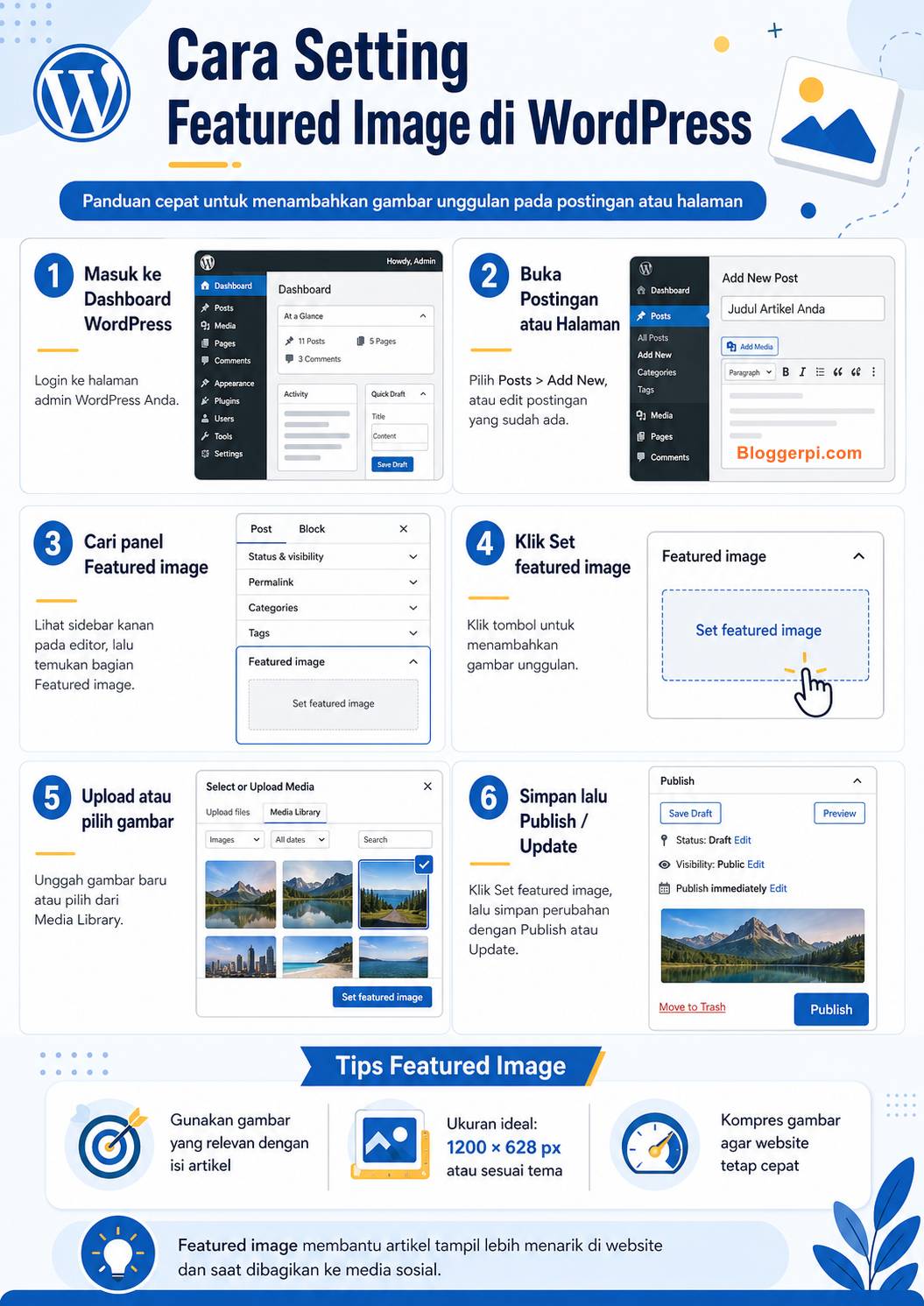
1. Open the post or page editor
The first step is, of course, to open the post or page you want to edit. If you’re creating a new article, open the editor as usual. If you’re new to this process, the process is essentially the same as creating a regular article, so discussing how to create a new post in WordPress can be a good introduction before diving into the featured image settings.
Image size and loading techniques are directly related to actual performance. A technical SEO guide can be a valuable resource for further research based on your website’s needs.
2. Look for the Featured Image panel in the settings sidebar.
WordPress.com Support explains that when you’re editing a post or page, the next step is to open the settings sidebar and look for the boxSet featured imageIf no image has been selected, this button will usually appear as an option to add a featured image. In some interfaces, this panel is on the right side of the editor.
3. Select an image from the Media Library or upload a new image.
Once the featured image panel opens, you can select an existing image from your Media Library or upload a new one. On WordPress.com, once an image is selected, simply press theSet as featured image. On a self-hosted WordPress installation, the flow is generally similar, although the interface may vary slightly depending on the editor and theme used.
4. Save or publish changes
After the image is installed, don’t forget to clickSave, Update, or PublishThis ensures that the featured image settings are properly saved. This step sounds simple, but it’s often overlooked, especially when you’re editing multiple elements at once, such as titles, categories, or tags. If you’re also looking to streamline your content structure, the topic of tags and categories in WordPress is also relevant, as featured images are typically set alongside other basic post elements.
Alternative text should be supported by a clear HTML structure. The hyperlink guide can be a valuable resource for further study based on your website’s needs.
How to Change or Delete Featured Image
If the featured image you chose turns out to be inappropriate, you don’t need to delete the post or re-upload it from scratch. WordPress.com Support explains that featured images can…replacedwith buttonReplace or deletedwith buttonRemoveInterestingly, when you press Remove, the featured image will disappear from the post or page, but the image file itself won’t be automatically deleted from the Media Library.
This is useful if you want to change the visuals of an article without losing the original file. In some cases, you can even keep the featured image for social previews and search results, but hide it from the page view. WordPress.com states this is possible, especially if you’re using a block theme and have removed the Featured Image block from the post or page template.
Why is the Featured Image Not Showing in WordPress?
A fairly common issue is that the featured image option doesn’t appear in the editor. The most common cause is that the theme you’re using doesn’t support post thumbnails. WordPress Developer Resources explains that featured image support for classic themes must be enabled withadd_theme_support( 'post-thumbnails' ), while for block themes, this feature is automatically activated. So, if you’re using an older classic theme, it’s very possible the featured image option won’t appear because theme support hasn’t been enabled.
For regular users who don’t edit theme files, the safest solution is usually to check the theme documentation, upgrade to a more modern theme, or ask the developer for help. This also explains why two WordPress websites can have different featured image behavior even though they both use the WordPress CMS. The theme determines how this feature is displayed on the front-end.
To assess visual impact, ensure navigation and user flow are functional. Usability testing guides and breadcrumbs can be helpful resources to further explore your website’s needs.
Tips for Setting a Good Featured Image
1. Use truly relevant images
A featured image shouldn’t be chosen simply because it looks good. Because it’s the representative image of the article, choose a visual that directly supports the topic being discussed. If the article is a WordPress tutorial, use an image related to the dashboard, editor, blogging illustration, or a visual that helps readers immediately grasp the context of the article. This will make the featured image feel integrated with the content, not just a decorative element.
2. Write descriptive alt text
Google explains that alt text is a short description that helps search engines understand the image’s relationship to the page’s content. Google also recommends that alt text be useful, informative, and relevant to the context, rather than overstuffed with keywords. Therefore, when uploading a featured image, don’t leave the alt text blank if the image is meaningful to the content. In terms of implementation, this also aligns with the discussion of on-page SEO and the 10 key elements of on-page SEO, which places image optimization as part of page quality.
3. Pay attention to the size and quality of the image.
Google Search Central explains that high-quality images are more engaging for users, but they also often contribute significantly to page size. Therefore, images need to be optimized to remain sharp and load quickly. This is especially important for featured images, as they typically appear at the top of the page and influence a reader’s first impression. If you’d like to delve deeper into this section, the articles on how to improve PageSpeed scores in WordPress and examples of implementing on-page SEO optimization are highly relevant for continuing the discussion from a technical and SEO perspective.
4. Use a supported image format
Google Search supports several common image formats, such as BMP, GIF, JPEG, PNG, WebP, SVG, and AVIF. So, if you want your featured image to be user-friendly for image search and user experience, make sure the format you use is common and well-supported. In many cases, modern formats like WebP are worth considering, as Google’s documentation explains that WebP offers more efficient compression for the web.
Practical summary
Featured images are a simple yet powerful WordPress feature. They help give a post or page visual identity, enhance the blog’s appearance, support content distribution on social media, and can enhance the user experience if chosen and optimized correctly. WordPress itself defines them as representative images for content, and from this, we can see that featured images are more than just a throwaway image.
If you’re using WordPress for blogging, make it a habit to think about featured images from the moment you start writing an article, not as a last-minute addition. This way, the images you choose will be more relevant, lighter, and more consistent with the structure of your content. Ultimately, featured images aren’t the only important factor in page optimization, but they are still an integral part of content presentation that shouldn’t be overlooked.
Featured Image, Inline Image, and OG Image: What’s the Difference?
| Image type | Function | Location settings |
|---|---|---|
| Featured image | Main representation of posts by template | Featured Image panel in the editor |
| Inline images | Illustrations in the content | Image/Media Block in body |
| Open Graph image | Preview links on social platforms | OG theme/plugin SEO metadata |
| Twitter/X card image | Preview social cards according to metadata | Social card metadata |
SEO plugins sometimes use featured images as a fallback to the original image, but not all themes or integrations do. Be sure to review the final image source in the HTML head and platform preview, rather than assuming that automatically setting featured images solves all social sharing issues.
The use of images depends on credibility and authenticity of the source. E-E-A-T guidelines and meta descriptions can be used for further research based on your website’s needs.
What is the Recommended Featured Image Size?
The answer:adjust to the ratio and width of the area actually used by the themeFor example, a 3:2 card can use a 1200 × 800 pixel illustrative asset, while a 16:9 display requires a different composition. Avoid forcing portrait images into landscape without checking subject cropping. Files that are too large can cause transfer problems; files that are too small can appear pixelated on high-resolution screens.
WordPress can generate several derived sizes and responsive attributes such assrcsetFor images that meet theme support. Both WebP and AVIF formats can reduce file size while maintaining acceptable quality if your server, WordPress, and workflow are compatible. Choose a native resolution sufficient for viewing area and accessibility, rather than simply aiming for minimum KB.
If the Featured Image Does Not Appear: Troubleshooting Sequence
- Make sure the image is attached to the correct post, then save or update the post.
- Check if the article or archive template is displaying post thumbnails.
- If using a block or builder theme, check the dynamic featured image settings and template conditions.
- Check that the media files are available, the HTTP status is normal, and the CDN URL is not broken.
- Clear limited cache on the relevant page if changes have been saved but the preview is not yet fresh.
- If the theme is custom, the developer can check for support.
post-thumbnailsand functionget_the_post_thumbnail()before changing the code.
Image and page reporting also requires reliable data. Digital marketing analytics and data visualization guides can provide in-depth information tailored to your website’s needs.
SEO, Accessibility, and Image Performance Checklist
| Aspect | What was checked |
|---|---|
| Relevance | The image truly reflects the content |
| Right of use | Licenses and credits as needed |
| Alt text | Meaningful description, not filled with repeated keywords |
| Responsive | Cropping and sizing do not damage the composition. |
| Loading | LCP image is not delayed lazy loading is wrong |
| Sharing | OG/X preview as per page |
Featured images support reader comprehension, but they are not a substitute for proper content and proper website functionality. For decorative images, a blank alt tag may be appropriate; for informative images, the alt tag should explain the information without promotional repetition.
Frequently Asked Questions (FAQ)
1. What is a featured image?
The main image assigned to a WordPress post or content type and displayed by supporting templates.
2. Is a featured image mandatory?
Not technically, but useful for consistency of content display.
3. Is the featured image the same as the first image of the article?
No. Featured image is post metadata, the first image is an element in the body.
4. Where to set the featured image?
Generally in the post settings panel in the WordPress editor, according to the theme type and editor.
5. What is the ideal featured image size?
Adjust the ratio and resolution to the template used.
6. Why doesn’t the main image appear?
It could be due to the theme, template, cache, media files, or post settings.
7. Is WebP mandatory?
No. Choose a format that is supported and provides efficient quality and size.
8. Does the main image affect LCP?
Yes, if it is the largest measurable content element in the viewport.
9. Does the featured image automatically become the OG image?
It depends on the theme and SEO plugin that generates social metadata.
10. How to create alt text?
Describe relevant visual information naturally, instead of stuffing keywords.
11. Can decorative images use a blank alt?
Yes, if it does not contain important information and is in the context of accessibility.
12. Does changing the featured image change the permalink?
No, image metadata can be changed without changing the post URL.
External References
- WordPress Developer Resources. “Featured Images & Post Thumbnails.” Theme Handbook. Accessed April 28, 2026.
- WordPress Developer Resources. “add_theme_support().” Code Reference. Accessed April 28, 2026.
- WordPress.com Support. “Add a featured image.” WordPress.com. Accessed April 28, 2026.
- Learn WordPress. “How to use featured images.” Learn WordPress. Accessed April 28, 2026.
- Google. “Google Images SEO best practices.” Google Search Central. Accessed April 28, 2026.
- Google. “SEO Starter Guide: The Basics.” Google Search Central. Accessed April 28, 2026.
- Google. “About PageSpeed Insights.” Google Developers. Accessed April 28, 2026.
- Google. “An image format for the Web: WebP.” Google Developers. Accessed April 28, 2026.
- WordPress — Featured Images
- WordPress — get_the_post_thumbnail
- Google — Image SEO Best Practices
- web.dev — Largest Contentful Paint
