

The best WordPress plugins are the ones that solve a real problem on your website—not the ones that fill up a list of “must-haves.” A small business landing page has different needs from an editorial publication or an online shop. Your hosting platform may already include backups, caching, security protections, image optimization, or analytics integrations. Adding overlapping extensions can increase costs and complicate troubleshooting.
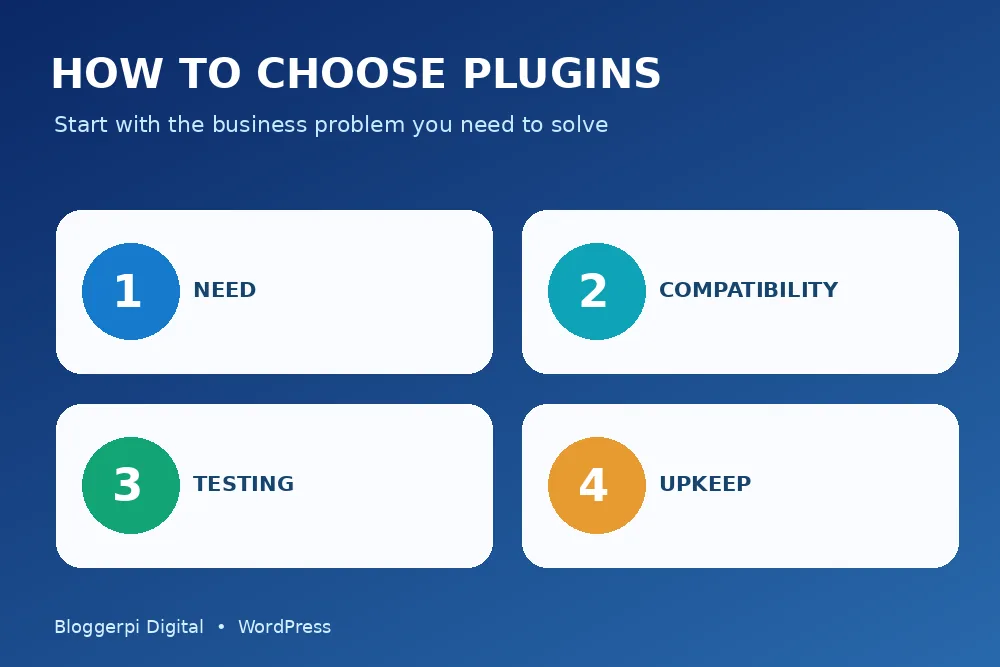
This guide evaluates 17 useful WordPress plugins to consider in 2026, grouped by SEO, backups, security, performance, forms, email, analytics, multilingual content, ecommerce, redirects, and developer diagnostics. Each recommendation explains the audience it serves, the feature it provides, and an important limitation. It is an editorial shortlist, not a benchmark-based ranking, endorsement of every premium plan, or claim that you should install all 17.
For the basics, see our introductions to what WordPress plugins are and how to choose them and how to install a plugin safely through the directory, ZIP, or SFTP. Features and prices change, so check the linked official directory or vendor documentation before deployment.
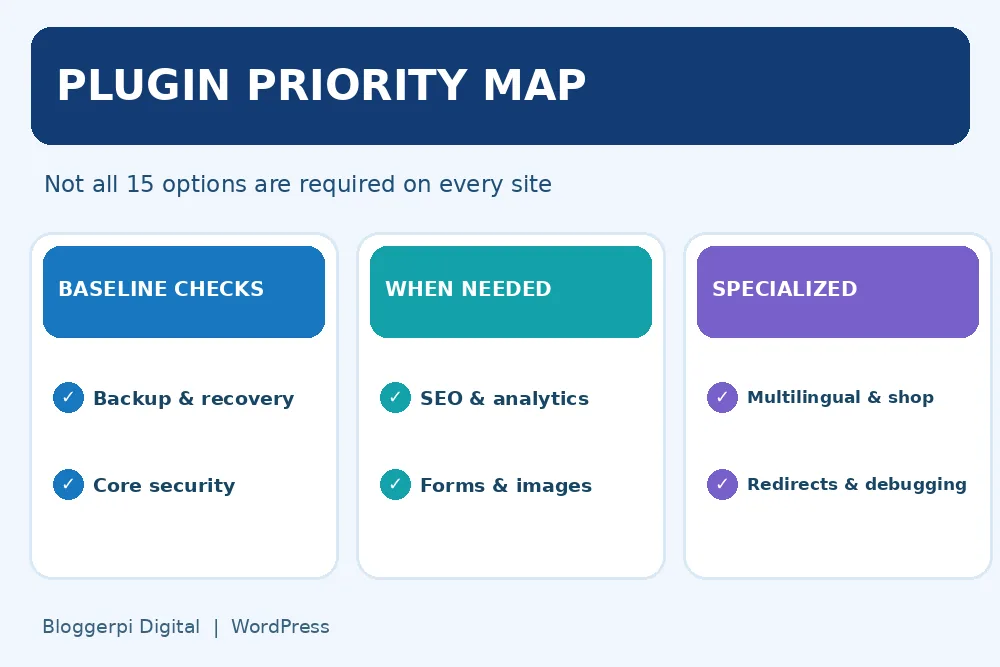
Four tests to apply before adding any plugin
Start by describing the business process, not the plugin name. Do you need prospects to contact the team, editors to maintain SEO metadata, administrators to restore the site, or customers to purchase products? Decide which existing system already owns the functionality. Hosting features, built-in WordPress blocks, and an existing plugin may mean that an additional extension is unnecessary.
Next, test compatibility: WordPress and PHP versions, theme dependencies, hosting architecture, and documented integrations. Examine the developer’s update history, changelog, support responses, data handling, and licensing terms. Do not assume that a popular plugin is secure under every configuration or that a paid plugin has no operational risks.
Third, plan testing and recovery. For an active commercial website, use staging and a restorable backup. Verify conversion flows, forms, mobile layouts, SEO output, and performance after a change. Finally, assign someone to maintain the plugin, renew necessary licenses, monitor security notices, and remove it when it is no longer needed.
Our WordPress beginner roadmap covers the operational foundations. If your upgrade also affects the design, follow the safe WordPress theme migration workflow; testing plugin changes follows many of the same principles.
WordPress plugin shortlist by purpose
| Need | Options | Decision rule |
|---|---|---|
| Search and content SEO | Yoast SEO / Rank Math | Choose one primary metadata suite |
| Backup or migration | UpdraftPlus / Duplicator | Prioritize tested restoration |
| Security and spam | Wordfence; Akismet | Different risk categories |
| Page and image speed | LiteSpeed Cache; ShortPixel | Check hosting and CDN overlap |
| Forms and email delivery | WPForms / Forminator; WP Mail SMTP / FluentSMTP | Use one product for each job |
| Measurement | Site Kit by Google | Avoid duplicated tracking code |
| Special requirements | Redirection; Polylang; WooCommerce; Query Monitor | Install only when the feature matters |
SEO and editorial control
1. Yoast SEO
Best fit: Content sites and marketing teams.
What it helps with: Helps editors manage SEO titles, descriptions, XML sitemaps, and search-facing page information in a repeatable workflow. Official WordPress.org plugin listing.
Watch out for: A green plugin score does not guarantee rankings. Inspect actual canonical URLs, schema, robots output and rendered titles rather than assuming the configuration is correct.
2. Rank Math SEO
Best fit: A different SEO workflow or modular configuration.
What it helps with: Offers another approach to SEO metadata and technical configuration, which may suit a team that prefers its interface and available modules. Official WordPress.org plugin listing.
Watch out for: Treat it as an alternative to Yoast, not an automatic add-on. Running two full SEO suites without an intentional migration can create conflicting metadata and sitemaps.
Backup and migration
3. UpdraftPlus
Best fit: Backup scheduling and recovery workflows.
What it helps with: Supports WordPress backup and restoration processes, with storage destinations and automation depending on configuration and plan. It can fill a gap where your host provides insufficient recovery control. Official WordPress.org plugin listing.
Watch out for: Check which files and database tables are protected, store copies off-server and conduct a trial restore. A successful backup notification is not the same as a proven recovery plan.
4. Duplicator
Best fit: Site copying, migration and backup packaging.
What it helps with: Helps package WordPress installations and supports scenarios where a site needs to move hosting or create another environment. This can be useful during redesigns and platform consolidation. Official WordPress.org plugin listing.
Watch out for: Examine the exact features of the installed version and paid tier. It is not necessary to keep multiple backup products if one reliable, tested solution meets your recovery needs.
Security and spam control
5. Wordfence Security
Best fit: Sites needing application-level monitoring.
What it helps with: Provides security functions that may include firewall protection, scanning, and login safeguards. It can add useful visibility when configured alongside rather than in opposition to the hosting security stack. Official WordPress.org plugin listing.
Watch out for: Heavy scans and strict firewall policies can affect resources or legitimate users. Continue using strong authentication, updates, least privilege, backups and server-side protections.
6. Akismet Anti-spam
Best fit: Public comments and form submissions prone to spam.
What it helps with: Can help reduce unwanted comments and selected spam submissions, keeping moderators and site owners focused on real visitors. Official WordPress.org plugin listing.
Watch out for: Check licensing and privacy obligations for commercial usage. If comments are disabled or another platform reliably handles spam, you may not need this additional service.
Caching and image performance
7. LiteSpeed Cache
Best fit: Sites on compatible LiteSpeed-based hosting.
What it helps with: Can provide server-level caching features with compatible infrastructure plus optimization functions that may reduce unnecessary page work. Official WordPress.org plugin listing.
Watch out for: The full page-cache benefits depend on actual server support. Avoid competing page-cache plugins and test CSS/JavaScript optimizations against navigation, forms and mobile rendering.
8. ShortPixel Image Optimizer
Best fit: Image-heavy blogs, portfolios and catalogs.
What it helps with: Provides image-compression and modern-format options such as WebP or AVIF, depending on your configuration and service plan. Official WordPress.org plugin listing.
Watch out for: Check image-processing usage, cost and existing CDN features. Recompressing already optimized assets repeatedly may waste resources without improving visitor experience.
Forms and transactional email
9. WPForms Lite
Best fit: Straightforward contact and enquiry forms.
What it helps with: Offers an approachable form-building workflow for service websites that need structured enquiries without developing a custom form system. Official WordPress.org plugin listing.
Watch out for: Review the free plan’s submission storage and notification limitations. Test the email, spam controls, validation, accessibility and consent flow rather than stopping once the form displays.
10. Forminator
Best fit: Teams wanting another visual form builder.
What it helps with: Provides an alternative form-building interface with a range of form configurations and integrations. Its suitability depends on which capabilities your team actually requires. Official WordPress.org plugin listing.
Watch out for: You generally do not need both Forminator and WPForms for the same set of forms. Compare maintainability, required add-ons, data handling, and team familiarity before switching.
11. WP Mail SMTP
Best fit: Website emails that need reliable delivery routing.
What it helps with: Connects WordPress-generated messages to a suitable email provider. It is useful when form notifications and important messages cannot be entrusted to an unconfigured default mail environment. Official WordPress.org plugin listing.
Watch out for: SMTP setup does not guarantee inbox placement. Check DNS authentication, sender reputation, delivery logs, credential security, and the external provider’s limits.
12. FluentSMTP
Best fit: An alternative mailer integration workflow.
What it helps with: Supports connecting WordPress email delivery to compatible SMTP or email API providers, offering another management option for websites with several sending requirements. Official WordPress.org plugin listing.
Watch out for: Avoid configuring two plugins to intercept the same WordPress mail flow without a clear design. Store provider keys securely and verify that real notifications reach intended recipients.
Measurement and business reporting
13. Site Kit by Google
Best fit: Sites using Google’s search and visitor measurement tools.
What it helps with: Provides an official Google integration experience for supported services such as Search Console and Analytics, bringing selected performance data into the WordPress dashboard. Official WordPress.org plugin listing.
Watch out for: Consider consent and data privacy, account access, and overlapping analytics tags. A dashboard widget is not a substitute for interpreting seasonality, search demand and conversions.
Specialized workflows
14. Redirection
Best fit: Sites reorganizing URLs or managing many redirects.
What it helps with: Helps maintain redirect rules and understand selected 404 errors during content cleanup or a migration. Official WordPress.org plugin listing.
Watch out for: Use it only if server, CDN or SEO-plugin redirect management does not already cover the need. Eliminate redirect chains and document changes before changing URL structures.
15. Polylang
Best fit: Multilingual editorial sites.
What it helps with: Connects language versions of pages and posts and helps manage multilingual WordPress structures, according to configuration and add-ons. Official WordPress.org plugin listing.
Watch out for: Publishing a translation is not the same as reviewing it. Confirm translated categories, language switches, localized internal links, SEO metadata and complete, readable copy.
16. WooCommerce
Best fit: Businesses selling through an online store.
What it helps with: Provides an ecommerce foundation for catalog pages, carts and checkout workflows, with other extensions available for payments and shipping. Official WordPress.org plugin listing.
Watch out for: A shop needs more operational and security testing than a brochure site. Do not install an ecommerce stack when the website does not genuinely require online transactions.
17. Query Monitor
Best fit: Developers diagnosing WordPress performance or errors.
What it helps with: Exposes technical diagnostics for queries, hooks, errors and page processing. It can help a maintainer identify the specific code path behind a slow or broken page. Official WordPress.org plugin listing.
Watch out for: This is a diagnostic instrument, not an essential public-facing feature. Restrict access and consider disabling it outside troubleshooting windows on busy production systems.
Example plugin stacks for different types of WordPress websites
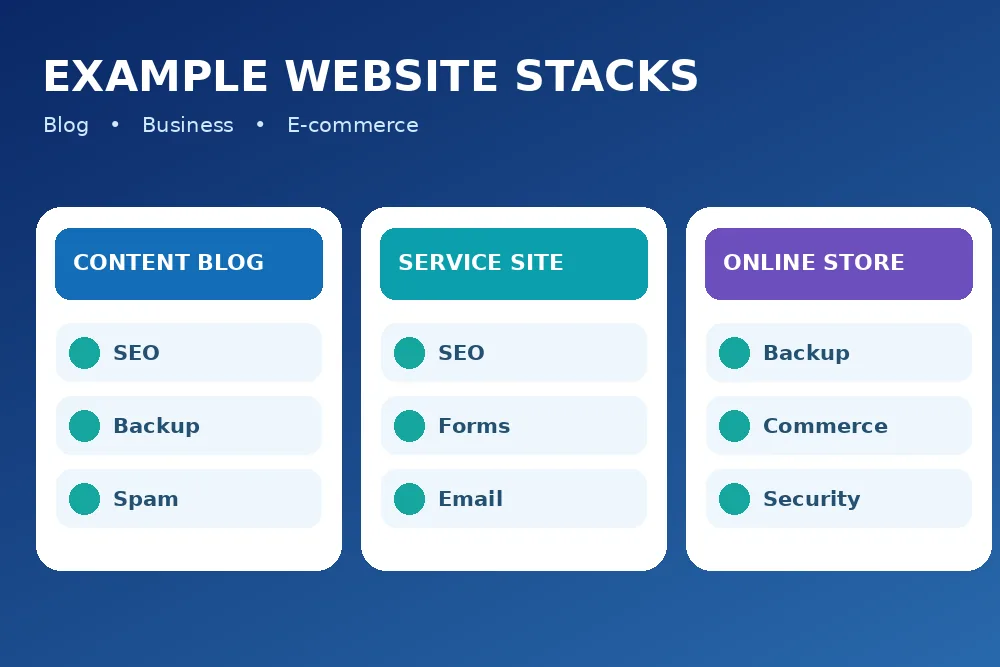
Content blog: one SEO workflow, a proven backup solution, anti-spam only if public submissions are enabled, and image optimization if your hosting or CDN does not already provide it. A clean editorial information architecture can help more than an additional plugin; see the benefits of breadcrumbs and how XML sitemaps work.
Service business: prioritize contact or booking functionality, reliable email notifications, basic search visibility, and meaningful analytics. The most important test is whether a real prospect can understand an offer and contact you from a phone. Site speed optimization matters when slow or unstable pages interfere with those steps.
Online store: WooCommerce is relevant only when product management and checkout are required. Plan payment, tax, shipping, data retention, updates, access permissions, and recovery alongside the ecommerce plugin. Every extra checkout extension should have a reason and a test case.
Seven plugin selection mistakes that are easy to avoid
- Installing everything from a “must-have” list. Not every site needs ecommerce, translations, or complex redirect tools.
- Running two SEO suites at once. Competing schema, titles, canonical tags, and sitemaps can be difficult to debug.
- Stacking cache systems without coordination. Several caches can lead to stale views, layout failures or hard-to-reproduce bugs.
- Assuming a backup exists because an email says it ran. A restore test is the real evidence.
- Ignoring the requirements page. An incompatible PHP or WordPress version is not a minor detail.
- Skipping mobile and transaction tests. The dashboard may look fine while checkout or contact forms break.
- Treating tool scores as business outcomes. Real page rendering, accessibility, conversions, and maintainability matter more than a perfect indicator.
If you are checking search issues, consult technical SEO best practices, canonical tags, and how 301 redirects work. For cache or CDN behavior, review Cloudflare settings for WordPress before making sweeping changes.
What to review after 30 days
Maintain a record with the plugin name, version, author, installation source, license renewal, administrative owner, and purpose. A month after installation, ask whether the feature is used, whether it saves time or improves a customer journey, and whether it created issues. Reassess performance, update reliability, support needs, and any recurring external service costs.
Removing a plugin should also be a planned change. Deactivation is not always equivalent to deleting stored data, and uninstall routines differ. Back up relevant information, verify no page depends on the plugin, and test the site after removal.
When using AI-assisted administration or bulk publishing workflows, restricted tool permissions and human review remain important. Our WordPress AI/MCP security guide explains why an automation should not be allowed to silently install production code without safeguards. See also our experience managing WordPress using ChatGPT and MCP.
Frequently asked questions
Does every WordPress site need an SEO plugin?
No. It can be useful for managing metadata and sitemaps consistently, but content quality, site architecture, technical correctness, and user experience require work beyond a plugin. Choose a tool based on actual workflow needs.
Which is better, Yoast SEO or Rank Math?
Both can cover important SEO configuration. Evaluate editorial usability, required functions, update history and migration effort. Avoid running both as overlapping primary SEO engines.
Are free plugins safe for commercial websites?
Price alone is not a security signal. Consider official sources, maintenance, third-party dependencies, security responses and the legal or privacy obligations of the function being provided.
Will 20 active plugins always make WordPress slow?
No. The type of work each plugin performs matters more than a simple count. Database queries, external scripts, scheduled tasks, image processing, and server configuration determine the actual impact.
Should I add a caching plugin whenever PageSpeed drops?
Not automatically. Diagnose whether the issue is images, rendering, JavaScript, network response, or server work. A conflicting cache layer can create another problem without improving the underlying bottleneck.
What if an update breaks my website?
Record the timing and error, stop unsafe changes, use a tested backup or known working version when appropriate, and investigate on staging. Protect newly created orders and customer records during any database restore.
Conclusion: a small, well-maintained plugin stack wins
These 17 options are tools for specific jobs, not a mandatory installation checklist. The best approach is to select a maintainable set of plugins based on business needs, compatible hosting, documented recovery, and measurable usability. Invest in the quality of your WordPress content and customer experience before adding more software. To make content management more systematic, explore our on-page SEO workflow and the related WordPress tutorials.
Official documentation and further reading
- WordPress.org — Manage Plugins
- Learn WordPress — Choosing and Installing Plugins
- WordPress Developer Resources — Backups
- WordPress Plugin Directory — Current versions and support details
