

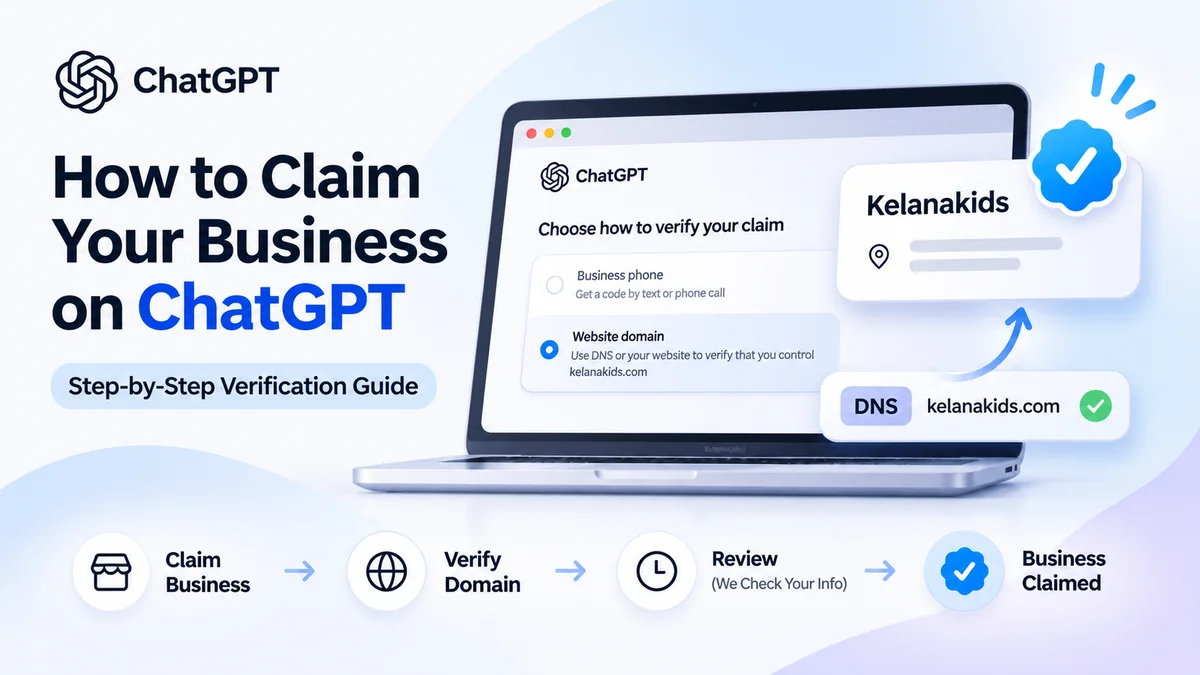
How do you claim your business on ChatGPT? OpenAI introduced Businesses in ChatGPT in beta on November 10, 2026. For eligible organizations, the new Business Hub offers a way to claim a business listing, verify the relationship with the business, maintain key information, and—after meeting the relevant verification requirements—access aggregated engagement insights.
This practical guide walks you through the process using five real screenshots from Kelanakids, an Indonesian business that followed the website-domain verification route. You will see the verification choices, the listing preview, the DNS TXT instructions, the review status, and the confirmation screen in the original order. We will also explain the separate Persona identity-verification stage, which is easy to confuse with simply proving control of a domain.
Last reviewed: November 16, 2026. This is a beta feature, and eligibility, button labels, verification choices, and business-management features can vary by business location and account. Always follow the instructions displayed in your own Business Hub.
What Are Businesses in ChatGPT and Business Hub?
Businesses in ChatGPT is OpenAI’s offering for businesses that want to manage information associated with their presence in ChatGPT. Business Hub is the interface used to claim and administer eligible business profiles. Once the relevant approvals are complete, it can support updates to business information, product feeds, and access to aggregated data about how people engage with a business in ChatGPT.
Three concepts matter here. A business listing is a profile or business result that people may encounter in ChatGPT. A business claim is a request to establish your right to manage that listing. A Business Agent is an optional, separately controlled conversational experience that represents an eligible business and answers questions using the information it provides. Claiming a listing does not automatically publish an agent.
ChatGPT may mention businesses that have never claimed their profiles. Claiming also does not give a company exclusive control over everything ChatGPT says about it. OpenAI may supplement information from other sources and maintains independence when comparing or recommending businesses. In other words, the claim process supports accuracy and official profile management; it is not an SEO ranking shortcut.
Who Can Claim a Business on ChatGPT?
You must own the business or be authorized to represent it. Eligibility also depends on the business’s type, location, available verification methods, and OpenAI’s integrity checks. Eligible businesses may be able to claim an existing listing or, for certain online businesses, add a profile if no matching listing exists.
OpenAI’s Help Center currently notes an important distinction for physical businesses: local stores and restaurants can currently claim only existing U.S. listings. More generally, availability is not the same for every country or category. The Kelanakids screenshots document one successful experience, not a universal promise that any business anywhere can reproduce it.
Business Agents have narrower eligibility. At launch, they are available to eligible U.S. ecommerce and online service businesses with a website, subject to industry requirements. Businesses that can manage listings are not necessarily eligible for Business Agents. An advertising account or ChatGPT Enterprise agreement is not a prerequisite for claiming an eligible business.
What You Need Before You Start
Gather the business’s official name and website, the ChatGPT account that will administer the profile, the relevant contact details, and access to the website domain’s DNS management panel. Depending on the verification choices available to you, a business phone number, business email, or Shopify account may also be useful. If a developer or hosting provider controls your DNS records, arrange access or ask them to assist.
Make sure your authorization is genuine. OpenAI’s subsequent Persona identity verification may request a government-issued identity document, company registration information, and evidence that you can represent the organization. Follow the secure verification journey in Business Hub rather than sending confidential documents to an unfamiliar email address.
For teams and agencies, choose an accountable business administrator. Business Hub can allow the claiming admin to invite teammates and grant agency access with separate ChatGPT accounts. Sharing a personal login is neither necessary nor a good administrative practice.
How to Claim Your Business on ChatGPT: Step-by-Step Tutorial
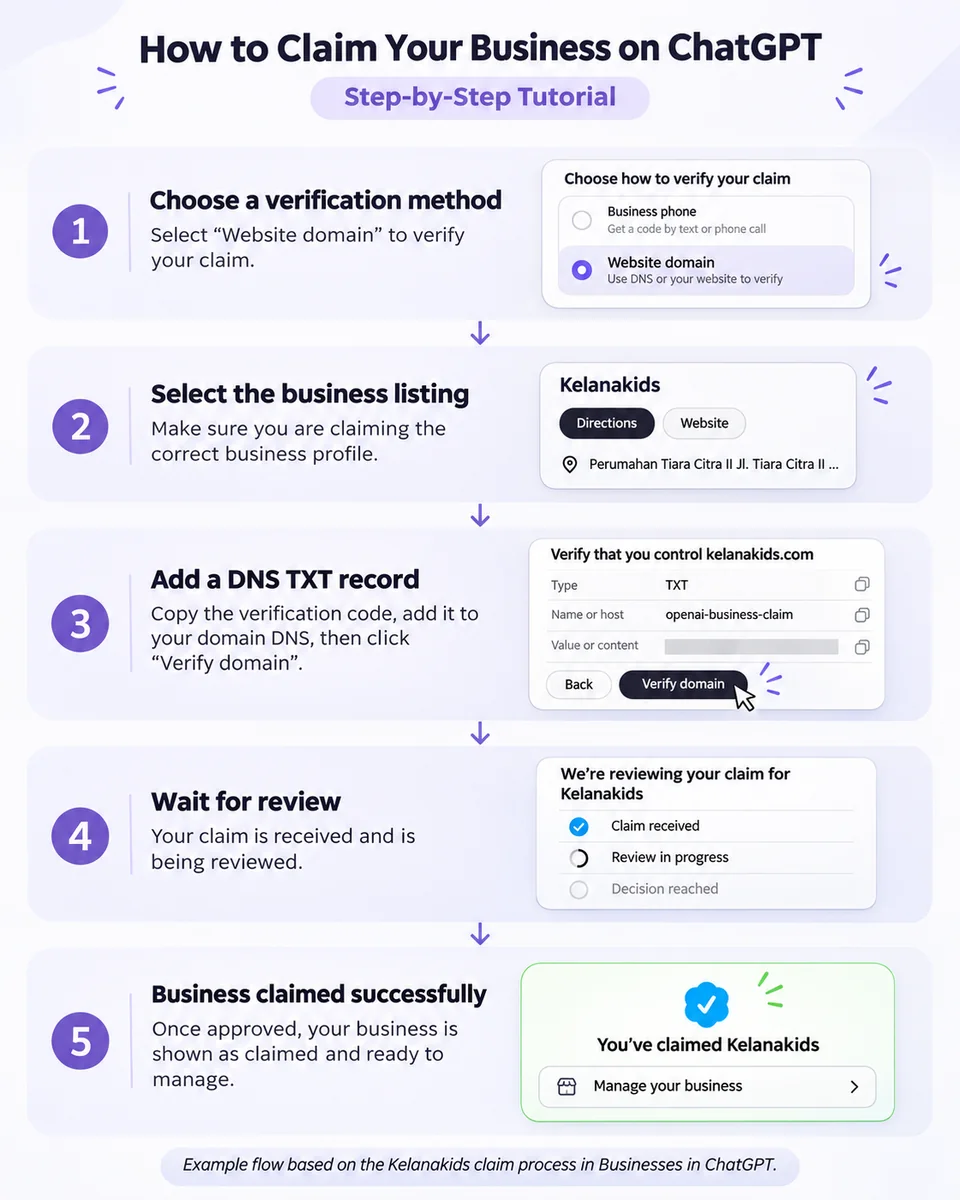
The five images below follow the filenames (1) through (5) exactly. The first provided screenshot starts at the verification-method screen; the business-search and account-selection stage happened earlier and is explained first, without inventing an image for it.
Before Step 1: Open Business Hub and Find Your Listing
Go to the official Businesses in ChatGPT page and choose Claim your business. Sign in to ChatGPT if prompted. OpenAI also documents access through the Business Hub entry in the ChatGPT sidebar. Search for your business name and choose the listing matching your official name, website, and location.
Confirm which ChatGPT account will manage the listing. If your business does not appear, eligible online businesses may see an option to add it. Do not create inaccurate duplicate profiles to bypass restrictions. For an existing listing that has been locked or claimed by someone else, the official support and ownership-dispute routes are safer.
Step 1: Choose a Claim Verification Method
The first Kelanakids screenshot is titled “Choose how to verify your claim.” It shows two choices: Business phone, described as verification by text or phone call, and Website domain, which uses the website or DNS to demonstrate control of kelanakids.com.
In this example, the business-phone choice is grayed out and website-domain verification is selected. Choose the method offered to your listing that you can complete legitimately. Other eligible profiles may also be offered business email or Shopify verification. There is no reason to assume every user sees the same set of options.
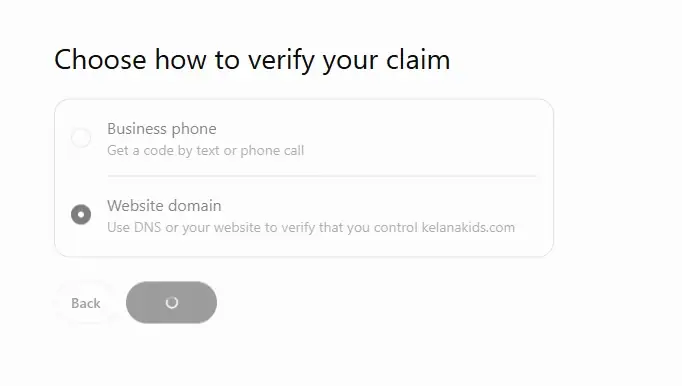
The domain option proves control of a technical asset. It does not, by itself, settle whether the person has legal authority to act on behalf of the business. Keep that distinction in mind when the later Persona step appears.
Step 2: Review the Business Listing Preview
The second screenshot expands the verification view to include a preview of the Kelanakids listing. The card contains the business name, Directions and Website buttons, and a location snippet. This is an opportunity to confirm you are working with the correct business rather than a similarly named entity or branch.
Compare the listing with the company’s official information. A business with several branches should not assume that claiming one profile will automatically consolidate all locations. Correct identity and ownership come before any later attempts to update business details.
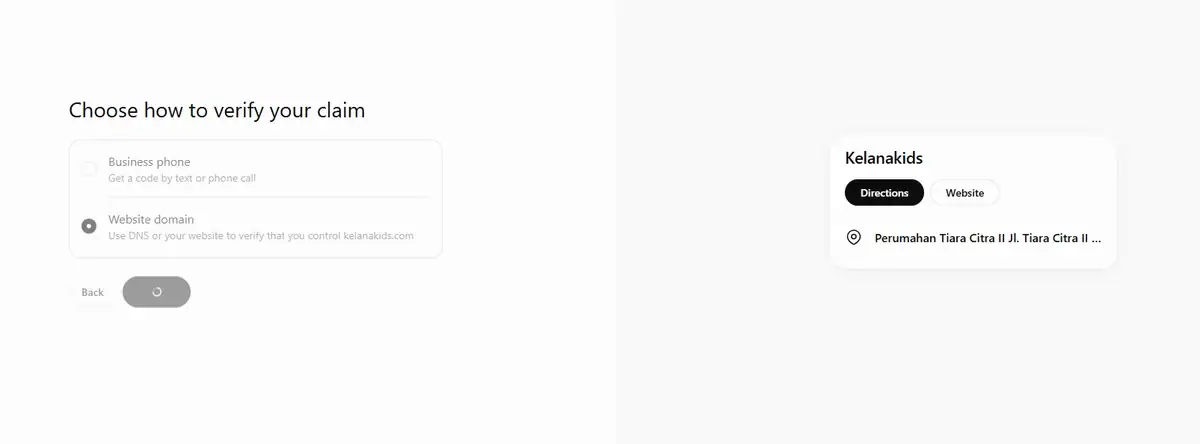
Because the example shows a location-based business card, it is especially important not to generalize the screenshot into a promise that every local business in every country currently has the same claim flow.
Step 3: Add the DNS TXT Record
The third screenshot moves to the technical verification screen: “Verify that you control kelanakids.com.” OpenAI asks the applicant to add a TXT record in the DNS settings for the domain. In this Kelanakids example, the visible fields are:
- Type:
TXT. - Name or host:
openai-business-claimas shown in this screenshot; follow the value given to your account. - Value or content: a unique verification value generated by the system. It is intentionally hidden in the supplied image and should never be copied from someone else’s tutorial.
Sign in to the service that manages your domain’s active DNS zone—this might be your registrar, DNS provider, or hosting provider. Create a new TXT record and copy the type, host, and verification value exactly from Business Hub. Some DNS interfaces append the root domain to the host automatically, so verify that the result is not duplicated. Save the new entry.
Allow time for DNS changes to propagate, then return to ChatGPT and click Verify domain. If it does not work right away, check that you edited the authoritative DNS zone, that the value is complete, and that the record has not expired. The screenshot shows an expiration date for this particular request; your own request may have a different deadline.
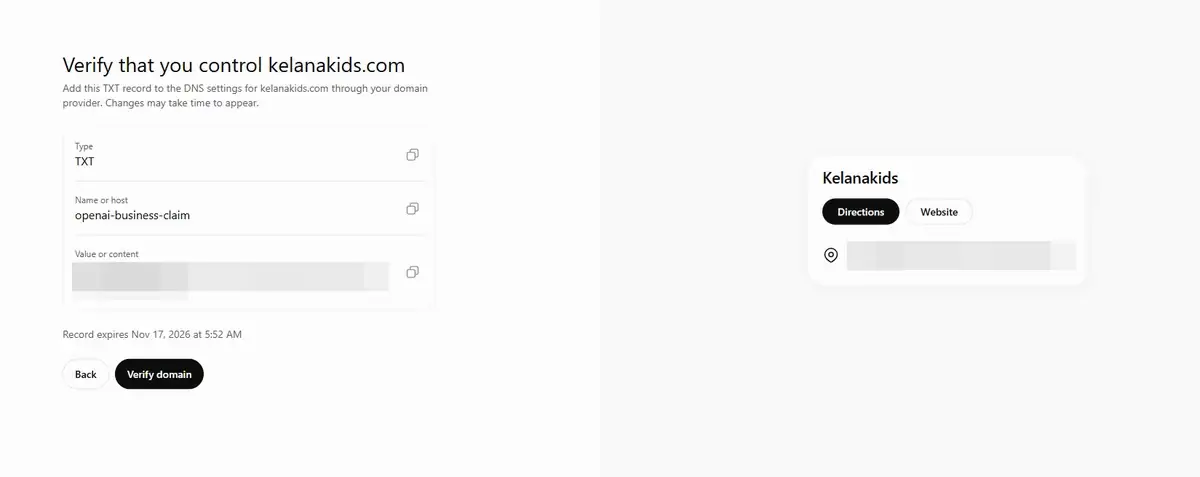
Security reminder: redact live verification tokens before sharing screenshots. The Kelanakids record value in this article has been obscured. A DNS token is a proof-of-control value, not a reusable instruction for other websites.
Step 4: Wait for OpenAI to Review the Claim
Successful domain verification does not necessarily mean that every approval is complete. The fourth screenshot reads “We’re reviewing your claim for Kelanakids” and displays three statuses: Claim received, Review in progress, and Decision reached.
The first stage indicates that OpenAI received the claim. The next step is an integrity review of the business information. OpenAI says it will send its decision, or a request for more information, by email. While a claim is under review, a Cancel claim option may be offered. There is no guaranteed review duration that applies to every business.
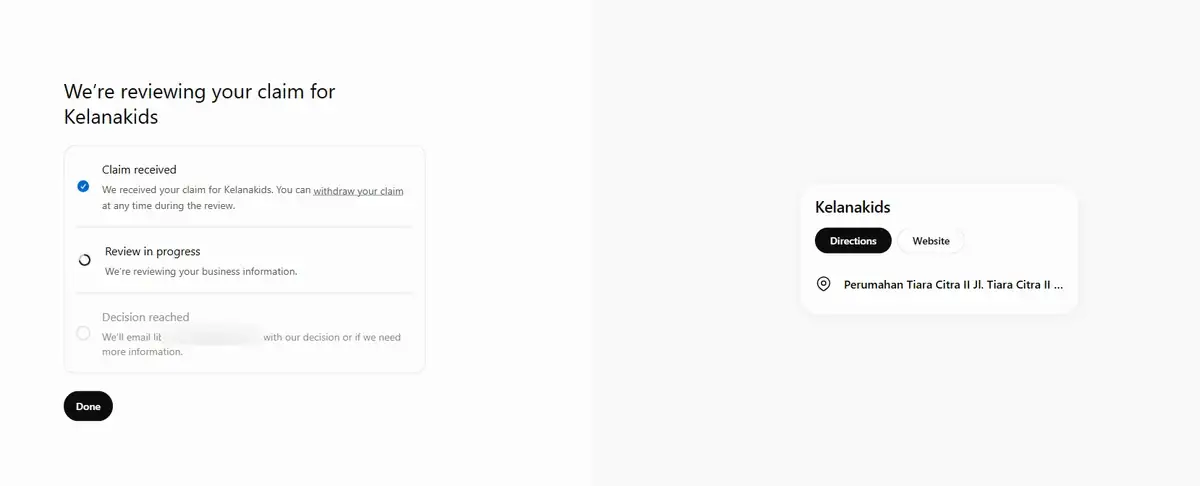
For privacy, the personal email address visible in the original screenshot was blurred before publication. Apply the same precaution to private addresses, phone numbers, verification values, and other details that do not need to appear in a public guide.
Step 5: Confirm the Successful Claim
In the fifth screenshot, the headline says “You’ve claimed Kelanakids”. It shows a blue check on the listing preview and paths to Manage your business, Start chatting with customers, and Review your business agent. An advertising-credit promotion is also visible in this particular example.
These entries are not evidence that every listed capability is automatically enabled for all claimants. A Business Agent has separate eligibility, configuration, testing, and publication requirements. Likewise, the promotional advertising credit shown in the example should not be interpreted as an offer available to every business. Claiming, publishing an agent, and advertising are separate activities.
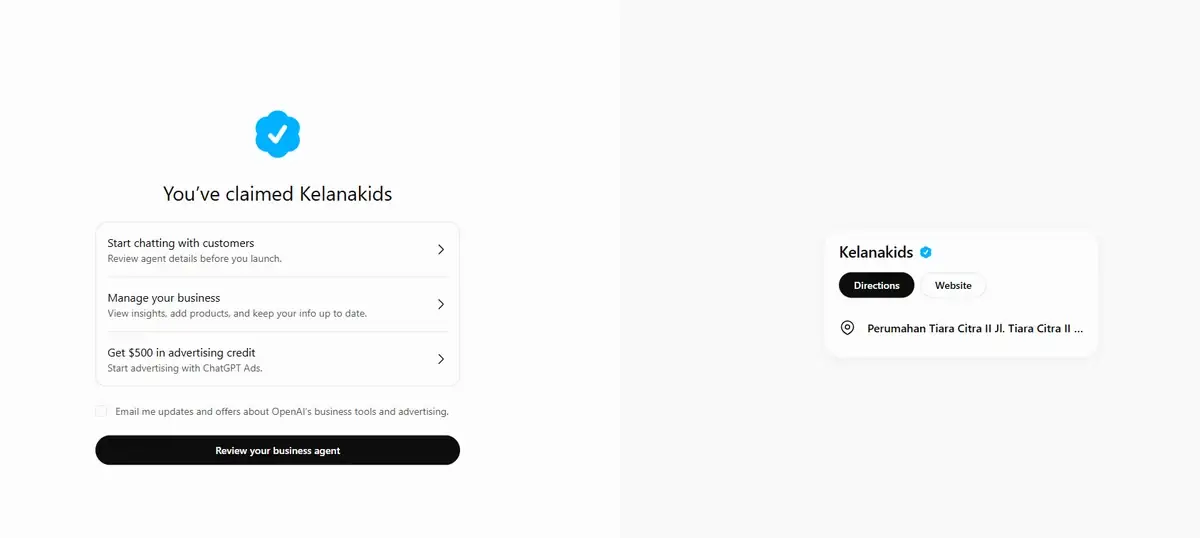
Important verified-badge clarification: OpenAI’s current Help Center guidance says that an approved business claim alone does not grant the blue verified badge. The badge is associated with approval of the separate Persona identity verification. The five provided screenshots do not show a distinct Persona journey, so we should not infer precisely which identity checks happened outside the captured screens.
Persona Verification vs. Website-Domain Verification
This distinction is essential. Claim verification through a phone number, email address, domain, or Shopify store establishes a connection to the business listing. Persona verification checks identity and authority before certain management features can be used. OpenAI requires the latter to publish changes to business information, access Insights, connect a product feed, or create an eligible Business Agent.
To complete Persona later, OpenAI directs users to open the relevant profile in the Business tab, find Complete verification with Persona, choose Verify, and follow the prompts. You may be asked for identity documents, registration information, and proof of authorization. OpenAI then reviews the submission and communicates its decision or requests more information by email.
Do not treat these statuses as interchangeable: domain verification completed, business claim approved, Persona verification approved, and Business Agent published. They describe different checkpoints. In particular, the five Kelanakids images document the domain-based claim experience, not a full screen-by-screen walkthrough of Persona.
Other Business Claim Verification Options
Business Phone Verification
If your listing offers Business phone, choose SMS or an automated call, request a code, and enter the code sent to the number displayed. Use an official number that a business owner or authorized representative can access. In the Kelanakids screenshot, this option was unavailable.
Business Email Verification
Where the interface offers Business email, request a verification code and enter the code delivered to the associated business email address. Keep authentication codes private and check that the email account is under the organization’s control.
Shopify Store Verification
Eligible Shopify merchants can choose Shopify store, connect the relevant shop, review requested permissions, log in, and follow the verification prompts. Shopify connectivity can simplify catalog-related setup, but it does not mean that a customer-facing Business Agent has automatically been published.
What Can You Do After Your Business Is Approved?
After the necessary claim and Persona approvals, Business Hub allows eligible businesses to update information such as their website, business description, product or service categories, logo, cover image, shipping policies, and return policies. These changes are subject to review, and updates may take time to appear in a profile or a ChatGPT response. OpenAI may still use outside sources where relevant.
The Insights area provides an aggregated view of activity over the last 28 days. Depending on the type of business, metrics can include mentions, website clicks, and discovery topics—themes in ChatGPT answers where the business or its website appears. For an online business, a mention is based on a reference to its website; the brand name alone does not qualify under OpenAI’s stated definition.
These insights are deliberately not a transcript of customer interactions. OpenAI says that individual prompts and customer chats, including Business Agent conversations, are not shared with businesses. Empty metrics may indicate a reporting threshold or data-availability limitation, rather than zero interest.
Retailers may also connect product feeds, including Shopify feeds or compliant CSV files, to keep product details, pricing, and availability current. A product feed can help ChatGPT access updated information, but neither a feed nor a claimed profile guarantees product recommendations or sales.
Dashboard navigation, Insight interpretation, and Business Agent configuration deserve separate, more detailed tutorials. This article focuses on getting through the claim process correctly.
Common Claim Problems and How to Resolve Them
Your Business Does Not Appear in Search
Try the official business name and check whether the available result corresponds to the right website and location. Eligible online businesses may have an option to add their profile. Otherwise, consult OpenAI’s supported business types and countries rather than creating a duplicate or misleading listing.
The TXT Record Exists, but Domain Verification Fails
Confirm you changed the authoritative DNS provider, not an old hosting panel. Verify that the TXT record has the exact type, host, and complete value shown in Business Hub. Look for accidental domain suffixes, extra spaces, or an expired verification request, and allow for DNS propagation.
The Claim Is Stuck on Review in Progress
A pending review is not a rejection. Monitor the relevant email account for a decision or request for documentation. Avoid repeatedly filing new claims for the same business while the original is under review.
Someone Else Has Already Claimed Your Business
Open the business profile, select its three-dot options menu, and look for Dispute ownership. The documented dispute process uses Persona to verify authorization. If the profile is locked and offers Contact support, use OpenAI’s official support channel.
Insights or Business Agent Is Missing
Check whether the business claim and Persona verification have both been approved, then review the location and category requirements for the specific feature. A valid business profile does not imply eligibility for a Business Agent.
Does Claiming a Business on ChatGPT Improve SEO?
The practical benefit is better control over official business information and, when eligible, access to structured engagement insights. A consistent website, business description, product offering, and service policy can make it easier to keep facts current. But these capabilities are not a replacement for technical SEO, useful content, a strong brand presence, or trustworthy customer information.
OpenAI explicitly states that claiming does not guarantee higher placement or sales. The blue check is not a guaranteed ranking signal, and Business Hub does not promise that ChatGPT will mention or recommend your company. Businesses should treat claims as part of a broader information-quality and visibility strategy rather than as a one-click optimization tactic.
After approval, consider auditing your official website and business details, checking that core service pages are clear and accessible, reviewing product or return information, and monitoring web analytics alongside the limited aggregate view in Business Hub. Avoid attributing a traffic increase to the claim process without supporting data.
Frequently Asked Questions
Can businesses outside the United States claim a ChatGPT listing?
Some eligible businesses where ChatGPT is offered can apply, but availability depends on business type, country, listing availability, and supported verification methods. Business Agent eligibility is currently narrower.
Do I need a website to claim my business?
OpenAI says that the initial claim availability is for eligible businesses with a website. The verification choices available to you may also depend on the listing.
Is DNS verification the same as Persona verification?
No. DNS establishes technical control over a domain for a business claim. Persona is a separate identity and authorization review for management features and the verified badge.
How long does a ChatGPT business claim take?
There is no universal guaranteed completion time. DNS changes may take time to propagate, while claim and Persona reviews continue until a decision or information request is sent.
Does a verified blue check appear immediately after adding a TXT record?
Not necessarily. OpenAI’s Help Center associates the badge with approval of Persona identity verification, not merely adding a DNS record.
Do I have to buy ads or launch a Business Agent?
No. Claiming a business, publishing a Business Agent, and advertising are separate activities. Eligible businesses can manage profiles without running advertisements or publishing an agent.
Will a claimed business always be recommended by ChatGPT?
No. ChatGPT continues to produce independent answers and comparisons, and OpenAI does not guarantee ranking, recommendations, traffic, or revenue.
Can an agency help administer the profile?
According to OpenAI, the claiming administrator can add teammates and grant agencies access in Business Hub. Each person should use their own account with appropriately limited permissions.
Final Checklist and Next Steps
Before considering the setup complete, verify that you selected the right business listing, completed the offered claim method, submitted the correct DNS value if using website verification, received the claim decision, and checked whether a separate Persona identity-verification step remains. Only then should you rely on the availability of features such as Insights, profile publishing, or Business Agents.
For the official entry point, visit OpenAI’s Businesses in ChatGPT claim page. Keep sensitive tokens private and treat your own Business Hub status as the final reference for which steps have been approved.
Official Sources
- OpenAI — Businesses in ChatGPT: Claim Your Business.
- OpenAI Help Center — Setting up your business on ChatGPT.
- OpenAI — Introducing Businesses in ChatGPT (November 10, 2026).
- OpenAI — Businesses in ChatGPT Policy.
