

Connecting ChatGPT to WordPress using Model Context Protocol (MCP) is not as simple as typing “manage my website” into a conversation. A working setup needs a compatible integration that exposes specific tools, secure authentication, and permissions that reflect the tasks you actually want to perform. Once configured correctly, ChatGPT may retrieve WordPress information and execute supported, authorized actions.
At Bloggerpi.com, we use MCP-assisted workflows for content operations, SEO metadata, internal linking, and website updates. This guide intentionally remains provider-neutral: it does not reveal the MCP implementation used internally, any private endpoint, or credentials. The goal is to show a safe planning and testing method that can be adapted to different WordPress environments.
Before You Connect Anything: Define the Task and Environment
Start by deciding what problem the integration needs to solve. Reading published posts, auditing draft content, updating metadata, editing service pages, and publishing changes have different technical and permission requirements. For a first experiment, choose a read-only task whose result is easy to verify against the WordPress dashboard.
Then make a short inventory of the website: WordPress installation, security requirements, SEO plugin, language plugin, editor, custom post types, and any custom fields. A conventional Gutenberg article and a complex Elementor landing page may require very different tools. If you do not know how a plugin stores its data, do not assume a generic post-update operation can edit it correctly.
Prepare a restorable backup and a staging environment when feasible. Even a small test can have an unexpected impact if it targets a published page instead of the intended draft. For context, see our WordPress overview and how to create a WordPress post.
What Actually Connects ChatGPT to WordPress?
MCP provides a standard way for an AI application to discover and invoke capabilities exposed by an MCP server. For WordPress, those capabilities might retrieve posts, read SEO fields, update content, or perform a custom action. The underlying implementation may use WordPress REST API endpoints, WordPress code, or another authorized backend mechanism.
ChatGPT interprets the request and selects an available tool. It does not become a WordPress administrator simply because a connection exists. The backend is responsible for checking identity, permissions, and the validity of a requested change. The tool response is evidence of what the integration reports; independent verification is still necessary for consequential edits.
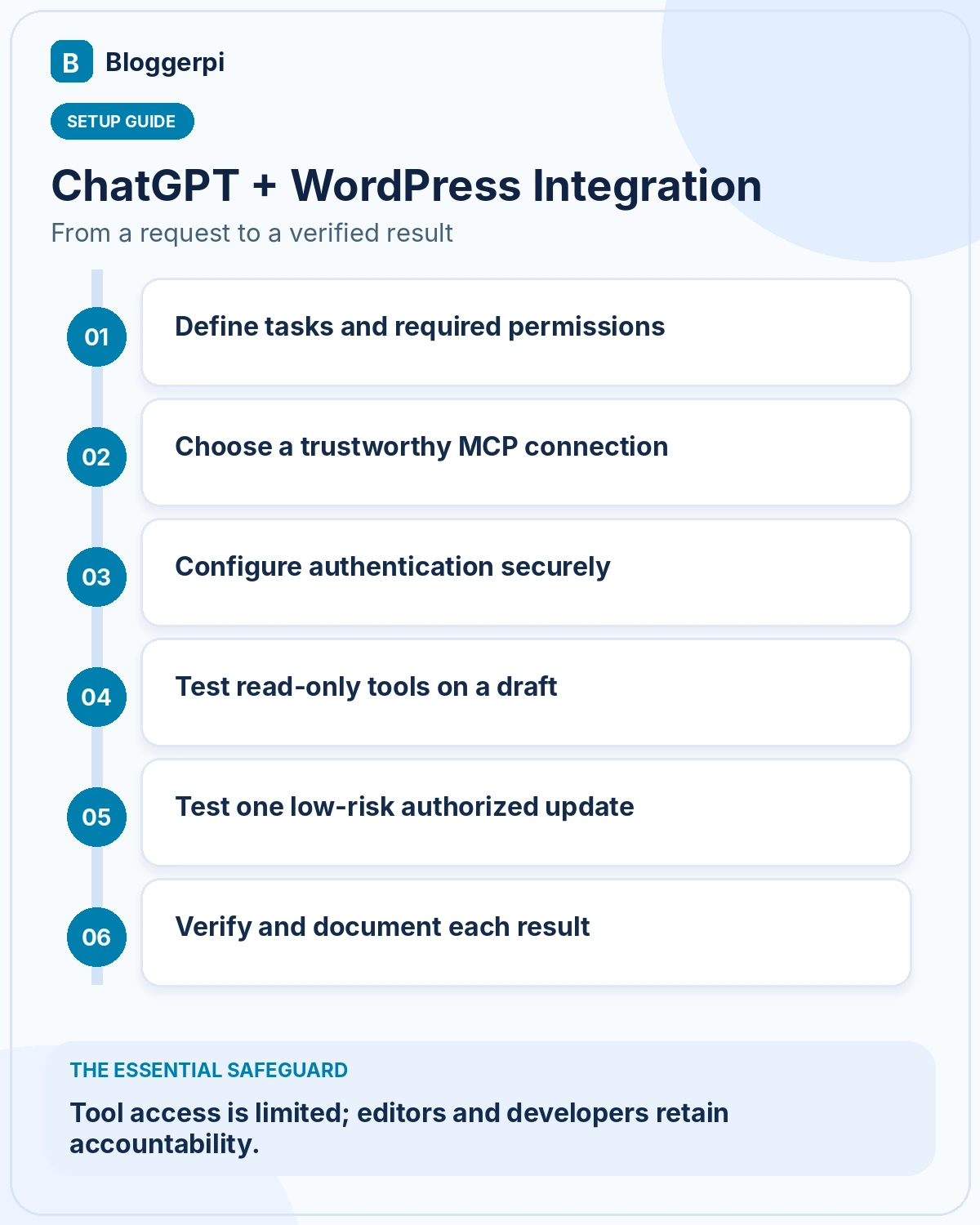
Step 1: List the Minimum Tools You Need
Separate read operations from write operations. A content audit might need access to article titles, post status, content, categories, and saved SEO metadata. It does not need permission to install plugins, delete pages, or publish hundreds of posts. Starting with fewer tools makes it easier to understand what the connection can access and reduces the consequences of a mistake.
Write a simple acceptance test for each proposed function. Can the tool find a post by URL? Does it retrieve the raw article with embeds intact? Does it return the correct language and category? Is the SEO description the current stored value or merely generated HTML? Specific tests reveal limitations that a broad claim such as “supports WordPress” might conceal.
Step 2: Evaluate an MCP Connection You Can Trust
Look for maintained documentation, clear authorization boundaries, suitable authentication, the ability to revoke access, and transparent handling of errors. Avoid granting full administrator credentials for a task that only requires reading articles. If the website handles client or customer information, assess the integration’s data handling and your organization’s security obligations before enabling it.
ChatGPT’s interface for custom MCP connections can change across plans, workspaces, and product updates. Check the current official connection instructions for your environment rather than relying on an old screenshot-based walkthrough. This article explains a repeatable evaluation process rather than claiming that one exact menu path works for every account.
Step 3: Configure WordPress Authentication Safely
WordPress supports credentials specifically intended for programmatic access. Its Application Passwords feature is one official option: it can provide revocable, per-application credentials without sharing the main WordPress login password. It is not the only possible architecture for an MCP integration, however, and the right method depends on how the connection is designed.
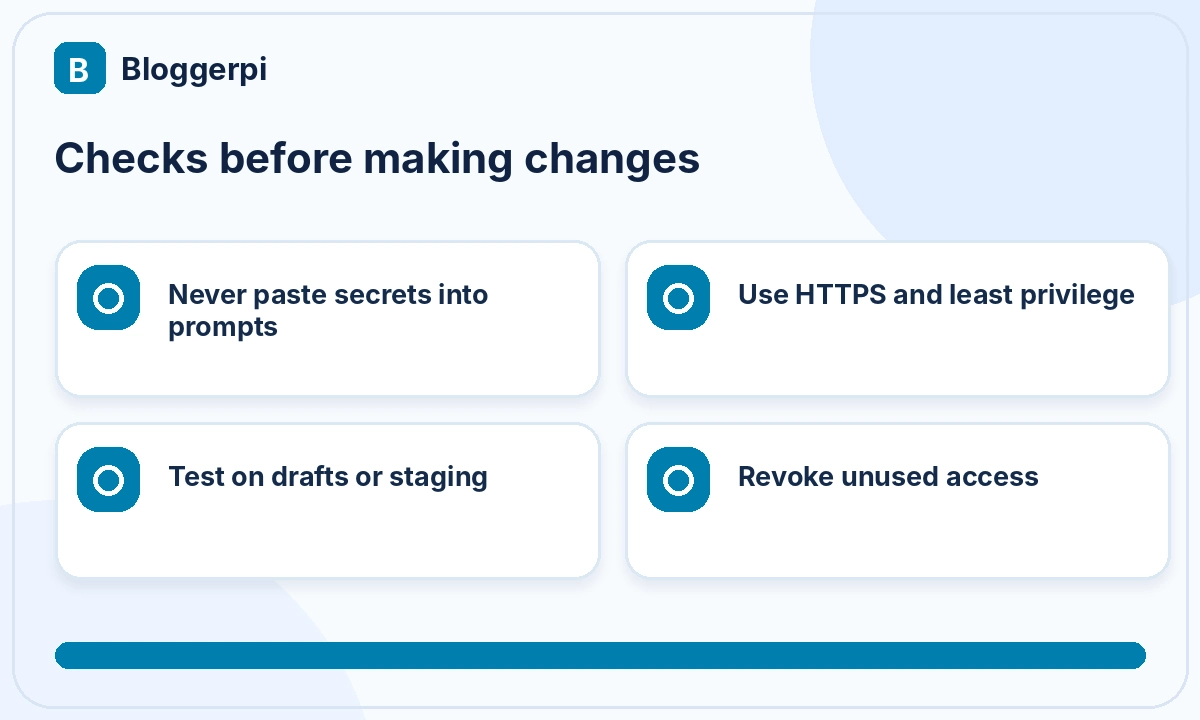
Never paste live tokens or passwords into public instructions, screenshots, or example code. Use HTTPS, secure secret storage, and permissions scoped to the minimum viable tasks. Keep staging and production credentials separate. If a connection has administrator-level access, a compromised integration or incorrect operation may have much broader consequences.
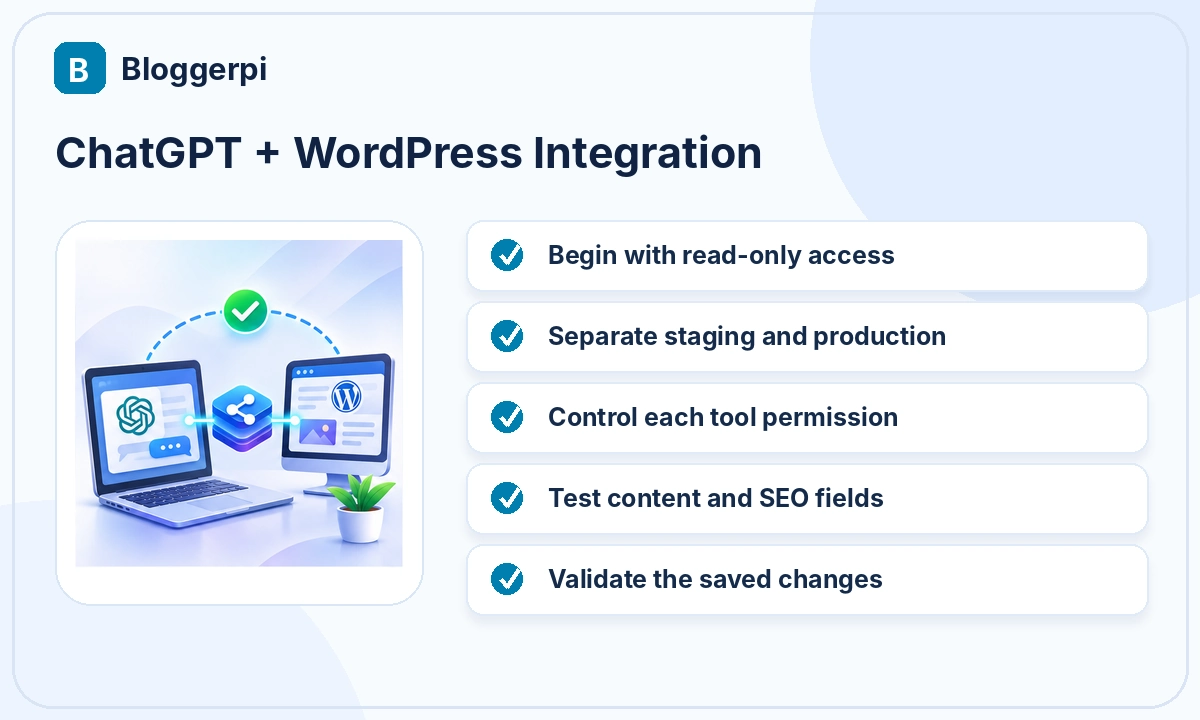
Step 4: Verify a Read-Only WordPress Operation
Ask ChatGPT to retrieve something you already know, such as a specific draft’s title, slug, category, or SEO description. Compare each returned field with WordPress. If the result is wrong or missing, diagnose whether the tool searched only public content, lacked permission, used the wrong identifier, or failed to retrieve plugin-specific information.
Do not interpret “not found” as proof that a post does not exist. Drafts, private posts, custom post types, and restricted metadata may not appear in a generic public search. The correct response is to explain the visibility limitation and use an authorized retrieval method where available.
Step 5: Test One Authorized Draft Update
Only after the read operation is reliable should you try a write. Select a draft or staging post and change one low-risk field, such as a test excerpt or description. State the fields that must remain unchanged: slug, author, publication date, images, embeds, categories, and status. Confirm any change before executing it when appropriate.
Read the field back after saving and inspect the WordPress preview. If the tool reports success but the value is unchanged, the operation is not complete. Plugin data may use a different storage structure, or a validation rule may have rejected the update. A trustworthy workflow reports the discrepancy instead of masking it.
Step 6: Establish an Editorial and Technical SOP
Document the order of operations, preserved fields, required approvals, error-handling process, and verification steps. This is important when tasks expand from one article to a batch. In Bloggerpi’s work, such procedures help distinguish successful edits from cases that require a developer or manual review.
Do not assume a batch is safe because one article worked. Pages can have different editors, shortcode dependencies, translation relationships, and content ownership. A reliable batch process must be able to stop or skip unsafe items, report partial failures, and preserve a record of what changed.
What If the MCP Tools Cannot Edit a WordPress Feature?
WordPress ecosystems often include plugin-specific data structures. A basic tool may support posts and categories but lack functions for certain Elementor elements, Polylang relationships, specialized tables, or custom post types. MCP cannot automatically expose a capability that the integration has not implemented.
A developer may need to build a custom WordPress plugin or endpoint that exposes exactly the required operation. Proper implementation involves authentication, permission checks, input validation, error handling, and compatibility testing. Human stakeholders still decide whether that capability should be built and when it is safe to enable.
A Safe First Prompt to Test
“Use the authorized read-only tools to find the WordPress draft I identify. Return its title, slug, status, categories, and current SEO metadata. Do not modify any data. Report fields you cannot access, and list what I should confirm in WordPress.”
After verifying that result, you can move to a separate prompt requesting a tightly scoped draft change with confirmation. For a broader example, read our Bloggerpi WordPress and MCP case study, which also explains why readback and frontend inspection belong in the definition of done.
Troubleshooting Common ChatGPT–WordPress Connection Problems
Problem 1: The Connection Works but Cannot Find a Draft
Check whether the search tool includes drafts, pending reviews, and private posts or only published material. Some public search endpoints do not list unpublished content. The article may also belong to a custom post type that the selected tool does not support. Confirm the exact ID, slug, language, and status in WordPress before diagnosing the integration as broken.
If the post is private, the connected identity must have the necessary read permissions. Granting an administrator role is not a reasonable first response to a missing search result. Use a suitable authorized retrieval method and correctly scoped query instead.
Problem 2: The Tool Returns a 401 or 403 Error
Authentication and authorization problems can arise from invalid credentials, missing user permissions, or restrictions imposed by the site’s security controls. The exact reason requires examination of the error details and available logs; 401 and 403 should not automatically be treated as identical failures.
Check the connected account, credential status, allowed operation, and integration configuration. Avoid disabling a site’s firewall or security plugin broadly to make one tool work. Any necessary exception should be narrow, documented, and tested.
Problem 3: SEO Metadata Appears Unchanged
Verify the target post ID and the specific metadata field. An SEO plugin may store information in plugin-specific fields and generate frontend metadata through a separate mechanism. Retrieve the stored values with an appropriate read tool. If the value is present but the display is stale, caching or plugin processing may need review.
Do not immediately modify canonicals or resave the entire site. Isolate the test to one post, compare the before-and-after state, and identify precisely where the discrepancy occurs.
Problem 4: The Content Saves but the Page Renders Incorrectly
This can happen if an edit removes HTML wrappers, shortcode markup, or page-builder structures. Inspect the WordPress revision history and restore affected elements when appropriate. For complex content, a specialized function that edits only the required block can be safer than replacing the full article HTML.
Verify the result on mobile as well as desktop. Tables, buttons, images, and embedded media may behave differently across screen sizes, even when the database contains valid content.
When Should You Disable or Revoke an Integration?
Revoke access when a connection is no longer needed, credentials may be compromised, or unexplained operations appear in your audit records. Review recent actions and follow your recovery procedure if changes have affected the website. Credential lifecycle management should be part of operating the connection, not an afterthought left to the next security incident.
A gradual approach allows a team to move from read-only audits toward more complex actions while retaining operational control. Human stakeholders should decide whether to introduce new tools, revise permissions, build custom functionality, or reject a workflow whose risks outweigh its benefits.
Frequently Asked Questions
Does an MCP integration require a WordPress administrator?
Not for every task. Use the narrowest role and tool permissions that support the work.
Are WordPress Application Passwords mandatory?
No. They are one official authentication method, but integrations can use different authorized mechanisms depending on their architecture.
Can I immediately automate WordPress SEO after connecting?
Only when the relevant SEO tools and fields are exposed. Editorial judgments still require review. See on-page SEO practices.
Should I test with a production administrator account?
Prefer staging or drafts, starting with read-only access. Avoid broad credentials for early experiments.
What should happen when a tool fails?
Record the error, inspect the saved state, and either use a safe alternative or involve a developer. Do not present the action as completed.
Reviewing the Connection After Initial Testing
After several controlled tests, evaluate more than the number of successful tool calls. Check whether the integration finds the correct posts, reports permission errors clearly, reads current SEO values, and provides enough information for a user to understand each requested action. Record how often an apparent success still required correction.
Consider whether the connection is genuinely more useful than the ordinary WordPress workflow. A simple job that now requires complicated troubleshooting may not yet benefit from automation. Useful MCP adoption is measured by reliable, reviewable work rather than the number of available tools.
Test error handling intentionally. Ask for a nonexistent post or attempt an operation beyond a test account’s rights, then confirm that the tool reports the failure without inventing a result. Document any missing custom capabilities with expected inputs, outputs, and permission boundaries for developer review.
Conclusion
Connecting ChatGPT to WordPress through MCP is a controlled integration project, not a single magic switch. Start with clear objectives, limited read tools, secure authentication, draft testing, and independent verification. Only expand to write actions and complex workflows after the connection has demonstrated that it can preserve your website’s content and settings. For related website operations, explore Bloggerpi case studies.
Official References
- OpenAI — MCP connections in ChatGPT
- WordPress REST API authentication
- WordPress Application Passwords
- Model Context Protocol architecture
