

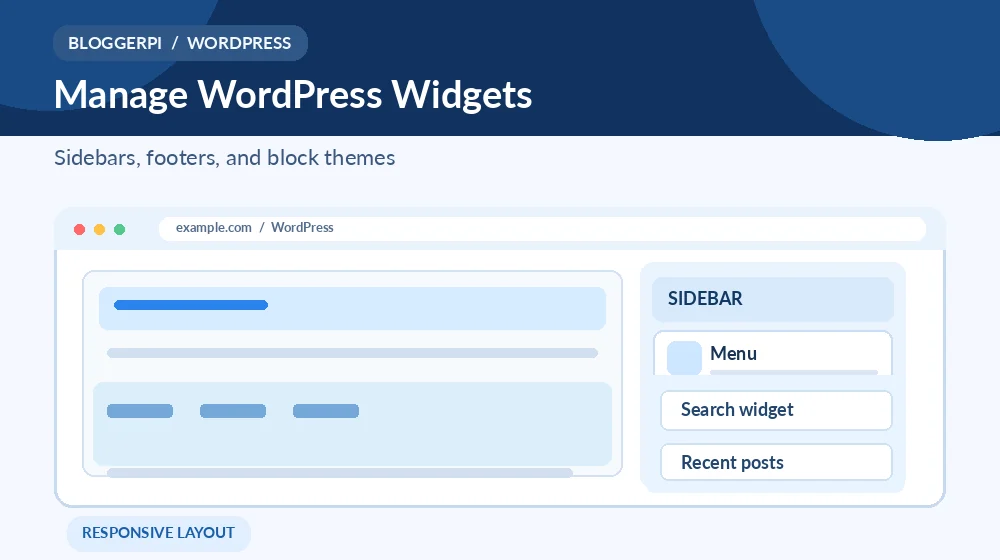
Need to add search, related posts or a contact panel to your WordPress sidebar? The steps depend on whether you use a classic theme or a block theme. This practical guide explains both approaches, with mobile, accessibility and troubleshooting advice.
What are WordPress widgets?
Widgets add useful content to theme-defined areas, often sidebars and footers. Search, categories, recent posts, contact details and a short call to action are common examples. Widgets are optional, and not all themes offer traditional widget areas. Start with the reader’s needs, rather than filling every available space. A service business may prioritize contact links, while a tutorial blog may benefit from search and related topics.
Classic themes versus block themes
If you are still planning the site structure, start with the WordPress beginner roadmap. When changing theme types, follow the safe WordPress theme migration guide, because widget locations and templates can change.
Classic themes with registered widget areas normally provide Appearance > Widgets. Since WordPress 5.8, the block-based widgets editor allows blocks inside those areas. Some sites use the older interface through the Classic Widgets plugin. Block themes use Appearance > Editor instead, with templates, patterns and template parts. The missing Widgets menu in a block theme is expected behavior, not a software fault.
Add a widget to a classic theme
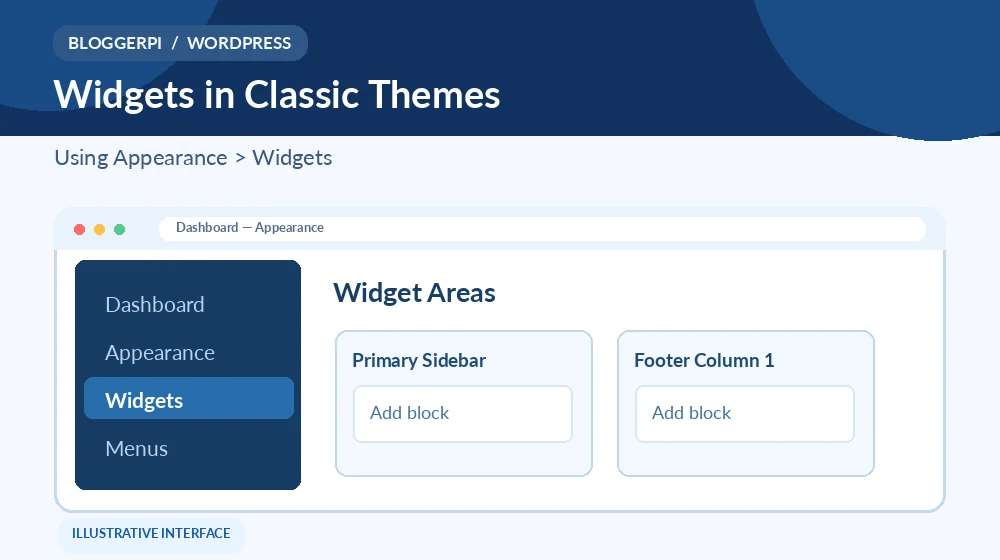
Open Appearance > Widgets, select the correct widget area, and click the plus button. Insert a Search, Latest Posts, Categories, Paragraph or other appropriate block. Configure it, save and inspect the actual page. Widget area names depend on the theme. Footer 1 may appear across the website, whereas a secondary sidebar may be available only in certain page templates. If a change does not appear, inspect the active template first.
Reorder, edit and remove widgets
Select the block and use its move controls or drag-and-drop interface. Edit its content or open block settings. To remove a block, use the options menu. The older classic widgets interface instead offers expandable panels. Before removing a widget, check whether it contains contact information, policy links or navigation. Copy any configuration you might need to restore, save and preview on both desktop and mobile.
Create a sidebar in a block theme
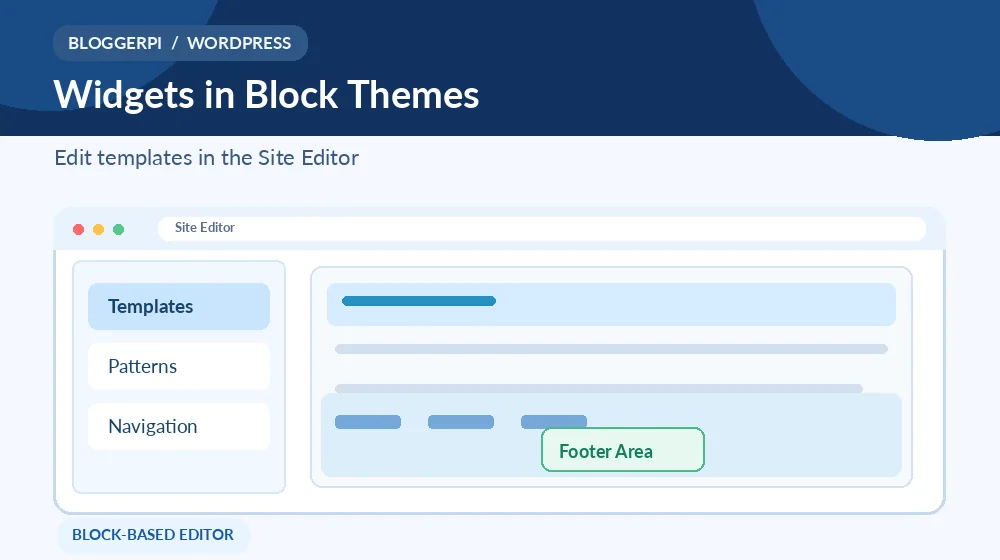
Open Appearance > Editor, then Templates. Locate the template used by posts or pages. A sidebar can be created with Columns or Group blocks alongside the content. Add useful blocks and save. For shared footer or header content, open Patterns or Template Parts. Changes to a shared template part may affect many pages, so review the scope of changes before saving. Ensure the main article remains readable on narrow screens.
Useful widget layouts for businesses and blogs
For a service business, a short introduction, two or three service links and a clear contact action can be enough. A footer may include organization details, contact information, policies and concise navigation. A content website may benefit from search, curated related articles and category links. Avoid repeating identical keyword-rich anchors or recreating the main menu without adding value.
SEO, accessibility and performance
For useful contextual navigation, review WordPress internal linking practices alongside the wider WordPress SEO optimization workflow. A sidebar cannot substitute for clear information architecture.
Use descriptive headings and meaningful link text. Make interactive controls keyboard accessible and large enough to tap. Add appropriate alt text to images. If a widget embeds a video, social feed or third-party form, check whether it slows the page or causes layout shifts. Widgets do not guarantee search ranking improvements; their value is better navigation and user experience. Prefer native blocks when suitable.
Troubleshoot missing WordPress widgets
If the Widgets menu is missing, first check whether the site uses a block theme. If a classic theme has no widget areas, confirm the theme supports them. If a widget saves but does not appear, inspect the selected area, active template, device visibility settings and caching. If the editor breaks, check permissions and error messages. Test plugin conflicts on staging rather than changing production theme files blindly.
Frequently asked questions
Are widgets still supported? Yes, in classic themes; block themes use blocks in templates. Are widgets plugins? No, although plugins can provide them. Do all websites need a sidebar? No. Can widgets vary by page? Yes, through templates or compatible conditional tools. Do widgets improve SEO? They can help navigation, but cannot guarantee rankings. Is Classic Widgets necessary? Only for specific legacy requirements.
Before you save
- Identify your theme type.
- Choose the correct sidebar, footer or template part.
- Keep widgets useful and concise.
- Test mobile layout and navigation.
- Review the scope of global template edits.
- Check caching and performance.
Official WordPress references
- WordPress documentation: block based widgets editor
- WordPress documentation: site editor
- WordPress documentation: appearance widgets screen classic editor
- WordPress documentation: block themes
Audit your widget areas before editing a live site
Start with the purpose of each area rather than adding blocks immediately. Review your homepage, articles, category archives and contact page on desktop and mobile. Note which templates expose a sidebar, what already appears there, and whether the additional information helps a visitor complete a task. A sidebar visible on a blog post may not exist on a full-width landing page.
Choose sidebar content deliberately
For a tutorial website, a compact search box, carefully selected categories and a relevant next-step link are often more useful than a long feed of recent posts. An oversized sidebar can distract from the article and make the mobile reading experience unnecessarily long. If you show related articles, periodically verify that the destinations remain accurate and genuinely relevant.
Give the footer a different job
A footer can provide organization details, contact information, privacy and legal links, secondary navigation and support resources. Avoid repeating the entire header menu without a reason. On multilingual sites, test footer links in each language: a translated page does not automatically mean that every manually inserted widget link points to the correct language version.
A safe workflow for updating widgets in production
For automated site maintenance, consider the security risks of AI-assisted WordPress management. Use appropriate permissions and backups before editing global templates.
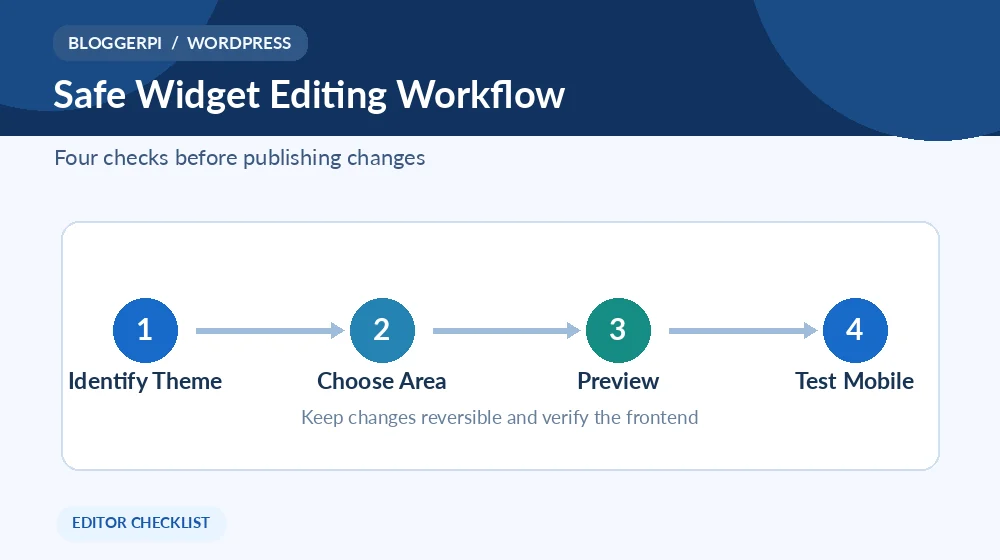
Step 1: identify the theme and its templates
Open the Appearance menu in WordPress. An Editor option usually indicates a block theme and the Site Editor workflow. A Widgets option indicates registered widget areas, often supplied by a classic theme. Older themes may use a block-based widgets screen or a classic interface depending on configuration and installed plugins. Administrative permissions can also affect which menus you see.
Step 2: document the current layout
Capture screenshots at desktop and mobile widths, record the current widget order and create an appropriate backup. Use a staging environment for higher-risk changes, particularly when editing a shared template part. A modification to a global footer or template can affect many URLs at once; relying on Undo alone is not a sound rollback plan.
Step 3: add one component at a time
In a classic theme, open Appearance → Widgets, choose the correct registered area and insert a Search, Paragraph, Image or Categories block. Configure the label, order and links before saving. In a block theme, use Appearance → Editor and locate the template or template part that controls the desired area. Insert a block in the correct layout container and preview the result. Be careful when changing a shared template part, because its updates can propagate across multiple pages.
Step 4: verify the public result
Open the published page in a private browser window. Check that text wraps, links work, buttons have usable touch targets, and images stay within their columns. If the new content does not appear, investigate page cache and CDN cache in a targeted way before considering a site-wide purge. Confirm that both the desktop and mobile versions show the intended changes.
Performance and accessibility considerations
Widgets are not inherently slow. Performance problems usually come from third-party scripts, oversized images, layout shifts or unnecessary interactive elements. For example, a marketing form that loads an additional JavaScript bundle may increase browser work, while an image without reserved dimensions can shift surrounding content. Prefer native WordPress blocks where they already satisfy the requirement, and assess extra plugins by their real maintenance and performance cost.
Make every interactive element understandable
Use descriptive labels for search inputs and forms. Give widget sections meaningful headings and avoid multiple ambiguous links such as “Click here.” Informative images need appropriate alternative text, while purely decorative images may use empty alt attributes. Test keyboard navigation and text contrast, especially in dark footers. A visually polished widget is not necessarily accessible.
Consider the mobile reading order
Many themes move sidebars below the article on smaller screens. A primary call to action that exists only in the sidebar might therefore appear far too late. Place essential actions in the main content and treat the sidebar as supplementary. Avoid sticky panels that obscure navigation, consent controls or the article itself.
Practical widget setups for different websites
Educational blog
Use a search box, a short list of useful topic categories and a link to a cornerstone guide. Keep the footer focused on About, Contact and Privacy pages. Review whether a popular-posts module actually helps users rather than simply adding more links.
Professional services website
Make consultation and contact options obvious. A contextual service link can be helpful, but placing multiple competing forms in every sidebar usually creates friction. Test telephone and messaging links on mobile and keep contact information consistent across templates.
Online store
Store footers are often better used for shipping, returns, payment, support and policy information. Product filters and category navigation belong in suitable catalog templates. Do not assume that a widget area configured for standard blog posts also controls WooCommerce product archives.
Frequently asked questions
Why is the Widgets menu missing?
The site may use a block theme, your account may lack the required permissions, or a plugin may have changed the administrative interface. Identify the theme and supported editing workflow before installing a plugin solely to restore an older menu.
Can different pages use different sidebars?
That depends on the theme and template system. Some classic themes expose multiple registered widget areas; block themes can use different templates and template parts. Always check whether you are editing a reusable part shared across the entire site.
Will adding widgets improve search rankings?
Not automatically. Useful navigation may help readers discover related content, but ranking improvements are not guaranteed. Favor a clear information architecture, relevant links, accessibility and fast page rendering over the number of widgets.
How to troubleshoot a widget that appears in the editor but not on the website
Check the right template first
Open the affected URL and identify whether it uses a single-post, page, archive or custom template. In a block theme, a footer or sidebar-like column may be part of a specific template rather than the global layout. If the change appears on posts but not pages, compare the assigned templates before changing plugins or clearing caches.
Check visibility rules and user roles
Some themes and plugins add display conditions, device-specific visibility or user-role restrictions. A widget might be intentionally hidden for logged-out visitors, or its container may be disabled at a mobile breakpoint. Review those conditions and test with a logged-out browser session. Do not assume that a widget saved in the editor is visible to every visitor.
Inspect caching and frontend errors
When an updated widget appears in the editor but not in the public page, compare a private-window request with the editor preview. Check the page cache and CDN configuration, then invalidate only the affected URL if necessary. For an interactive widget that renders but does not respond, inspect the browser console for JavaScript errors and test whether a performance optimization plugin is delaying or combining required scripts. Change one setting at a time and keep a record of the result.
Look for conflicting CSS rather than duplicating content
A widget may be present in the HTML but invisible because its parent has display:none, zero width, overflow clipping or an unexpected stacking order. Inspect the relevant container at mobile and desktop widths. Correct the actual layout conflict rather than inserting a second copy of the widget elsewhere. Duplicate forms and navigation can confuse assistive technology and create inconsistent behavior.
Ongoing maintenance: review widgets when the site changes
Recheck widget areas after changing themes, updating major page-building plugins, adding new languages or redesigning navigation. Verify contact details and policy links as part of regular content maintenance. If a theme migration removes a previously registered widget area, WordPress may retain widgets in an inactive area rather than display them. Review those saved widgets before deleting them, because they can contain useful content or configuration.
Keep a short change log for shared template edits: which template part changed, the affected pages, the date and a rollback reference. This matters particularly on business sites where the same footer or sidebar appears across hundreds of pages. The goal is not to create the most elaborate widget layout; it is to make essential information discoverable without sacrificing readability, accessibility or performance.
Related WordPress management guides
Before adding extra sidebar functionality, review how to install a WordPress plugin so you can evaluate extensions safely. Our guide to choosing useful WordPress plugins can help you avoid installing overlapping features. If you are updating site branding alongside the layout, follow the WordPress favicon setup guide to keep visual identity consistent.
