

Want to connect Google Analytics 4 (GA4) and Google Search Console to WordPress without copying tracking snippets into your theme? Site Kit by Google is Google’s official WordPress plugin for connecting supported services and displaying useful performance summaries in the WordPress dashboard. Yet installing the plugin is only the beginning. You still need the correct Google accounts and properties, sensible permissions, verified tag placement, privacy controls, and an understanding of how GA4 differs from Search Console. This guide walks through setup, verification, common errors, and practical uses of the resulting data.
What Site Kit does and what it does not replace
Site Kit helps WordPress administrators connect services such as Search Console, Analytics, and PageSpeed Insights. It supports authentication, service configuration, and access to selected reports within WordPress. That can save time compared with manually adding code or repeatedly opening separate tools. But Site Kit is not a replacement for Google Analytics or Search Console itself. Advanced event configuration, deep reports, indexing diagnostics, and many technical decisions still belong in the underlying services.
GA4 primarily measures user interactions and events that your website is able to collect. Search Console describes how Google Search discovers, displays, and serves your pages, including clicks, impressions, queries, and indexing information. Those are different measurement perspectives. Teams should avoid treating every number shown in two dashboards as interchangeable. If WordPress administration is new to you, start with our WordPress beginner roadmap to understand editors, roles, pages, and publishing before connecting external services.

Before installing: access, ownership, and site readiness
Confirm that you can administer the WordPress website, that the production URL can be accessed as intended, and that you have a suitable Google account. Ideally, ownership of Search Console properties and GA4 accounts belongs to an organization rather than to an external contractor’s personal account. Document the existing owners, administrators, and analysts before you begin. A missing permission can prevent a property from appearing in Site Kit even if another team member has already created it.
Check HTTPS, site addresses, plugin compatibility, and the existing measurement implementation. An established website may already load GA4 through Google Tag Manager, a theme feature, or another analytics plugin. Adding Site Kit does not mean you should automatically install another tag. Record your active property and Measurement ID, as well as where tracking code is currently managed. Verify basic WordPress site settings so you do not attempt to connect a staging address while expecting production data.
Review privacy obligations and consent mechanisms before adding new tracking. The plugin can simplify integration, but it does not remove responsibilities for truthful privacy notices, lawful data processing, and visitor choice where applicable. Decide who may change service settings and how changes will be reviewed.
Install the official Site Kit plugin
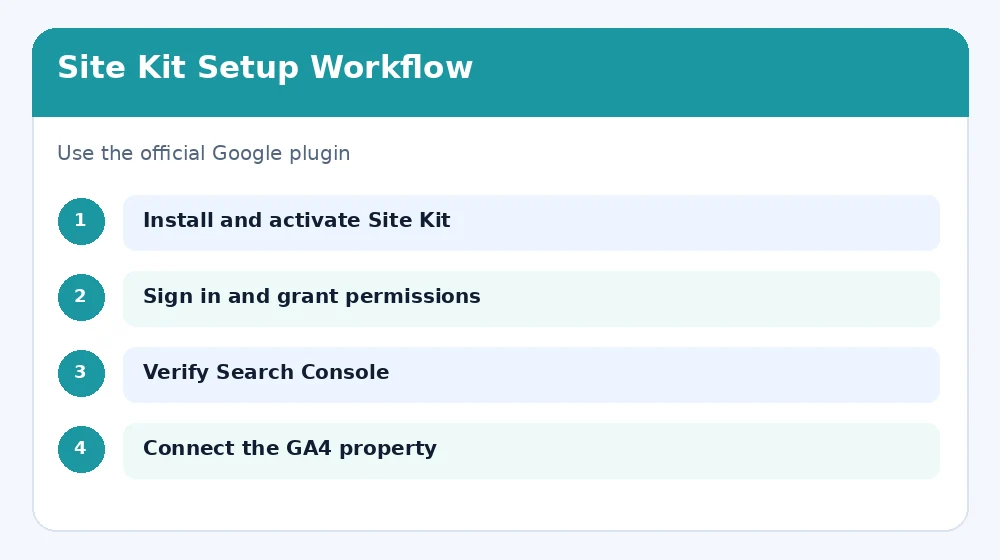
In WordPress, navigate to Plugins → Add New Plugin, search for Site Kit by Google, and confirm that the publisher is Google. Review plugin details before clicking Install Now and Activate. Avoid similarly named plugins when following this guide. If the Add New Plugin screen is unavailable, check role permissions and any restrictions applied by your hosting provider or multisite administrator.
Open the Site Kit menu and start the setup flow. Sign in with the Google account authorized to connect your organization’s services. Review the permissions requested and follow the verification and service-selection prompts. Google may adjust the wording and sequence of the screens over time, so treat current on-screen instructions and the official documentation as more authoritative than screenshots from older tutorials. For a broader installation walkthrough, see our WordPress plugin installation guide.
Connect WordPress to Google Search Console
During initial setup, Site Kit helps connect your site to an existing Search Console property or create one when appropriate. Make sure the property corresponds to the website visitors actually use. Consider potential differences between HTTP and HTTPS, www and non-www addresses, and staging environments. A mismatch can produce confusing reports or verification errors even when the account is valid.
If a Search Console property was previously verified through DNS or another method, do not casually remove the existing verification. Identify which accounts own the property and whether your Google account has the appropriate permissions. After the connection, open Search Console directly and confirm that the expected property and reports are accessible. A newly created property may not yet have meaningful performance or indexing data.
Search Console is especially helpful for investigating queries with many impressions but few clicks, pages that fail indexing checks, changes in organic visibility, and migration problems. Pair these observations with technical review rather than assuming every metric fluctuation calls for a sitewide rewrite. If URLs have changed, our WordPress permalink migration guide explains how to examine redirects, canonicals, sitemaps, and internal links.
Connect Google Analytics 4 through Site Kit
If Analytics was not connected during the initial setup, go to Site Kit → Settings → Connect More Services and select Analytics. Choose the appropriate Google account, then select an existing GA4 account and property or follow the creation process if needed. Confirm that the web data stream is for the correct production website. Do not pick an unrelated property simply because it is the first option in the list.
GA4 uses an event-based measurement model. Begin by confirming that your desired baseline events can be measured, and then define meaningful business actions as key events. A successful contact-form submission, for example, is different from clicking a contact button that may not have produced a lead. Decide what a conversion means for the organization before designing dashboards around it.
Under Site Kit Settings, inspect Connected Services and the Analytics details. Site Kit may manage or reuse a Google tag associated with the selected property. The exact implementation depends on what is already installed. Review the connected Measurement ID and tag placement before assuming new data collection is correct. Our WordPress plugin comparison guide can help prevent unnecessary overlap when other analytics extensions are already present.
Avoid duplicate GA4 tags and inflated reporting
A frequent integration problem occurs when Analytics is already installed via Google Tag Manager, a theme header script, or another plugin. If Site Kit also places a Google tag for the same measurement stream, certain events may be counted more than once. Record all possible injection points, determine which system is responsible for tracking, and confirm the intended behavior with appropriate diagnostics.
Review Site Kit’s code placement settings and check your Google tag configuration. Do not remove a GTM container just because you see a second integration; the container may also power custom events, advertising tools, and consent behavior. Make controlled changes and verify results before removing a legacy implementation. Maintaining permissions and change logs, as described in our AI-assisted WordPress security guide, is valuable when several people or automation systems manage the same website.
Understand GA4 versus Search Console metrics
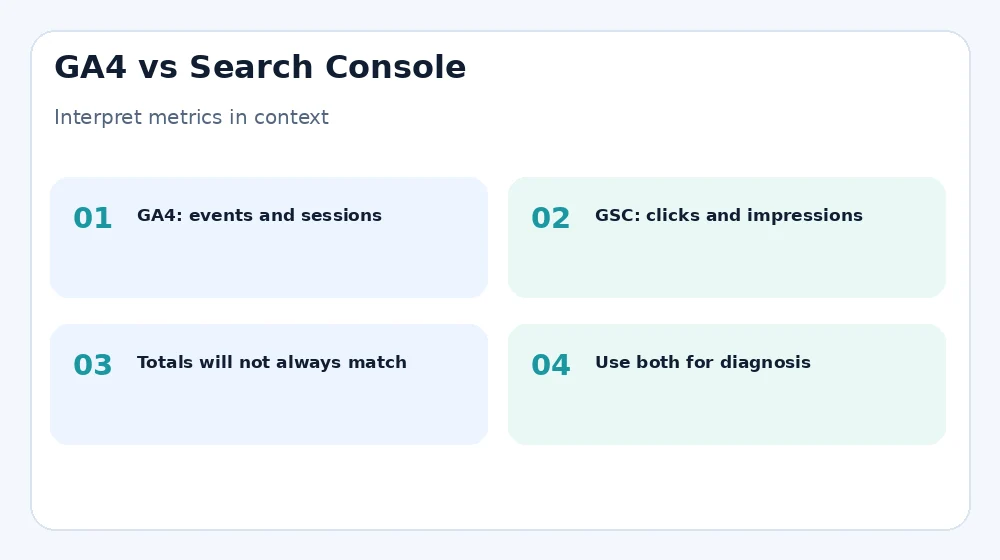
Search Console focuses on Google Search performance: queries, search impressions, clicks, click-through rate, and related search visibility measures. GA4 focuses on measurable interactions after users arrive, such as events, sessions, and engagement. Because collection points and counting rules differ, Google organic clicks in Search Console need not equal GA4 organic sessions.
For example, someone may click a Google search result but not generate the Analytics event you expect because of browser restrictions, tracking configuration, or consent decisions. Conversely, GA4 may record sessions from direct traffic, campaigns, and other channels that were never Google organic clicks. Compare the same date range, time zone, property, relevant dimensions, and definitions before investigating differences.
Ask two complementary questions: How do people discover our content? and What happens after they arrive? A page with many impressions but few clicks may need a stronger, accurate search-result title or better alignment with search intent. A landing page that attracts visitors without generating qualified inquiries may need a clearer offer, easier navigation, or better mobile experience. One metric alone rarely explains the full picture.
Verify the integration instead of trusting Connected status
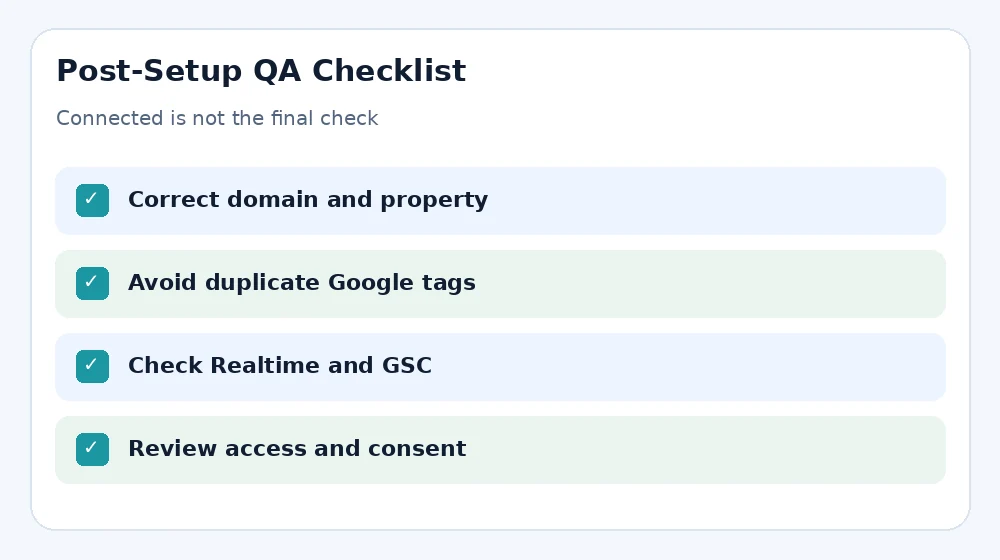
First, check whether Search Console and Analytics appear under Connected Services. Second, confirm that the expected GA4 property, Measurement ID, and Search Console site are selected. Third, visit your website under a lawful, representative consent state and inspect GA4 Realtime for expected events. Remember that internal traffic filters, consent, and browser restrictions can change what you observe.
Fourth, open Search Console directly to verify property access and check available reports. Performance data may require processing time, especially for new sites. Fifth, test several page templates: homepage, post, category archive, and a key service page. A configuration that works on one page does not guarantee every template is covered.
Sixth, document when setup occurred, which accounts and properties were used, where tags are managed, and the results of sample checks. A single Realtime event confirms a possible connection but not the completeness or accuracy of all reports. Watch for duplicate page_view events, omitted forms, or pages where tracking is unexpectedly absent.
Privacy, consent, and Google service permissions
Analytics implementation involves processing information about visitor interactions. Review the policies and legal obligations that apply to your organization, audience, and locations. Where consent is required, configure it deliberately and make sure measurement behavior follows the user’s choices. Do not assume that simply publishing a privacy policy makes every tracking configuration acceptable.
Give team members permissions appropriate to their tasks. Someone preparing a marketing report may need analytics access without being allowed to edit WordPress plugins. A technical administrator may need to connect services without becoming the long-term owner of the organization’s Google accounts. Establish an offboarding process when staff or agencies change so important measurement properties do not become inaccessible.
Use the data for a practical weekly SEO workflow
Treat the Site Kit dashboard as a convenient overview rather than a complete analytical system. Each week, identify important pages, unusual visibility changes, recent content publications, and differences between search discovery and onsite behavior. Separate observation from explanation: a decline in clicks could relate to demand, ranking, indexing, or competing results, and a single chart rarely proves causation.
Consider a guide that receives substantial impressions but relatively few clicks. Check query intent, page title, and coverage before rewriting the article. If visitors land on a service page but cannot find a relevant contact path, audit the WordPress navigation menu and mobile calls to action. If articles do not support one another, improve contextual WordPress internal linking rather than forcing unrelated links into every paragraph.
An agency or growing business can create a concise weekly report with key pages, SEO observations, technical risks, recommended content changes, and clear next actions. Use real data and document its source. A useful report is more like an evidence-based project case study than a collection of screenshots. An ongoing SEO content strategy should turn the observations into testable editorial priorities.
Troubleshoot connection errors and empty dashboards
If setup fails, inspect the actual error rather than disabling every plugin. Common checks include Google account permissions, WordPress administrator access, site address consistency, HTTPS, security plugins, and whether a firewall blocks authentication requests. A property that is invisible in the picker may belong to an account your signed-in Google user cannot access.
If Site Kit reports Connected but shows no data, distinguish a new property from a broken installation. Check whether a Google tag is placed and configured as intended, whether consent or browser settings prevent collection, and whether Analytics has received events. Google notes that normal reports can require additional processing time. A Site Kit display issue may also be different from a problem with the underlying Google service.
If page_view counts appear duplicated, audit theme snippets, GTM, plugins, and Site Kit code placement. If Search Console does not report expected pages, check indexing eligibility, robots settings, canonicals, sitemaps, and actual crawling rather than reinstalling the plugin. Other SEO tools and reporting utilities can complement these checks, but their estimates should not be treated as interchangeable with Google’s first-party measurements.
Site Kit on multilingual WordPress websites
A multilingual website may use a single GA4 property to measure visitors across different language paths when that fits the organization’s reporting plan. You will still need meaningful dimensions or reports for understanding performance by language and content. Search Console performance should also be interpreted at the level of relevant localized URLs rather than merging translations without a clear rationale.
Check that English and Indonesian pages have correct canonicals, translation relationships, and menus. See our multilingual WordPress operations guide for managing language pairs and keeping cross-language links intentional. Mixing staging and production traffic without labeling it can make reports difficult to interpret, so choose consistent measurement boundaries.
When to leave Site Kit and use the Google tools directly
Site Kit helps surface useful summaries and accelerates service connections, but it cannot answer every advanced question. Use GA4 directly to explore event configuration, audiences, and nuanced behavior. Use Search Console directly to inspect Page Indexing, URL Inspection, Performance, and Google Search diagnostics. For organization-wide reporting, a suitable reporting platform can combine selected metrics with the right permissions and definitions.
Document what each metric measures, where it comes from, the selected date range, and what processing delay may apply. Avoid comparing numbers simply because different dashboards label both as traffic. A clear measurement method is more valuable than a polished chart that no one can reproduce.
Frequently asked questions
Is Site Kit by Google free?
The official Site Kit plugin does not require a separate plugin license fee for the supported integrations, although other services and hosting may have their own costs.
Do I need to install a GA4 tag manually?
Not necessarily. Site Kit can manage an associated Google tag, but you must inspect existing implementations to avoid duplicate measurement.
Why don’t my GA4 and Search Console numbers match?
They describe different activities with different collection and processing rules. An apparent discrepancy is not, by itself, proof of an error.
How quickly will data appear?
Realtime can help verify initial events, while other Analytics and Search Console reports require processing. There is no universal wait period for all properties.
Does Site Kit improve rankings automatically?
No. Site Kit provides access to measurement and reporting; search visibility still depends on content, technical quality, and other factors.
Official documentation and references
- Site Kit — Install and Setup
- Site Kit — Connect More Services
- Site Kit — Google Analytics
- Site Kit — Search Console
- Site Kit — Manage Site Kit-Placed Code
- Google — Search Console and Analytics Data
- Google Analytics — Data Freshness
Bottom line: Connect the appropriate properties, avoid duplicate tags, verify measurement independently, and interpret the numbers according to what they actually represent. Site Kit enables an efficient foundation for analysis; it does not replace diagnosis, editorial judgment, or accountable performance reporting.
