

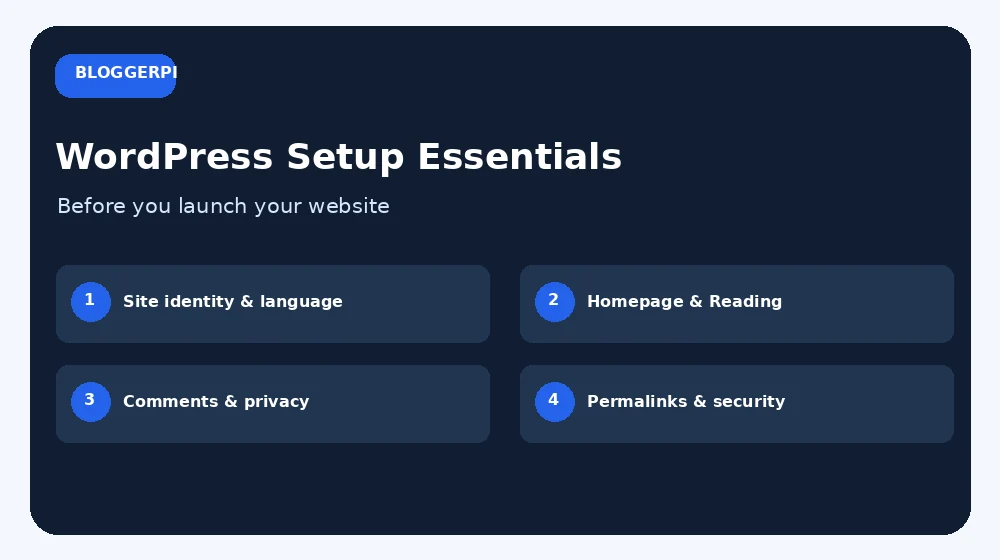
WordPress settings influence how your site is displayed, accessed, maintained, and discovered. After installing WordPress, many site owners immediately add content without reviewing the homepage, time zone, comment policies, site addresses, or permalink structure. Those decisions can later create confusing navigation and unnecessary maintenance work. This practical guide explains the most important settings for a new blog or business website, why they matter, when not to change them, and how to check the public results rather than assuming the dashboard preview is enough.
Start with the website’s purpose and ownership model
Before changing settings, define the site’s primary job. A tutorial blog may emphasize recent articles, archives, and topical navigation. A service business usually needs a static homepage, clear service pages, evidence of previous work, and a contact path. An online catalog has a different information architecture again. Your answer affects the Reading screen, menu configuration, discussion policy, and which plugins add genuine value.
Confirm whether your installation is a self-hosted WordPress site, multisite, or a managed environment with restricted administrator privileges. The interface and available controls can vary according to WordPress version, theme, plugins, and user role. If a Settings item is missing, do not assume the site is broken. Check access permissions and consult the hosting administrator where relevant. Our WordPress beginner roadmap explains key concepts before you begin modifying a live production site.
1. General settings: identity, URLs, language, and time zone
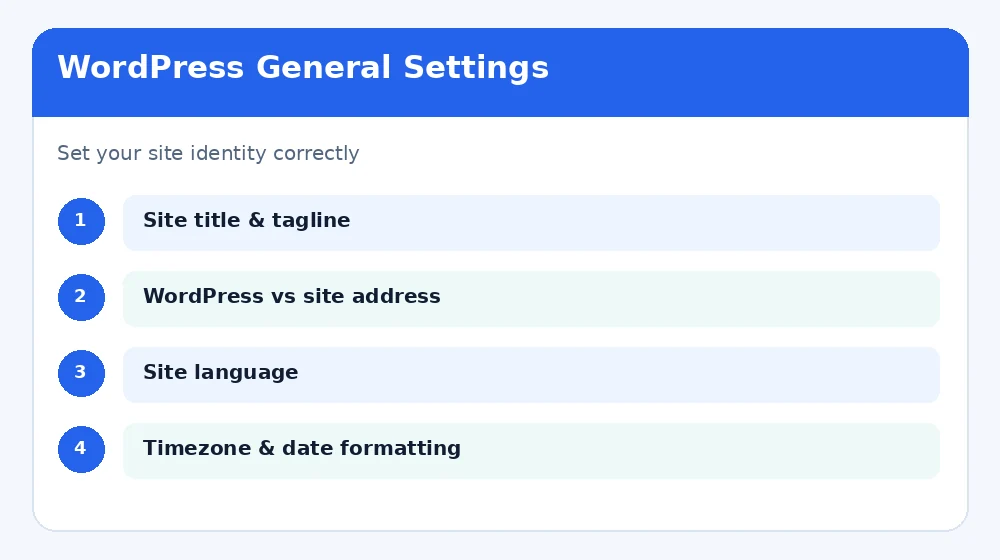
Open Settings → General and confirm that Site Title accurately reflects your organization or publication. A tagline should help people understand the site’s purpose, not serve as a list of search keywords. Your theme and SEO plugins may display these fields in different places, but page-specific SEO titles should still be managed separately. Check the Administration Email Address so important notices reach a maintained mailbox.
WordPress Address (URL) and Site Address (URL) are different concepts. The former identifies where WordPress core files reside; the latter is the address visitors normally use. They may match on a simple installation, but they can differ when WordPress sits in a subdirectory or behind particular server configurations. Editing either field without understanding SSL, hosting, and reverse proxies can disrupt access. Back up configuration details and seek technical help before changing them on a mature site.
Choose a site language that suits the people managing the interface, and select an appropriate geographic time zone or editorial standard. A reliable time zone helps avoid mistakes with scheduled posts and timestamps. Review the date and time formats, as well as the start of the week. Changing the interface language does not translate your posts. Publishing in several languages is a separate editorial and technical workflow.
2. Reading settings: static homepage or latest posts
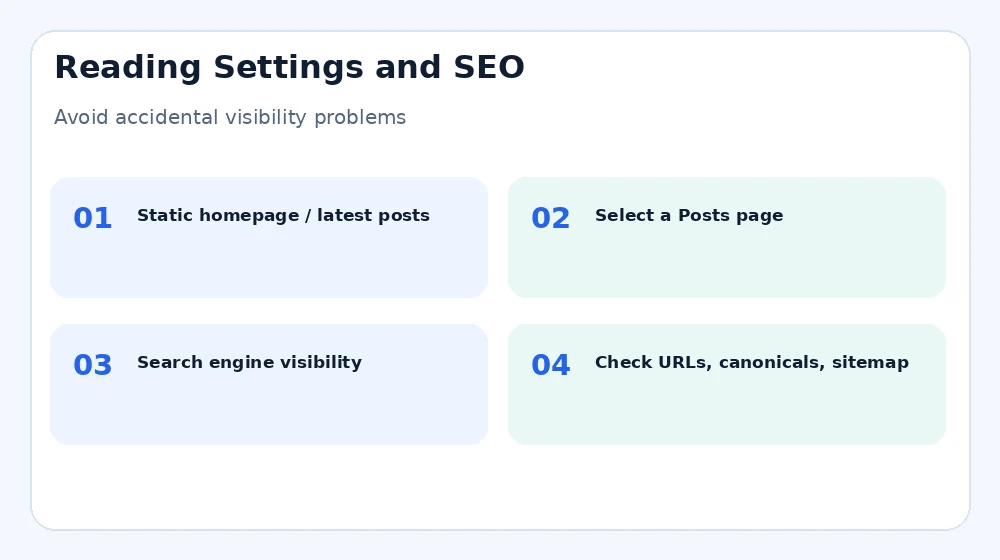
Under Settings → Reading, choose whether visitors see your latest posts or a static homepage. Recent posts make sense for a publication where freshness is central. A business may be better served by a designed homepage that introduces its services, credibility, and next steps. Create the required pages first, then assign the Homepage and, where appropriate, the Posts page.
Do not assign the same page to both homepage and Posts page. Open the site in a private browser window after saving because a logged-in administrator may see cached or editor-only behavior. The number of posts shown on archive pages also affects layout and usability. Review feeds, post excerpts, and mobile presentation, but do not try to force all themes into the same template.
The checkbox labeled Discourage search engines from indexing this site is an indexing request, not a secure privacy barrier. It may be useful in certain development circumstances, but a live public site intended for organic discovery should not accidentally retain it. Properly restrict confidential or staging sites with access controls. Confirm robots and canonical output using an approach such as the WordPress SEO audit workflow rather than trusting only the setting’s label.
3. Writing settings and editorial taxonomy
The Writing settings include defaults that can influence how new posts are created and classified. Do not leave every article in Uncategorized. Define a limited set of meaningful categories based on audience needs, and choose an appropriate default only if one category genuinely represents a large share of the content. A bloated category tree makes archives harder to browse and can encourage overlapping topics.
Create a publication checklist for title, slug, excerpt, category, featured image, sources, and internal links. Use descriptive language and avoid turning every headline into a keyword list. When several editors contribute, consistent standards matter more than individual habits. An agreed content process, possibly supported by a professional SEO content writing workflow, helps prevent structural inconsistencies that are expensive to clean up later.
4. Discussion settings: moderation and spam management
Go to Settings → Discussion to determine whether comments are allowed and how they should be moderated. A community website may benefit from thoughtful discussion. A small brochure-style business site may prefer to disable comments and keep customer inquiries in a dedicated form. Neither approach is universally correct; consider your moderation capacity and the expectations of your visitors.
If you enable comments, establish a moderation policy, review notifications, and assess anti-spam controls. Ensure users do not inadvertently expose private information in visible threads. Test the form as a logged-out visitor, not just an administrator. Existing posts can retain individual discussion settings, so changing defaults for future content does not automatically guarantee the same behavior for the entire archive.
5. Media settings: responsive images and accessible content
WordPress can generate several image sizes after upload. Media settings influence some defaults, but the sizes actually shown also depend on the theme, editor blocks, and image plugins. Prepare images at useful source dimensions, compress them appropriately, and add alternative text that describes informative content to people using assistive technology. Do not write alt text merely as an SEO keyword container.
Inspect featured images and inline graphics at mobile and desktop widths. Avoid forcing oversized source files into tiny display areas. Use responsive sizes and appropriate loading behavior; an above-the-fold hero image may deserve different handling from a graphic several screens down. Performance ultimately depends on images, fonts, scripts, caching, and server response together rather than one single toggle.
6. Permalinks: decide on stable URLs early
WordPress provides permalink patterns through Settings → Permalinks. For a new evergreen publication, Post name is often simple and understandable. Other formats may fit newsrooms, special publishing systems, or existing site conventions. Stability and technical compatibility matter more than the belief that one slug style automatically produces better rankings. After any change, visit several content types to confirm server rewrite rules work as intended.
Do not alter site-wide permalinks on an established site without mapping old URLs to final destinations. Even changing the slug of one article can break external bookmarks and old internal links. Follow our guide to changing WordPress permalinks safely for redirect planning, 301 or 308 responses, canonical tags, sitemaps, and link updates. Retaining an existing address may be better than changing it for a minor cosmetic improvement.
7. Privacy settings and the visitor’s data
Publish a privacy policy that reflects what your website actually collects and shares, such as contact-form submissions, analytics data, comment cookies, or advertising identifiers. WordPress can help you designate a Privacy Policy page, but site owners remain responsible for the accuracy and maintenance of its content. Avoid copying generic policies that mention services the site does not use or omit important processing activities.
Review every plugin and external script that collects visitor information. If you add measurement or advertising tools, evaluate applicable notices and consent requirements for your audience and jurisdictions. A policy link is not a substitute for implementing the appropriate technical controls. Revisit privacy settings after major changes in tracking, business model, or data handling.
8. Theme, menus, widget areas, and site identity
Choose a theme that supports your content hierarchy and does not undermine mobile usability. Review the header, footer, typography, contrast, spacing, and navigation. Classic themes often use Appearance → Menus, while block themes offer the Site Editor and Navigation block. Follow our WordPress navigation menu guide to connect important service, article, and contact pages logically.
A sidebar or footer should help visitors make progress rather than become a place for every available widget. Our guide to managing WordPress widgets explains typical placements and limitations. Set a suitable favicon and brand identity using the WordPress favicon guide. If you plan a redesign, back up your site and follow a safe WordPress theme migration process so menus, template parts, and widget areas are not unexpectedly lost.
9. Plugins, updates, and user permissions
Only install a plugin when it solves a specific problem not already handled well by your theme, WordPress core, or infrastructure. Every plugin introduces updates, permissions, and possible conflicts. Start with our WordPress plugin installation guide and compare the alternatives in our WordPress plugin selection guide. Avoid overlapping caching plugins, duplicate SEO markup generators, or several tools injecting the same analytics tag.
Assign user roles according to the minimum access each contributor needs. A writer who only drafts articles should not automatically receive administrator access. Remove unused accounts, use strong authentication, and establish a controlled update and backup process. When you connect AI tools or MCP integrations, pay close attention to permission scope and change history, as described in our guide to safe AI-assisted WordPress management.
10. Foundational SEO and site discoverability
An SEO plugin does not replace good content or clear architecture. Give each important page a distinct purpose, organize headings sensibly, write useful excerpts, and place relevant links where readers need them. Do not create multiple pages that all answer the same query with minimal differences. Connect tutorials, categories, and commercial pages through genuine editorial relationships. Our WordPress internal linking workflow offers a more systematic way to maintain those connections.
Inspect actual title tags, meta descriptions, canonical URLs, robots directives, and XML sitemaps. Some settings can be stored correctly while rendered output is stale because of indexing or caching. Review taxonomy archives, search-result pages, attachments, pagination, and language variants separately. Never apply blanket noindex changes without understanding which page types must remain discoverable.
11. Settings for multilingual WordPress sites
A multilingual site has several layers of configuration: interface language, content translations, translated taxonomies, localized navigation, distinct slugs, and language relationships. A plugin such as Polylang can manage those relationships, but each language still needs appropriate content, metadata, and internal links. English articles should normally link to English resources; Indonesian articles should link to their Indonesian counterparts.
If a translation is unavailable, make a deliberate navigation decision rather than publishing an empty translation solely to display a switcher. Verify both sides of every translation relationship. Our multilingual WordPress management guide explains why language QA must be part of publication rather than postponed indefinitely.
12. Pre-launch verification checklist
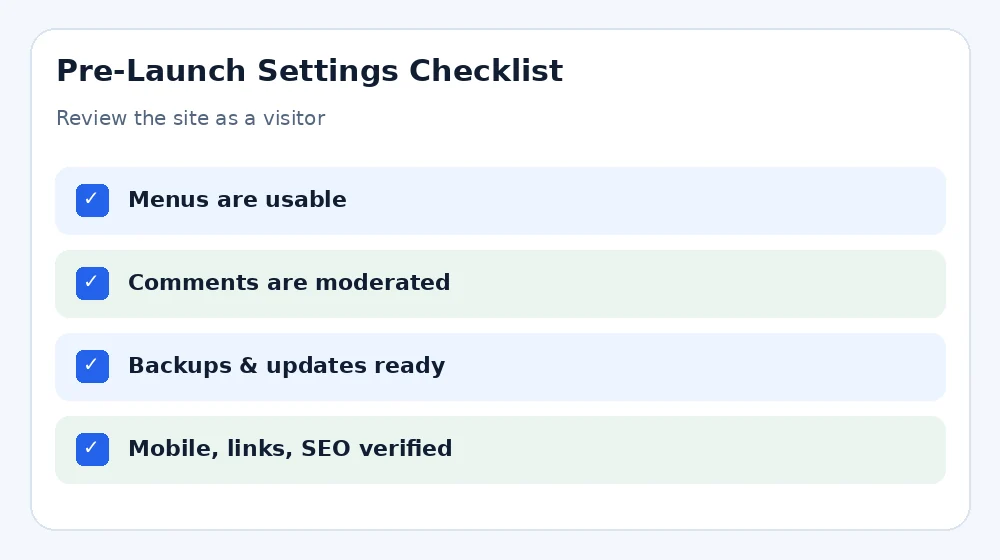
Open the site in a private or logged-out browser. Check HTTPS, the homepage, a post, a service page, category archives, contact forms, and narrow mobile layouts. Test keyboard navigation, focus indicators, and responsive images. Verify that calls to action lead to real destinations. The dashboard view alone cannot reveal every problem experienced by a visitor.
Then inspect canonical tags, robots indexing, sitemap output, broken links, and unnecessary redirects. Check backups and understand how restoration would work. Confirm that role permissions, administrator notifications, comment policy, and updates align with your operating plan. For a business website, compare the visitor journey with the structure used in our published case studies rather than treating theme demo content as the final site design.
Common WordPress configuration mistakes to avoid
Frequent errors include changing WordPress Address without understanding the server, accidentally leaving search engine indexing discouraged, publishing everything as Uncategorized, adding several overlapping plugins, using oversized images, and changing themes without mobile testing. Another common mistake is changing permalink structures without redirects or giving administrator privileges to everyone who edits content.
A change log, backup, test plan, and clear ownership prevent many of these problems. Diagnose one layer at a time: content, WordPress settings, plugins, theme, caching, and infrastructure. For production websites, targeted testing is safer than global changes made in response to one unexpected page.
Frequently asked questions
Do I only need to configure WordPress once?
No. Review settings after major content, team, functionality, or audience changes. Privacy, user permissions, navigation, and moderation require ongoing attention.
Why can’t I see Settings in my dashboard?
Check your role and whether the site belongs to a multisite or restricted hosting environment. Never expand permissions casually just to reveal a menu.
Should I install SEO and security plugins immediately?
Evaluate specific needs and the capabilities already provided by WordPress, your hosting infrastructure, and your theme. Install well-maintained tools that solve real gaps.
Does changing Site Language translate existing content?
No. It primarily changes interface language; translations, categories, and language mapping remain an editorial project.
What should I test before publishing my first article?
Check title, slug, category, media, link destinations, accessibility, SEO metadata, the live page, and mobile readability.
Official documentation and references
- WordPress — Administration Screens
- WordPress — Settings Reading
- WordPress — Settings Discussion
- WordPress — Settings Permalinks
- WordPress — Roles and Capabilities
Next step: Turn this guide into a repeatable site checklist, check at least one public page of each important template type, and keep a record of configuration changes. A well-configured WordPress site is a foundation for accessible publishing, sensible navigation, and dependable SEO—not a one-time growth shortcut.
