

How do you connect Shopify or a product feed to ChatGPT Business Hub? Eligible businesses have two main ways to provide structured commerce information: connect an authorized Shopify store or supply a product feed, including a CSV file that follows OpenAI’s published specification. The information can include product titles, descriptions, images, prices, and availability. It can help people understand relevant offers in ChatGPT, but connecting a catalog is not a guarantee of recommendation placement, checkout access, or agent publication.
These routes solve similar data-management problems but have different operational requirements. Shopify merchants can use a supported store connection and benefit from existing catalog synchronization. Businesses that maintain products in another platform may use a standalone feed upload or hosted feed URL where the feature is offered. In both cases, Business Hub permissions, business eligibility and Persona approval matter before administrators can connect and manage data.
This guide covers the practical workflow, the actual required fields in OpenAI’s Stable product feed schema, how to handle variants and stock updates, and what to troubleshoot when products do not appear. It is based on official documentation reviewed November 16, 2026. Because Businesses in ChatGPT is in beta, account-specific controls may change.
What Is a Product Feed in Businesses in ChatGPT?
A product feed is a structured collection of purchasable items and variants. Instead of describing the company as a whole, it supplies details about specific offers: stable item IDs, factual product descriptions, URLs, images, brands, sellers, prices and stock statuses. OpenAI’s commerce documentation explains how this information can be submitted for product discovery, subject to additional requirements for advertising and checkout.
The distinction between a profile and a feed is important. Business profile fields describe the company and its policies. A feed describes individual things the company offers. Neither replaces the actual product page, checkout or customer service channel. OpenAI also says connecting a feed does not publish a Business Agent or guarantee that ChatGPT recommends the products.
Before starting catalog work, read the Businesses in ChatGPT overview and the Business Hub dashboard review. They explain how business claims, management tools and reporting fit together without implying that every eligible company has an agent.
Prerequisites: Business Claim, Persona and Store Access
Use the ChatGPT account authorized to manage the relevant company. OpenAI requires an approved business claim and Persona identity verification to connect a product feed through Business Hub. A claim can be completed through a supported channel such as business email, phone, website DNS, or Shopify, but the initial claim and Persona identity approval are separate steps.
Shopify merchants should confirm they can legitimately sign in to the correct store and review connection permissions. For a CSV integration, the company needs a dependable export process, publicly accessible product pages and image URLs, and a way to update stock and prices without having to rebuild the catalog manually every time something changes. Assign ownership to a team member who knows the product data.
- Confirm that the business listing matches the actual company and that the claim has been approved.
- Complete Persona identity verification and wait for the explicit approval decision.
- Use the appropriate merchant or feed-administrator account, not a borrowed storefront login.
- Choose the Shopify or standalone file route based on the source of truth for product data.
- Validate live product pages, seller details, prices, availability and market coverage before submission.
An account still waiting for Persona should resolve verification before treating a blocked upload as a CSV formatting error. Our business verification guide covers email, DNS and Persona, while the claim troubleshooting guide distinguishes pending review from technical failures.
Shopify Connection and Standalone Feeds: Two Different Routes
Route A: Connect an eligible Shopify store
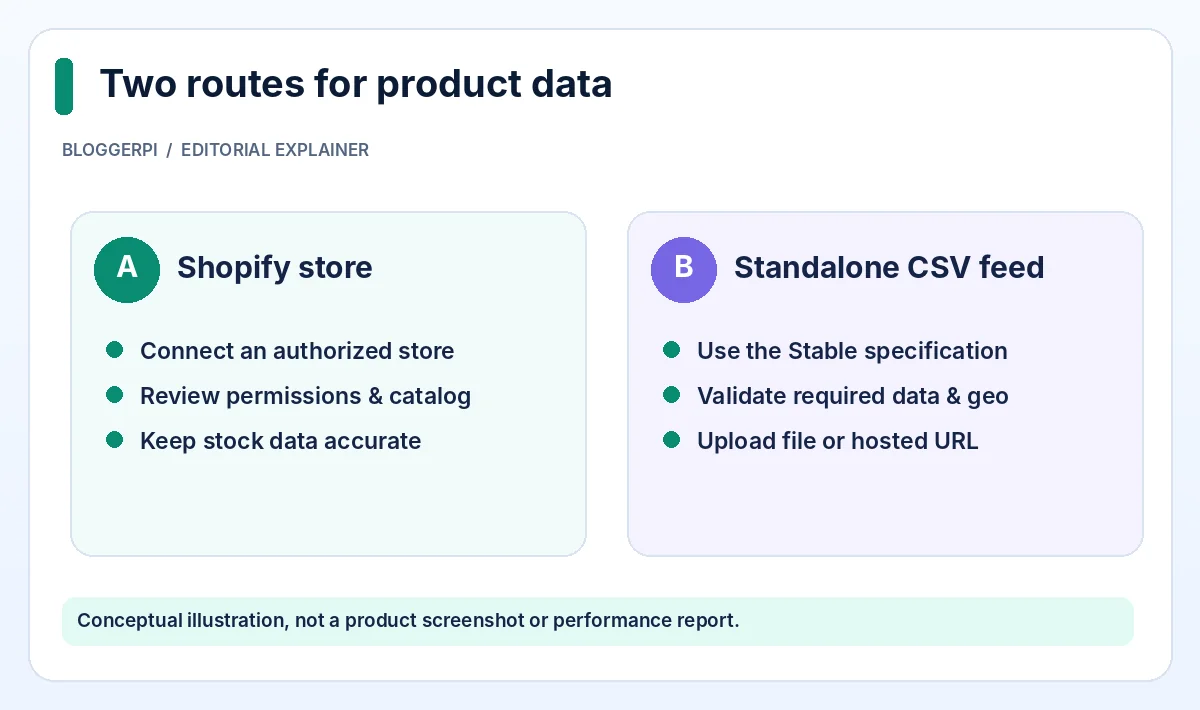
OpenAI allows supported Shopify merchants to start from Business Hub or Shopify administration. When using Shopify as the claim method, select Shopify store and then Connect Shopify. Review the permissions shown, choose Log in to Shopify, sign in to the store owned by the business, and follow the remaining instructions. The relevant account and store relationship must be legitimate.
OpenAI explains that product details, prices and availability can be shared through Shopify Catalog. The merchant should inspect the catalog after connection, paying particular attention to variants, active products, inventory availability and whether links resolve to the intended product pages. A successful authorization does not mean every item will appear in every ChatGPT response.
Some eligible Shopify onboarding paths can prepare a draft Business Agent. A draft is not a published agent. The company still needs to review the information and guidelines, preview sample conversations and select Publish separately if it meets the agent’s location and industry requirements. Shopify is not universally required to create an eligible agent, and a feed connection is not the same thing as advertising.
Route B: Upload a product-feed CSV
Businesses that use another ecommerce system can review the standalone feed option in Business Hub. OpenAI supports CSV file uploads following its product feed specification, and the Help Center also describes providing a hosted URL that links directly to the feed file when that option is available. Use the supported interface rather than assuming an undocumented upload endpoint or a generic file format will work.
The developer documentation distinguishes a Stable schema from a Draft schema. Stable is the supported file-upload path for production integrations at the time of writing. The Draft version is published for feedback and planning, not for production. That distinction matters for teams building automated exports from WooCommerce, ERP systems, headless storefronts, or custom applications.
The Required Fields in OpenAI’s Stable Product Feed
For basic product discovery, OpenAI specifies nine mandatory product attributes per item or purchasable variant, plus required geographic fields target_countries and store_country. The field names are technical identifiers and must remain in the documented format. Translating the CSV headers, inventing placeholders or leaving mandatory values blank can break validation.
| Required field | What it means and what to check |
|---|---|
item_id |
A stable, unique string identifying each purchasable product or variant. |
title |
A concise, accurate item name with relevant variant details. |
description |
A factual plain-text explanation of the product. |
url |
A stable, publicly accessible product URL, ideally selecting the variant. |
brand |
The actual brand shown on the product page. |
seller_name |
The seller supplying the offer. |
image_url |
A direct public image URL representing that item or variant. |
availability |
One of in_stock, out_of_stock, pre_order, backorder or unknown. |
price |
A monetary value in major currency units with its currency code. |
target_countries, store_country |
Required geographic market and store-country tags. |
The documentation advises keeping identifiers as strings, especially when they include leading zeros. URLs should be absolute and publicly accessible, preferably HTTPS. CSV fields containing commas, quotation marks or newlines need correct quoting. An optional attribute whose value is unknown should generally be omitted rather than filled with a string like “n/a,” unless the specification defines a valid value for that field.
There is an important exception for availability: unknown is a supported explicit stock status, but an empty or unrecognized value can cause a row to be rejected. Similarly, a price should include its currency code, such as 18.00 USD in the official example. A bare amount without currency may not satisfy the required format. The rules apply to every item, not merely to the first row of the file.
How to Model Product Variants Correctly
A common export problem involves a product offered in multiple sizes or colors. OpenAI’s specification allows separate rows with distinct item_id values and a shared group_id. When variants are explicitly modeled, fields such as listing_has_variations and variant_dict describe the selected options. The parent group ID and each purchasable variant ID should remain stable.
For a shirt sold in blue and green, each choice may need its own image, selected product URL, inventory status and price. If one color is out of stock, the feed should not report all colors as available. Teams should not invent GTINs or manufacturer identifiers to fill missing optional values. Honest omissions are preferable to false data, and the official schema details how conditional requirements work.
A Pre-Upload Product Feed Quality Checklist
- Export one row for each actual purchasable item or variant, with a stable identifier.
- Validate all required product and geographic fields using the current Stable documentation.
- Check prices, currency codes, stock enumerations and variant grouping against the live storefront.
- Open product and image URLs without an administrator session to confirm public access.
- Use UTF-8 and valid CSV quoting, and avoid temporary file links that may expire.
- Submit through the supported Business Hub route, then inspect validation or connection feedback.
- Keep the export scheduled or operationally maintained so changes in price and stock are reflected.
A small sample test is often more effective than uploading a full large catalog immediately. Validate several representative products: one simple item, one with multiple variants, one out of stock, and one using a special shipping policy. These checks help reveal model or formatting issues before they affect thousands of rows. Make sure the team knows how to reverse or correct an export if the source data changes.
Troubleshooting Product Data That Looks Wrong or Fails Validation
The connection worked, but some items are not shown
OpenAI states explicitly that connecting a product feed does not guarantee products are recommended. First confirm eligibility and successful data submission, then inspect geographic targeting and product information. Do not infer that a missing item in one generated answer proves the catalog connection is broken. Product discovery involves conditions outside the seller’s control.
A customer sees old prices or stock
Update the authoritative commerce catalog, regenerate or refresh the feed, and compare the precise item variant with the destination page. A timed promotion requires accurate price management rather than assumptions about scheduled feed fields. OpenAI’s schema notes that certain date fields do not automatically schedule price and availability changes. Operations staff should verify whether all related channels reflect the same current offer.
The CSV is rejected
Inspect the field names, missing required values, currency formatting, supported availability values, public URL accessibility and geographic tags. Confirm that the file uses the Stable specification rather than the Draft. If variants are present, verify that the IDs and option maps follow the documented rules. Keep validation messages for the developer team without publishing API secrets or private business data.
Shopify Catalog, Product Feeds, Agents, Plugins, Ads and Checkout
These names describe different capabilities. Shopify Catalog supplies supported product information. A standalone product feed is a structured file route. A Business Agent is a clearly identified conversation with a particular business that must be created and published separately. Shopify also has a ChatGPT plugin for operations within ChatGPT, but connecting that plugin does not by itself establish a Businesses in ChatGPT listing claim or create a public agent.
Ads and checkout have additional requirements. OpenAI’s commerce documentation treats product discovery, advertising and checkout as separate integrations. Merely sending a checkout-related flag does not enable checkout services. Business owners should be careful when evaluating third-party tutorials that promise immediate sales, universal agent activation, or guaranteed rankings from a product upload.
Infographic: Choosing the Shopify or CSV Route
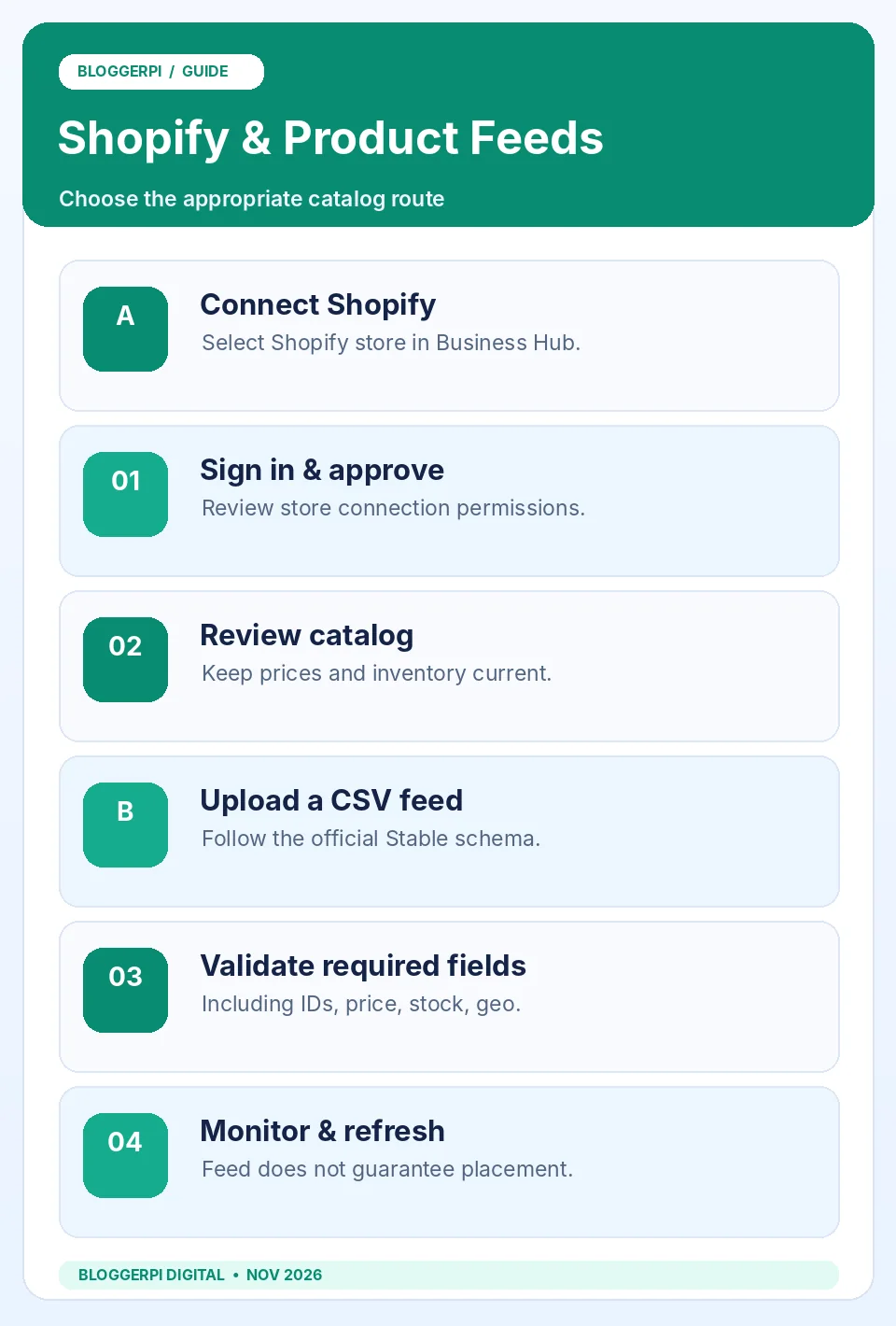
Use this infographic to assign responsibilities. A Shopify merchant should prioritize authorization and catalog freshness; an independent feed operator should prioritize schema validation and stable URLs. Both need to maintain legitimate ownership and accurate product information. Neither path substitutes for Persona approval or the separate agent publication process.
Frequently Asked Questions
Do I need Shopify to provide products to ChatGPT?
No. OpenAI documents a standalone CSV product feed route for supported businesses.
Do I have to claim and verify my business?
Business Hub product-feed management requires an approved claim and Persona verification.
Will the feed make every product appear in recommendations?
No. OpenAI explicitly says connecting a feed does not guarantee recommendations.
Does a Shopify connection publish an agent?
No. A draft agent needs separate review, testing and publication if the business is eligible.
What data is required for a CSV feed?
Nine basic item attributes plus target_countries and store_country in the Stable discovery specification.
What if the item’s stock status is unknown?
Use the supported explicit availability value unknown; do not leave the required field blank.
Can I send prices without a currency?
The spec requires a price formatted with a currency code, such as 18.00 USD.
Can uploading a feed enable checkout?
No. Checkout is a separate enabled integration; a feed or eligibility flag alone is insufficient.
Conclusion
Connecting Shopify or a standalone product feed to ChatGPT Business Hub is primarily an information-quality and catalog-management task. Start with legitimate account permissions and Persona approval, use a supported integration path, validate required fields and geographic tags, and keep product pages consistent with what is shared. It should complement your ecommerce operations rather than replace them.
For a business that has not started claiming its listing, follow the official claim walkthrough first. Once integration is functioning, consider available aggregate Business Insights alongside website analytics, while remembering that neither guarantees sales. Maintaining readable, accurate product pages remains essential to a successful customer journey.
Official References
- OpenAI Help Center — Setting up your business on ChatGPT
- OpenAI Developers — Product feed schema (Stable)
- OpenAI — Businesses in ChatGPT
- OpenAI — Introducing Businesses in ChatGPT
- OpenAI — Business Agents Policy
