

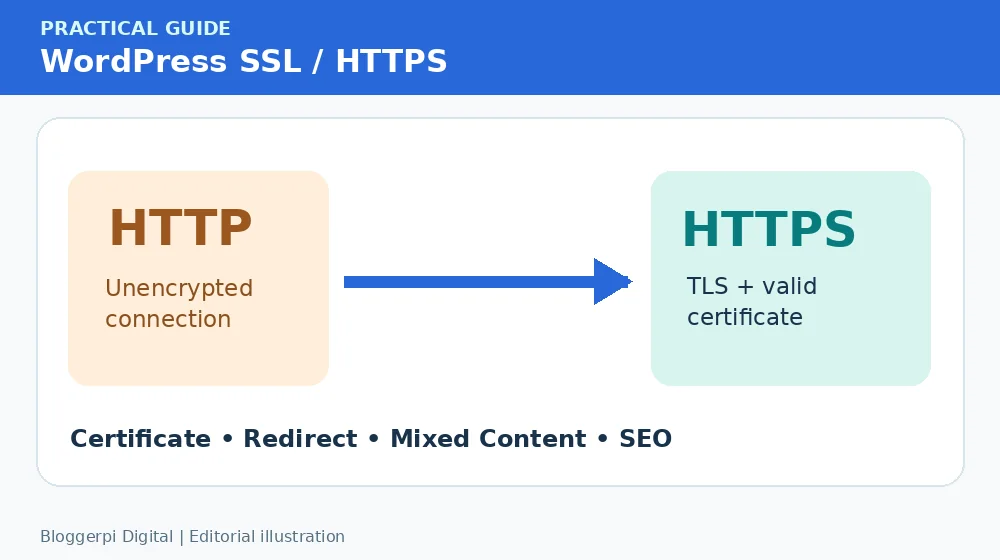
Enabling HTTPS on WordPress is not as simple as installing an SSL plugin or replacing http:// with https://. The process involves a trusted TLS certificate, server or CDN configuration, WordPress URLs, permanent redirects, resource loading, and technical SEO. If those parts disagree, visitors may encounter redirect loops, mixed-content warnings, or a locked-out administrator dashboard. This guide provides a practical plan for self-hosted WordPress sites, managed hosting, and Cloudflare configurations, with troubleshooting steps and checks to perform after an HTTP-to-HTTPS migration.
SSL, TLS, and HTTPS: what actually changes?
HTTPS is HTTP carried over an encrypted TLS connection. The industry still commonly calls the certificate an “SSL certificate,” but modern HTTPS uses TLS rather than obsolete SSL protocol versions. A trusted certificate proves certain details about control of the hostname and supports encrypted communication. Browsers verify the certificate chain and hostname before establishing a trusted HTTPS connection.
HTTPS protects data in transit, including login credentials and form submissions. It does not mean that the website’s content is accurate or that the server cannot be compromised. WordPress still requires updates, access controls, backups, and careful plugin management. For an extended discussion, see security practices for AI-managed WordPress sites. Avoid marketing claims that an SSL certificate makes a site completely hack-proof.
Before you begin: audit your hosting and domain
Record your preferred hostname, such as example.com or www.example.com, and confirm that DNS records point to the intended host. Determine whether traffic passes through a reverse proxy or Cloudflare CDN. Save working access to the hosting control panel, WordPress administrator, database backup, site files, and any relevant server configuration. On an established business site, arrange a low-risk deployment window and a recovery procedure.
Check whether your hosting provider already offers AutoSSL, Let’s Encrypt, or another certificate-management service. Some platforms provision and renew certificates automatically, so an extra WordPress plugin may be unnecessary. Review the distinction between WordPress Address and Site Address in our WordPress settings guide. Their values can differ on subdirectory installations, so copying one into the other without understanding the setup can cause access problems.
Step 1: obtain and validate a TLS certificate
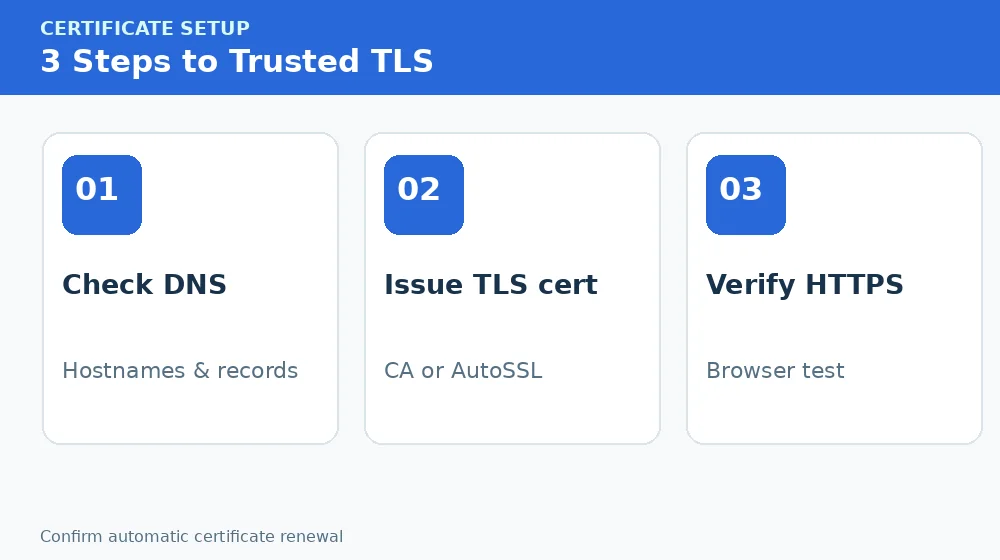
Open the hosting dashboard and find SSL/TLS, Security, or Certificates. Use its supported certificate issuance process for every hostname the site serves. If visitors access both the bare domain and www, verify that both are included in the certificate’s names. Certificate authorities may validate ownership through DNS or supported HTTP challenges; the host can provide the exact method.
After issuance, open https://example.com/ directly. Confirm that the browser loads the intended page without a certificate warning. Check the certificate’s hostname coverage, validity, and automatic renewal policy. Test a representative internal page, not only the homepage. Avoid forcing all HTTP traffic to HTTPS before you know the secure endpoint works correctly.
If issuance fails, inspect DNS, certificate challenge access, proxy behavior, and server configuration. A common source of confusion is the difference between a publicly trusted certificate for ordinary browsers and a Cloudflare Origin CA certificate designed for Cloudflare-to-origin connections. Choose the certificate type according to how traffic will reach the server.
Step 2: configure Cloudflare encryption correctly
When Cloudflare proxies the domain, it creates two separate connections: visitor to Cloudflare, and Cloudflare to the origin server. Full (strict) should be used when the origin presents a certificate Cloudflare accepts for strict validation. This may be a publicly trusted certificate or a supported Cloudflare Origin CA certificate. Full mode encrypts origin traffic but does not enforce the same strict origin certificate checks.
Flexible mode can connect from Cloudflare to the origin over plain HTTP. It is not an end-to-end encrypted configuration and can produce redirect loops if the origin itself redirects every HTTP request to HTTPS. For a new installation with control over the origin, configure the origin for HTTPS first, then use Full (strict) once its requirements are met. A complex multi-origin deployment may need additional planning.
If Cloudflare reports a 525 or 526 error, diagnose the connection between Cloudflare and the origin rather than assuming WordPress needs a plugin. A 526 often indicates that strict validation cannot accept the origin certificate. Repeated redirects may indicate conflicting rules across Cloudflare, the web server, and WordPress. Write down the current encryption mode and redirect rules before changing them.
Step 3: update WordPress site URLs safely
Once HTTPS works, open Settings → General and inspect WordPress Address (URL) and Site Address (URL). On a conventional site, both might need to change from http://example.com to https://example.com. But if the installation lives in a subdirectory, uses multisite, or has WP_HOME and WP_SITEURL constants in wp-config.php, the correct configuration differs. Preserve a rollback path before making changes.
After saving, check whether the administrator can still log in and whether logout, the REST API, media library, and public pages function. If you become locked out, use hosting-level access or an administrator to inspect configuration rather than repeatedly changing domain values from several places. Avoid combining the protocol switch with an unrelated WordPress theme migration because troubleshooting simultaneous changes is much harder.
Step 4: redirect HTTP URLs to their HTTPS equivalents
Once the secure version is healthy, configure permanent HTTP redirects—typically 301 or 308—from each old HTTP address to its corresponding HTTPS destination. Implement the rule at an appropriate layer, such as the origin web server, load balancer, or CDN. Avoid contradictory redirect rules in multiple layers that introduce chains or loops. Ideally, http://example.com/guide/ should go directly to https://example.com/guide/.
Test the homepage, older posts, service pages, categories, and important URLs containing query parameters. Confirm the destination serves the intended content and does not redirect through multiple hosts. If you are also changing URL paths or slugs, build a separate old-to-new mapping and follow our guide to safe WordPress permalink migrations. Redirecting all old pages to the homepage is usually a poor replacement for a one-to-one mapping.
Step 5: find and fix mixed content
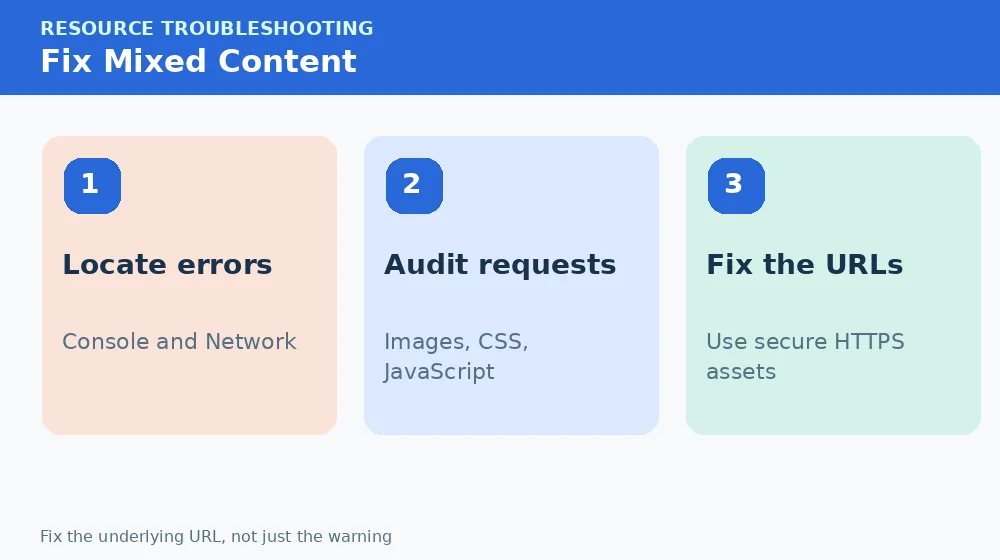
Mixed content occurs when a page itself loads through HTTPS but includes certain resources through HTTP. Browsers may block insecure active content such as scripts, while passive resources such as images can trigger warnings or be handled differently. Symptoms include missing fonts, broken images, inactive sliders, or a page that looks correct in the editor but not in a visitor’s browser.
Open the browser’s Developer Tools and inspect Console and Network. Identify each affected HTTP resource and determine who controls it. If a same-origin image, stylesheet, or script is also available securely, update the stored reference to the HTTPS URL. WordPress content can contain serialized values, so use a search-and-replace tool that understands serialized data rather than issuing a careless global SQL replacement. Back up first, and use dry-run mode where available.
Review older posts, Elementor templates, custom fields, embedded documents, external video players, inline CSS, and third-party fonts. Do not force third-party URLs to HTTPS if that service does not support it. An internal linking audit can help identify outdated links in article bodies, but image and script URLs need separate technical checks. Correct the actual source rather than covering up every error with a plugin setting.
Step 6: update canonical URLs, sitemaps, and search settings
Moving from HTTP to HTTPS changes URLs from a search engine’s point of view. The HTTPS page should normally have a canonical tag pointing to its intended final HTTPS URL. Update XML sitemaps, internal links, menu destinations, embedded resources, and language-specific annotations. HTTP versions should redirect permanently rather than competing as alternative indexable versions of the same content.
Google’s site-move guidance recommends stable permanent redirects, correct canonicals, and sitemaps with new URLs. Set up or review monitoring through Google Site Kit and Search Console if appropriate. Do not declare the migration complete merely because a browser no longer displays a security warning. Inspect indexing, crawl responses, and important inbound links over time.
Also inspect the HTML actually generated by your SEO plugin. SEO titles, meta descriptions, robots, Open Graph tags, and structured data should still be consistent after the change. Compare settings with the output of your WordPress SEO plugin and the broader WordPress SEO optimization process. Duplicate canonical generators will not fix incorrect URL settings.
Step 7: test the site as a real visitor
Open the website in a private browser session and on a mobile device. Test the homepage, one blog post, category archive, business page, contact form, and login. Navigate through the header and footer, submit representative forms safely, and check that no resource points to an inaccessible URL. Review WordPress navigation menus and sidebar and footer widgets because those areas sometimes retain hard-coded HTTP links from older configurations.
Check featured images, site icons, fonts, and CDN-served assets. A WordPress favicon may still appear outdated because of browser caching, even when the server now serves its secure URL correctly. Diagnose the specific cache layer when needed, rather than automatically clearing all caches across the site.
For multilingual websites, follow the language switcher in both directions. Both localized URLs should use HTTPS and retain the correct translated article. Indonesian links should not silently lead to unrelated English pages. The multilingual WordPress management guide describes why language relationships and canonical URLs require separate checks.
Production checklist for an HTTP-to-HTTPS migration
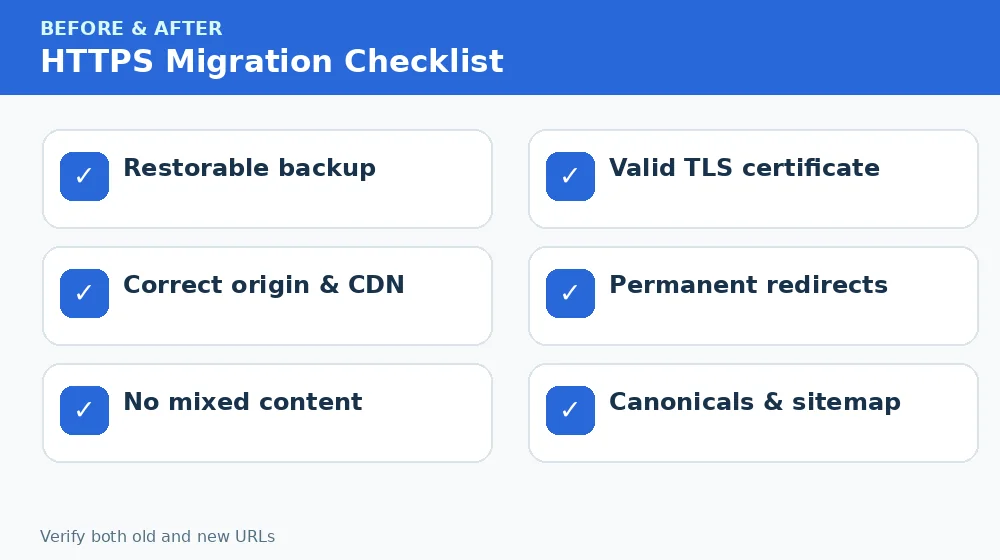
- Backups exist and there is a documented restoration path.
- The TLS certificate covers each hostname that will serve visitors.
- Certificate renewal and failure notifications are in place.
- The origin’s HTTPS endpoint works before redirects become mandatory.
- Cloudflare Full (strict) is enabled only when origin certificate requirements are met.
- WordPress Address and Site Address match the deployment architecture.
- HTTP requests redirect permanently to corresponding HTTPS URLs without loops.
- Images, fonts, CSS, JavaScript, and embeds no longer cause mixed content.
- Canonicals, XML sitemaps, language links, and internal links use final URLs.
- Login, contact/checkout forms, mobile layouts, and navigation have been tested.
- Search Console and relevant server logs are monitored after the change.
Troubleshooting common WordPress SSL problems
ERR_TOO_MANY_REDIRECTS: check whether the origin, CDN, and plugin each enforce different URL schemes. A Flexible Cloudflare configuration combined with HTTPS redirects at the origin is a common cause. Fix the conflicting layer rather than adding another redirect.
NET::ERR_CERT_COMMON_NAME_INVALID: the certificate may not cover the hostname requested, such as the www form. Check the certificate’s subject alternative names and virtual host setup.
Expired certificate: renew it or repair DNS and validation problems that blocked automatic renewal. Never instruct visitors to bypass certificate warnings.
Broken images after migration: inspect mixed content, CDN URLs, lazy-loading integrations, content security policy, and stored media references. Merely installing an HTTPS helper plugin may not identify the failing resource.
WordPress keeps using HTTP: check General settings, any WP_HOME or WP_SITEURL constants, admin SSL configuration, and the HTTPS headers forwarded by a reverse proxy. Incorrect forwarding can make WordPress believe visitors used HTTP.
Broken REST API or forms: inspect AJAX requests, login cookies, cross-origin rules, and any hard-coded URLs. Retest after each controlled fix.
Should you enable HSTS?
HTTP Strict Transport Security (HSTS) tells compatible browsers to prefer HTTPS for a domain during a defined period. It can be valuable once HTTPS is reliable, but it carries deployment risks when enabled too broadly. An aggressive includeSubDomains policy or preload enrollment can prevent users from accessing subdomains that are not ready for HTTPS. Do not submit a domain for preload merely because a checklist mentions it.
If your organization needs HSTS, start cautiously, inspect every affected hostname, and confirm reliable certificate renewal. HSTS does not replace a valid certificate, sensible redirects, user authentication, or server maintenance. For a small site that has just migrated, stable HTTPS should come before stricter policies.
Frequently asked questions about WordPress HTTPS
Do I need to purchase a paid SSL certificate?
Not necessarily. Free publicly trusted certificates, including those issued through Let’s Encrypt, can be appropriate for many websites. Commercial services may provide operational benefits depending on the organization, but payment does not automatically mean stronger HTTPS encryption.
Will an SSL plugin secure my entire WordPress site?
No. The certificate and HTTPS connection must be correctly configured at the relevant server or proxy. A plugin may help with redirects or stored URLs but cannot necessarily correct the origin’s certificate validation.
Should HTTP-to-HTTPS redirects use 301?
For a permanent move, suitable permanent response types include 301 or 308. The important requirement is that old addresses reach their equivalent final HTTPS content.
Does HTTPS guarantee higher Google rankings?
No. HTTPS is an important technical best practice, but it does not guarantee more traffic or a particular search ranking.
Can browsers trust a Cloudflare Origin CA certificate directly?
Origin CA certificates are designed for the Cloudflare-to-origin connection and are not necessarily trusted by browsers connecting directly to the origin. Choose the certificate according to the routing architecture.
How quickly does Google process an HTTPS migration?
There is no universal timeline. Monitor crawling and indexing in Search Console and keep redirects and canonicals consistent.
Official documentation and references
- WordPress Developer Handbook: HTTPS
- WordPress Developer Handbook: Migrating WordPress
- Google Search Central: Site moves with URL changes
- Cloudflare: SSL/TLS encryption modes
- Cloudflare: Troubleshooting redirect loops
- Google Search Central: Redirects and Google Search
- WordPress Developer Handbook: wp-config.php
Bottom line: reliable WordPress HTTPS requires a valid certificate, a correctly configured origin or CDN, permanent redirects, and mixed-content cleanup. Follow that work with a technical SEO and mobile usability review. For a production business site with multiple services or origins, record each configuration change and test representative URL types rather than making an unverified global switch.
