

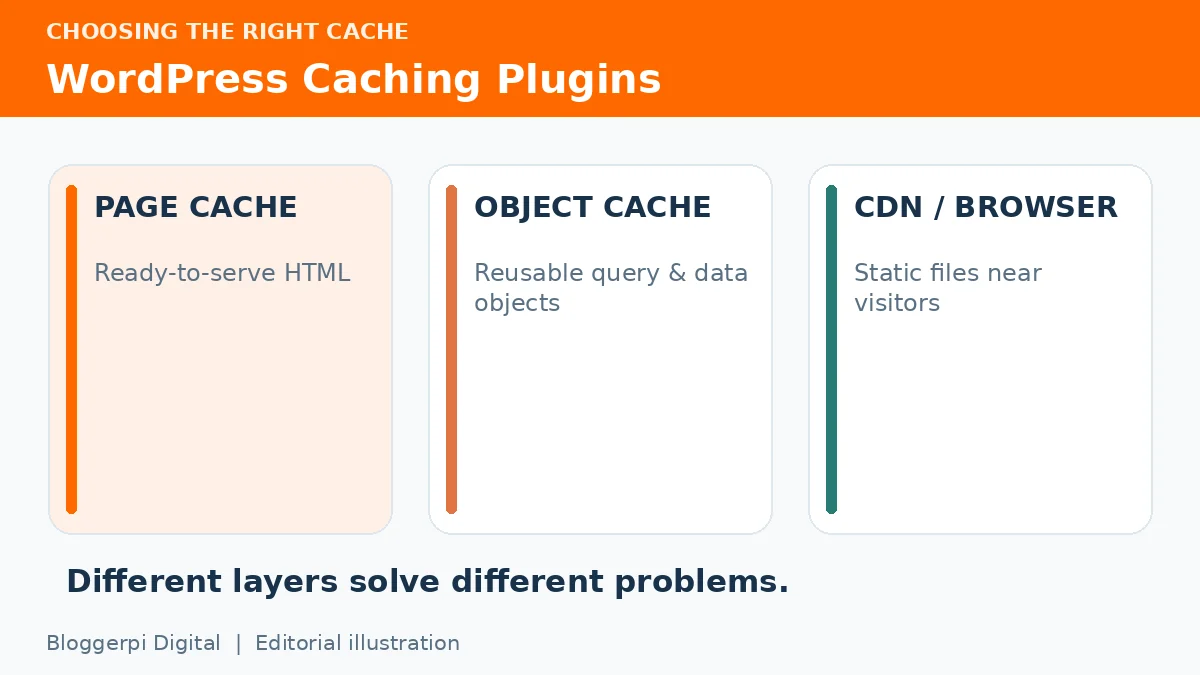
Choosing the best WordPress caching plugin requires more than comparing a checklist of popular settings. The useful choice depends on your hosting stack, the amount of dynamic content, the frequency of editorial updates, and whether a server or CDN is already caching pages. A site served through Nginx FastCGI Cache may not need another full-page caching plugin. Redis object caching can complement a page cache, but it solves a different problem. This guide compares WP Super Cache, W3 Total Cache, LiteSpeed Cache and WP Rocket, explains their limitations, and offers a safe implementation and verification process for real websites.
Understand the caching layers before selecting a plugin
A page cache stores an HTML response so WordPress does not have to rebuild the same public page with PHP and database queries on every request. An object cache stores reusable intermediate data and objects, helping code avoid certain repeated database work. Browser caching lets a visitor reuse static files, while a CDN can serve assets closer to the user. These layers can coexist, but they have different ownership, expiry and invalidation needs.
The distinction matters because a website can have a fast HTML cache and still experience a slow Largest Contentful Paint image. Conversely, a persistent object cache may reduce database work while each anonymous page request still needs the application to render HTML. Poor exclusions can be dangerous: a cart, account dashboard or session-specific page should not be presented from an unrestricted shared public cache. Before changing anything, review the existing essential WordPress settings and the host’s available performance services.
A realistic comparison of four WordPress caching options
WP Super Cache is designed around generating static HTML for anonymous visitors. W3 Total Cache offers broader controls and can be attractive to technical administrators. LiteSpeed Cache integrates tightly with the LiteSpeed server caching engine or another compatible caching service, so its server-level page cache cannot be assumed to work on an ordinary Nginx setup. WP Rocket provides commercial page caching and optimization features with guided documentation. These are workflow categories, not a guarantee that every feature is included in a given product edition.
Compare the plugin’s duties with functions already performed by your hosting provider, CDN, image optimizer and security stack. Multiple plugins attempting to control the same page cache can make debugging unnecessarily hard. Our WordPress plugin selection overview provides a wider context, while this article focuses on page cache behavior and production safety.
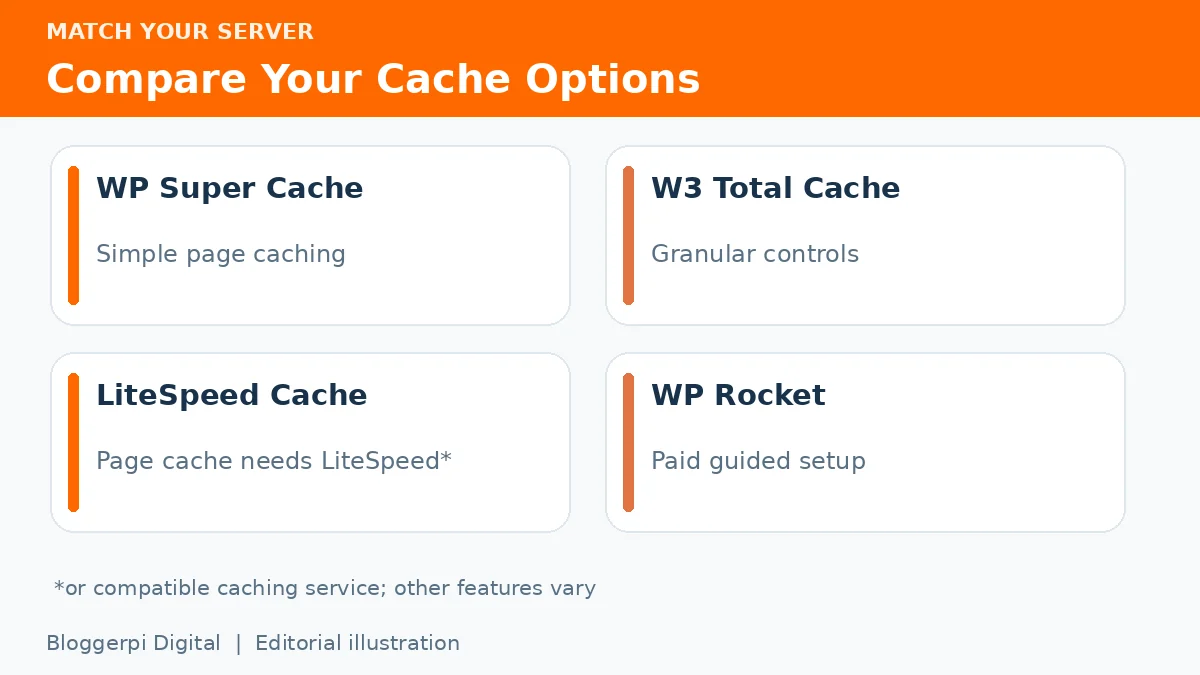
| Option | Primary emphasis | What to verify |
|---|---|---|
| WP Super Cache | Reusable static HTML | Page cache mode and purge |
| W3 Total Cache | Granular caching controls | Overlapping modules and CDN |
| LiteSpeed Cache | LiteSpeed server cache integration | Compatible web server or cache service |
| WP Rocket | Commercial page caching and optimization | Licensing and managed-host compatibility |
WP Super Cache: a straightforward public-page approach
WP Super Cache can generate HTML files for visitors who do not require personalized output. This makes it relevant to a tutorial blog, educational publication, or small company site that mostly serves the same content to every anonymous reader. The administrator still needs to enable the appropriate mode, test whether files are created correctly and verify that an updated article invalidates its previous cached representation. A plugin being activated in the dashboard is not evidence that the public server is using it.
Test the homepage, a new post, category archives and any page with a form. Account and login routes require careful handling. An Apache rewrite configuration should not be copied to Nginx without checking the target platform. If cached pages remain stale after an edit, locate the actual caching layer and invalidate the affected objects, rather than clearing unrelated caches repeatedly. The WordPress plugin installation guide describes basic precautions when introducing extensions to a live site.
W3 Total Cache: fine-grained controls require discipline
W3 Total Cache exposes different performance functions, potentially including page caching, browser caching, CDN integration and object-cache backends in supported configurations. This can be useful when an administrator wants detailed choices rather than one opinionated setup. It also means the plugin can be misconfigured: asset optimization may change how JavaScript executes, or an unnecessary cache layer may duplicate a mechanism already owned by Nginx, LiteSpeed, the host or a CDN.
Begin with the current server configuration and a list of features you actually need. Enable and verify one change at a time, keeping a rollback procedure. Do not simultaneously change the theme, permalink structure, caching and JavaScript loading if you want meaningful evidence about which adjustment caused a regression. If the layout changes, use the debugging approach from our safe WordPress theme-change guide to isolate frontend resource issues.
LiteSpeed Cache: confirm server requirements
LiteSpeed Cache for WordPress can integrate WordPress events with the server-level LSCache engine. Full advantage of its characteristic page-cache behavior depends on LiteSpeed/OpenLiteSpeed or another supported compatible service, as explained in the vendor documentation. Merely activating the plugin on Nginx does not create a LiteSpeed page cache on that server. Individual optimization functions may have different requirements, so separate the question of page caching from other image, CSS or CDN capabilities.
On a LiteSpeed host, the plugin can be a sensible option because the application can notify the relevant cache engine when content changes. If a WordPress site already runs reliably with Nginx FastCGI Cache, however, migrating the entire stack to use a fashionable plugin may create more operational risk than value. Compare maintenance responsibilities, costs, failure modes and backup provisions. The managed WordPress hosting comparison is a useful framework for distinguishing hosting services from WordPress-level plugins.
WP Rocket: consider support, convenience and cost
WP Rocket is a commercial caching plugin that provides a managed configuration experience and documented page caching behavior. Its appeal to a small team may be reducing the number of technical decisions required to operate common performance features. Nevertheless, some managed hosts already provide their own page cache and may modify or disable overlapping WP Rocket functionality. Confirm hosting compatibility and current licensing before subscribing.
Evaluate whether the subscription saves enough support time or provides a capability your infrastructure lacks. Avoid making a decision from a third-party before-and-after PageSpeed screenshot, because the measured outcome can vary with test location, cold or warm cache, network conditions, advertising scripts and page content. Identify whether your real bottleneck is response generation, render-blocking CSS, large images or JavaScript. Those problems do not all have the same remedy.
When the hosting provider already caches HTML
Nginx FastCGI Cache, Varnish and managed hosting cache services can serve public pages directly from an upstream layer. If that system is already healthy and aware of WordPress content updates, adding another independent page cache may only complicate invalidation and troubleshooting. Define one primary owner for cached HTML and document the role of other layers. A CDN may cache assets by default but may not cache arbitrary WordPress HTML without explicit rules, so do not assume every CDN configuration works the same way.
Check cache variation by cookie, language, protocol and login state. Examine whether URLs that contain a checkout session or private user content are excluded. The same caution applies to Cloudflare rules that cache entire HTML pages. Verify the HTTPS configuration and correct redirects using our WordPress SSL and HTTPS guide. If you change an old URL, update redirect maps and canonical tags before assuming a stale cache is the cause of every mismatch.
Object caching with Redis or Memcached is a separate choice
Redis and Memcached typically serve as persistent object cache backends for WordPress through an appropriate integration and drop-in. They can hold reusable data between requests, reducing database round trips under the right workload. They are not interchangeable with a saved HTML response. A site may use Nginx page caching for anonymous visits and Redis to support uncached admin activity and application operations. The benefits depend on the site’s queries, object churn, memory limits and implementation.
Read our Memcached setup for Control Web Panel for a related example of server, PHP client, WordPress object-cache integration and security checks. This article’s original draft included Redis Object Cache and Object Cache 4 Everyone as references. Those products illustrate the object-cache category rather than being direct full-page cache alternatives. WordPress normally loads one object-cache.php drop-in; enabling competing implementations can cause conflicts or unpredictable behavior.
Which approach fits your site type?
A simple blog benefits from a reliable public HTML cache and correct invalidation when posts are edited. A professional services website needs navigation, forms and calls to action to remain functional. Test navigation menus and sidebar and footer widgets after enabling asset optimizations. A membership platform has authenticated responses that should not be treated as anonymous public content. A WooCommerce store requires documented exclusions for cart, checkout and account sessions.
Large news and content sites may need an intentional combination of page caching, a persistent object cache, a CDN and monitoring. Yet excessive purging can create a thundering herd of uncached requests. Measure which layers are effective and which need a targeted purge after an editorial update. For multilingual sites, confirm that Indonesian pages and English pages do not share a cache key in a way that returns the wrong language.
A safe installation and rollback workflow
Start by inventorying existing hosting cache, plugins, CDN behavior and dynamic routes. Record an initial benchmark using representative URLs, not only the homepage. Prepare a restorable backup and preferably a staging test. Select a primary page-cache solution, configure exclusions, and preserve a written rollback plan. Introduce only the functionality that is required, test after every change, and document which layer is responsible for invalidation when an article is published.
Avoid combining a permalink migration with new caching rules and a frontend redesign. If URLs change, follow our safe WordPress permalink migration guide and update internal links to final destinations. Check WordPress settings for the public indexability configuration. For client work, arrange a deployment window when someone can monitor logs and undo a failing change quickly.
How to verify cache hits and misses
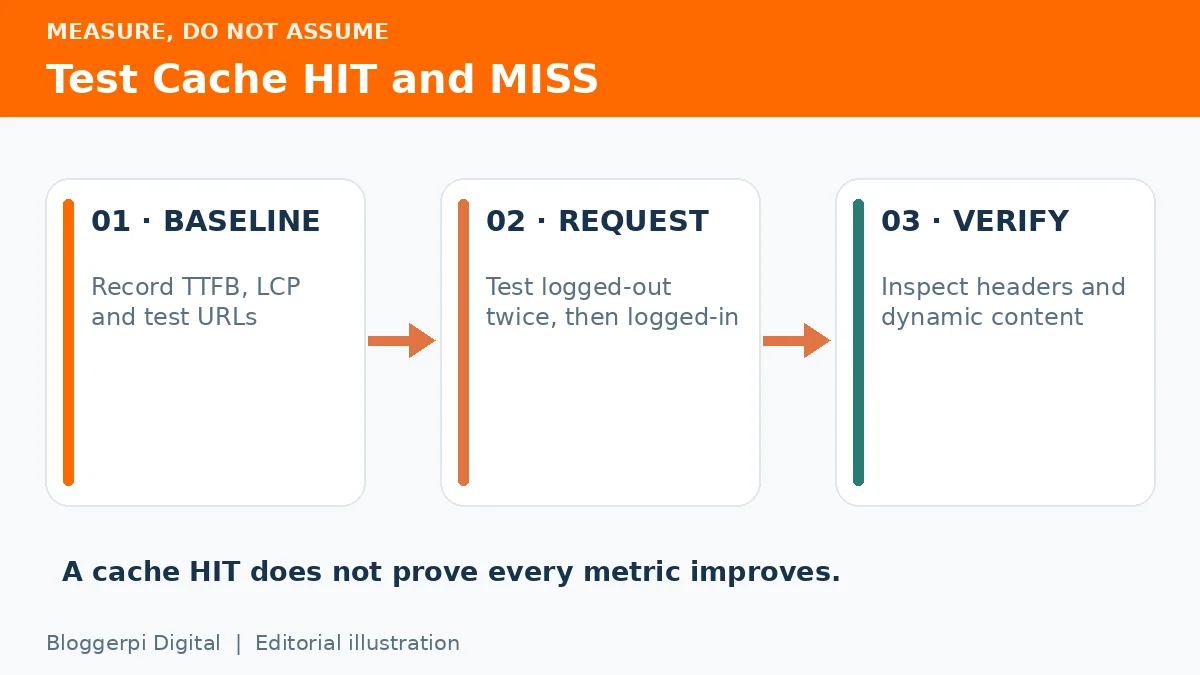
Use a private browsing session for a public page, measure initial TTFB and repeat the request to compare cold and warm responses. If available, inspect a cache status header such as HIT or MISS; different vendors may expose different names, and the absence of a particular header is not conclusive. Confirm the actual content is current after editing a post. Capture information about test URLs, cache state, login status and timestamp so results can be reproduced later.
Then test as a logged-in user and visit personalized routes. User accounts, forms and shopping pages should behave correctly and not leak data across sessions. Repeat tests on the homepage and category archives after publication. For longer-term measurements, connect relevant reports using Google Site Kit, GA4 and Search Console but distinguish server-side cache response metrics from search analytics or lab performance scores.
Why cache hits do not guarantee great Core Web Vitals
Serving cached HTML can reduce server computation and improve response time, but LCP depends on the timing of the main image, CSS, fonts and rendering. INP reflects how promptly a page responds to interactions, while CLS concerns visual stability. A site could have a fast cache hit and still be difficult to use because the main hero image is oversized or a script blocks interaction. The entire rendering path matters.
Check the built-in versus plugin lazy loading discussion before adding a third-party optimizer, especially for above-the-fold images that should not be deferred. Review the generated metadata from WordPress SEO plugins as stale caching can serve old titles and canonical tags. The presence of one page cache does not remove the need for a thoughtful SEO and accessibility audit.
Troubleshooting caching conflicts
If visitors see old content, inspect the plugin cache, server cache and CDN in sequence. If mobile layout breaks after asset optimization, disable one suspect option and inspect failed network requests and browser console messages. If logins or checkout routes malfunction, prioritize session isolation and correct cache exclusions rather than performance metrics. A 502 Bad Gateway troubleshooting guide can help distinguish PHP-FPM or upstream server failures from stale cached HTML.
If HTTPS redirects or domain migration rules recently changed, also verify the final canonical URL and the appropriate protocol. A cache purge is not a substitute for fixing a redirect loop. Keep a change log, repeat the logged-in and logged-out tests, and compare the behavior on both mobile and desktop. Resist the urge to enable every available optimization without a clear performance goal.
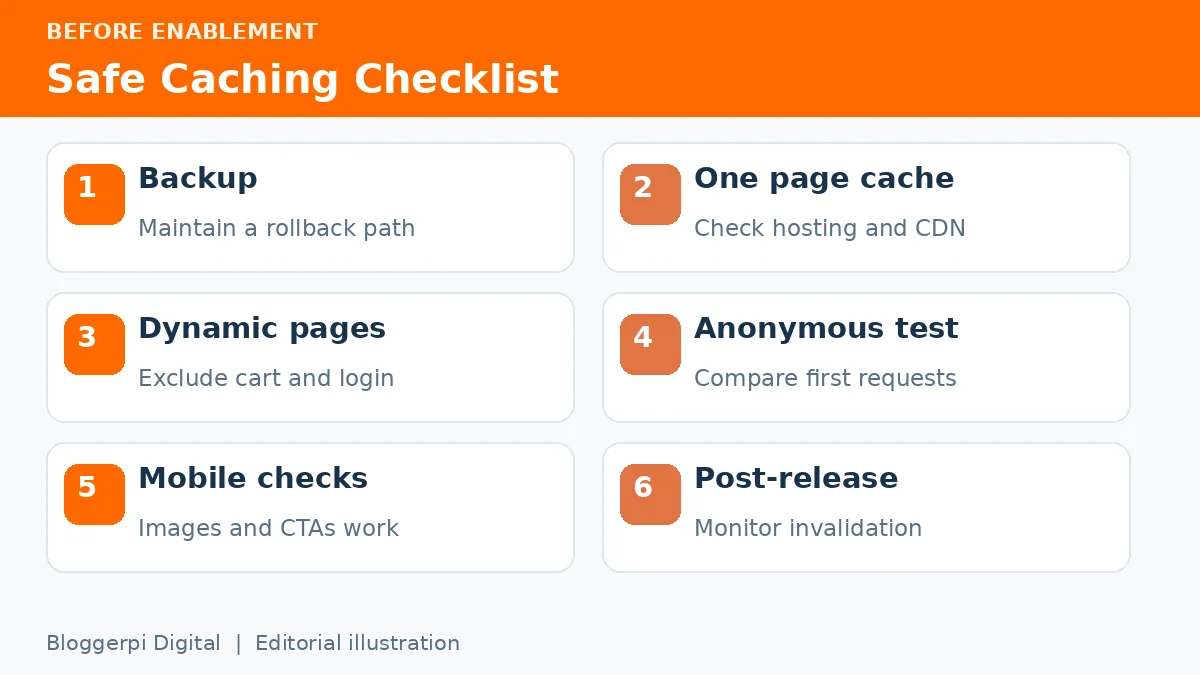
Six checks before declaring the cache configuration ready
Confirm that the backup and rollback work, the primary page cache is identified, and dynamic paths have explicit handling. Compare anonymous first and repeat requests and verify that logged-in users see the correct state. Inspect images, forms, menus and calls to action on a narrow phone screen. Monitor updates, purges and server logs after launch. Recheck these conditions when a major plugin, theme or hosting configuration changes.
Frequently asked questions
Does every WordPress site need a caching plugin?
No. Hosting may already serve page caches effectively; audit the existing system before adding another plugin.
Can WP Rocket and LiteSpeed Cache run together?
Avoid two overlapping owners of the page cache without a documented design. Verify exactly which features are active.
Is Redis the same as a page cache?
No. Redis often provides persistent object caching, while a page cache reuses HTML responses.
Does a cache HIT guarantee improved search rankings?
No. It describes cache behavior, not a Google ranking score or complete user-experience measurement.
What is best for Nginx WordPress hosting?
A correctly configured Nginx FastCGI Cache may be enough; use plugins only for remaining requirements.
Official documentation and sources
- WordPress Handbook: Cache
- WP Super Cache
- W3 Total Cache
- LiteSpeed Cache
- LiteSpeed server requirements FAQ
- WP Rocket Page Caching
- Redis Object Cache
- Object Cache 4 Everyone (original draft reference)
- WordPress Nginx configuration
Bottom line: the best caching plugin is the one that fits your hosting architecture, visitor types and maintenance capacity. Assign clear ownership to each cache layer, keep private content out of shared HTML caches, and measure real outcomes before claiming success. A reliable, documented configuration usually provides more lasting value than a collection of overlapping performance plugins.
